Account Settings
Your name, sign-in email, password, two-factor authentication, passkeys, sessions, devices, notifications, and how to delete the account.
Every control on this page is reached the same way: click your avatar in the top-right corner of any Pulse page, then Settings. That opens on Account → Profile.
If you're part of a team, the same menu has a Team settings entry that goes somewhere else entirely — Team → General, your team's members and billing. If you work alone, there's no Team settings entry in the menu at all: Billing, API Keys, MCP, and an Invite people row (the way to start a team) sit under Account in Settings instead. Either way, that's Team management and Billing's job, not this page's.
In a team, there are five tabs under Account, in this order: Profile, Security, Devices, Notifications, and Security alerts — the rest of your settings live under Team instead. Working alone, the same five tabs are followed by four more, in the same section: Billing, API Keys, MCP, and Invite people.
Profile
Two independent things live here: how your name shows up, and the address you sign in with.
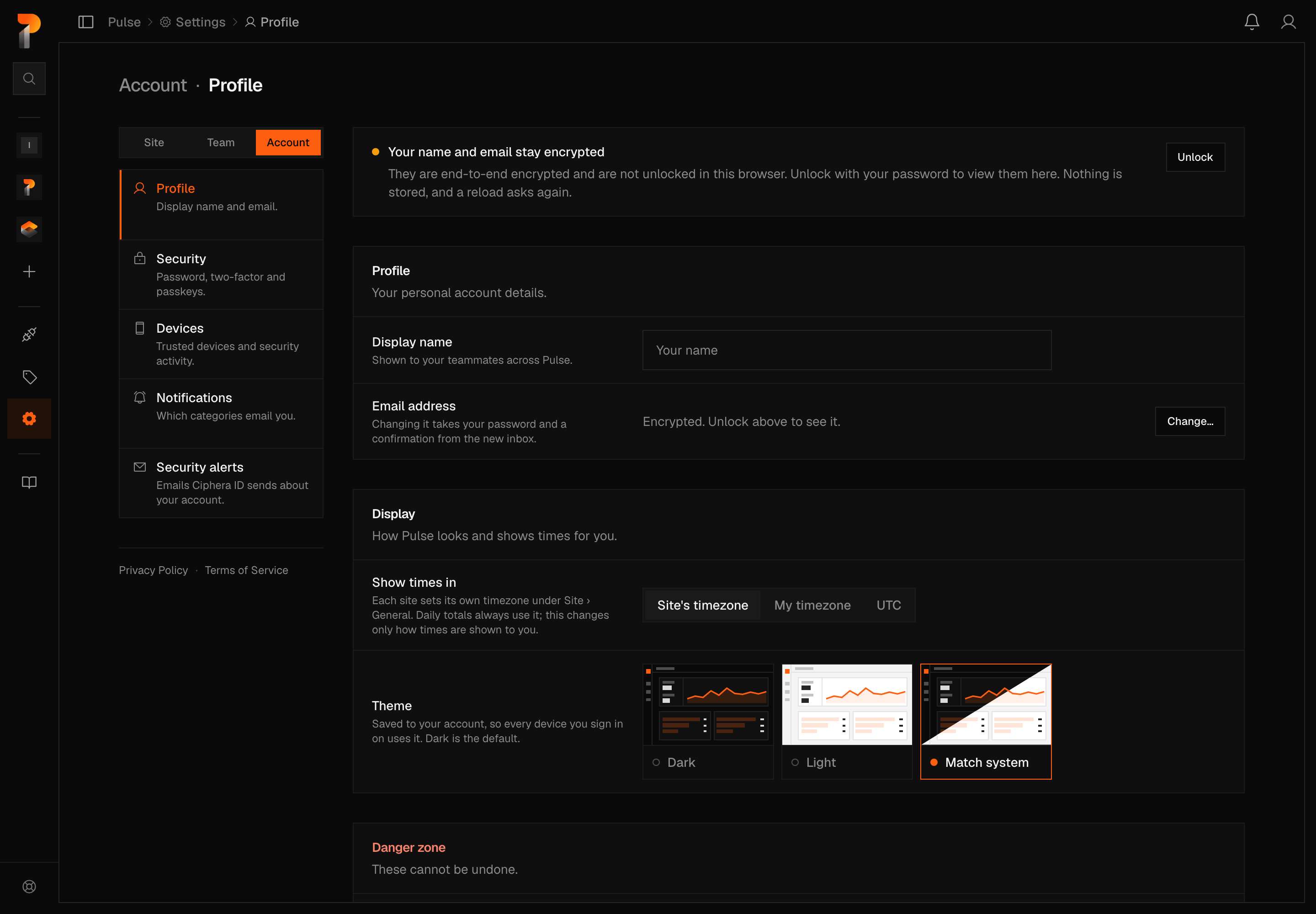
Display name
Display name is a plain text field (placeholder "Your name", 100 characters max). Type a new one and a Save changes bar appears at the bottom of the page, Discard beside it. Saving re-seals the same encrypted vault the Email address field below unlocks, so it needs a vault key already held in this browser — usually already true, because signing in collects one quietly in the background. When it isn't, saving fails with a message telling you to unlock your profile first, using the same unlock described next for the email field.
Email address
Changing your sign-in email starts from behind a lock, because Pulse never stores a name or email it could actually read — both live only inside a vault encrypted by your password, opened only in your own browser. Locked, the Email address field shows "Encrypted — unlock above, or type a new address" instead of your current one, under a banner reading "Your name and email stay encrypted" with an Unlock button. Unlocking asks for your password and decrypts both fields for this browser only; reload the page and it asks again, unless this device already has your vault key saved — then you'll see "Unlocked on this device" and a Lock link to undo it.
To request the change, type the new address (placeholder you@example.com),
enter Your password, and click Send confirmation link — Cancel
backs out of the form instead. Nothing about the account moves yet. Pulse
mails a confirmation link to the new address, and opening it is what
actually makes the switch; the old address gets a heads-up at the same
moment, with a way to object if you didn't ask for this.
While a link is waiting to be opened, the row becomes an amber-dot ledger —
"Confirmation sent to <address>," "A confirmation link is waiting in your
new inbox," and an expiry countdown — with Cancel request and
Resend link underneath it.
Note
If sending the confirmation email gets throttled, Pulse's guidance is just to wait a minute and try again — no specific window or attempt count is shown anywhere in the product. The same message can turn up wherever Pulse asks you to prove your password live, including the confirmation step below when you delete your account.
Display
The Display panel holds two choices about how Pulse looks to you. Both are saved to your account, not to the browser, so they follow you to every device you sign in on.
Show times in picks the clock that times of day are shown on: Site's timezone (the default), My timezone (whatever your device is set to), or UTC. It changes only how times of day are displayed, such as when an uptime check ran or when a visitor was last seen. Daily totals always use the site's own timezone, which each site sets under Site settings.
Theme switches Pulse between three looks, each shown as a small preview of the dashboard:
- Dark: the default.
- Light: a light grey page with white panels.
- Match system: follows your device's light or dark setting, and switches when the device does. Each device decides on its own, so a laptop in dark mode and a phone in light mode can show different themes from one setting.
Your choice applies as soon as you click it. You can also change it without opening Settings: the account menu (the person icon, top right) has a Theme row with the same three options as icons. Hover an icon to see its name.
The theme covers the dashboard and your settings. Pulse's public pages, such as pricing and features, stay dark.
If the change can't be saved, Pulse says "Couldn't save your theme. Nothing changed." and puts the previous theme back.
Deleting your account
The Danger Zone sits at the bottom of this tab, not on a tab of its own. Click Delete and a confirmation panel expands in place, spelling out what you're about to lose before it asks you for anything.
Warning
Deleting your account cannot be undone. It destroys your entire Ciphera ID: every active session and trusted device, and — unless you're working alone — your membership in each team you belong to. Any team you solely own goes with it too, once you explicitly agree to take it with you: its sites, everything they've collected, and its subscription. Working alone, that's simply your own sites and plan — there's no separate team membership to lose, since your one team has no one else in it.
A team with another admin in it is never pulled in this way. Deletion is blocked until ownership is transferred or the team is deleted on its own — see Team management for that.
On the identity side this is a real point of no return: the account row is deleted and its sensitive columns are cryptographically scrubbed. The same pass erases your team memberships, your notification preferences and history, and any plaintext email reference Pulse itself held, then removes your address from the mail system.
Confirming needs Your password — a fresh, live check against your real password, proved on the spot; a wrong one fails with no deletion and nothing issued — plus typing the literal word DELETE into a second field. Delete account stays disabled until both are right.
If you solely own one or more teams, the panel lists each one by name, site count, domains, and subscription plan before letting you continue. Working alone, it lists your own sites and plan the same way, with no team name attached — it's already yours. Either way the server checks that same list again at the moment of deletion, so anything created after opening the panel is refused rather than swept in quietly.
Security
This tab holds five things, top to bottom: two-factor authentication, recovery codes, passkeys, your password, and active sessions. Pulse adds a sixth card of its own underneath all of it: account recovery.
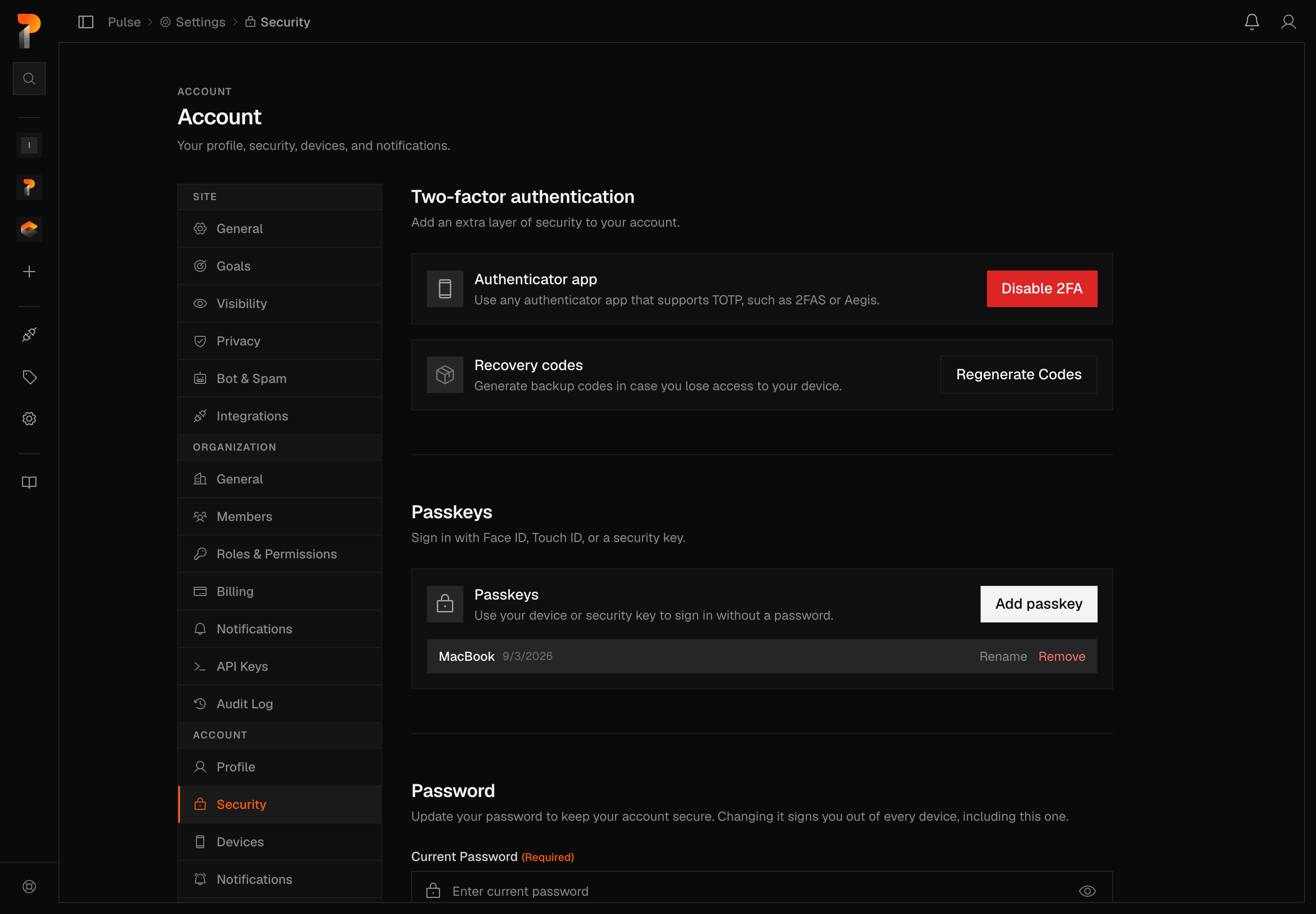
Two-factor authentication
Enable 2FA shows a QR code, the same secret spelled out for manual entry, and a field for the 6-digit code your authenticator produces — enter one correctly and it's on. Disable 2FA asks for your password and a live code, but the password isn't actually checked — only the code decides the outcome, and a recovery code works in its place if you no longer have the authenticator.
Warning
Turning 2FA off removes it from every future sign-in, immediately. It's reversible — enabling it again issues a fresh secret and a fresh set of recovery codes — but until you do, sign-in checks your password alone.
Recovery codes
Regenerate Codes replaces the one-time codes that stand in for your authenticator when you don't have it to hand. The dialog asks for your password too, but as with disabling 2FA, the password isn't what authorizes it — only the authenticator code is checked.
Warning
Regenerating recovery codes invalidates every code you already hold, the instant the new set exists. There's no getting the old ones back — only the new list works from then on.
Passkeys
Add passkey enrols a hardware key, your phone, or your OS's own passkey store. An account holds one at most — a second is refused outright. Each enrolled passkey gets its own Rename and Remove.
Warning
Removing your passkey removes passwordless sign-in until you add another. Because the cap is one, taking out your only passkey isn't a pause — a new one afterward is a fresh enrollment, not a restore of what you removed. The click itself asks for nothing further: no password, no 2FA step.
Password
Update Password takes Current Password, New Password, and Confirm New Password. Pulse says outright what happens next: changing your password "signs you out of every device, including this one."
Warning
A password change revokes every session on the account the moment it succeeds — the one you used to submit the form included. You land back at sign-in and log in again with the new password; the sign-out itself can't be undone.
Active sessions
Every session on the account is listed here: a device or browser description Pulse computes server-side, when it signed in, when it expires, and a Current Session badge on the one you're using right now. Every other row carries a Revoke button.
Warning
Revoking a session signs that device out immediately. Nothing else on the account is touched, and the device can simply sign in again — there's no dialog beyond the click itself.
Note
Ciphera ID issues sessions for more than Pulse — id.ciphera.net is a separate app on the same account, and this list isn't filtered to Pulse's own. A session opened by signing in directly at id.ciphera.net, or in any other Ciphera product on the same account, shows up here too, alongside your Pulse sessions, with nothing on the row saying which app it came from.
Account recovery
This card is Pulse's own, sitting below the Security tab's other rows. A 24-word recovery phrase is the only way back into a zero-knowledge account if you forget your password — Ciphera has nothing to reset, because it never held anything a reset could use.
Set up recovery (or Replace phrase, once one already exists) opens a dialog titled Set up account recovery, asking for your Sign-in email and Password. Submit and Pulse shows the 24 words exactly once, with a checkbox confirming you've saved them before Create my recovery phrase goes through.
Warning
Setting up a recovery phrase immediately invalidates any earlier one. There's no going back to a phrase you've replaced — write the new one down before you confirm, because the screen showing it doesn't come back.
Redeeming a phrase — actually regaining access once you've forgotten your
password — happens at id.ciphera.net/recover, signed out, outside Pulse
entirely. You can't reach Pulse Settings if you can't sign in, so that flow
isn't covered here.
Devices
Two lists live on this tab, and neither is the Active sessions list above — a device being "trusted" and a device being "signed in" are different facts.
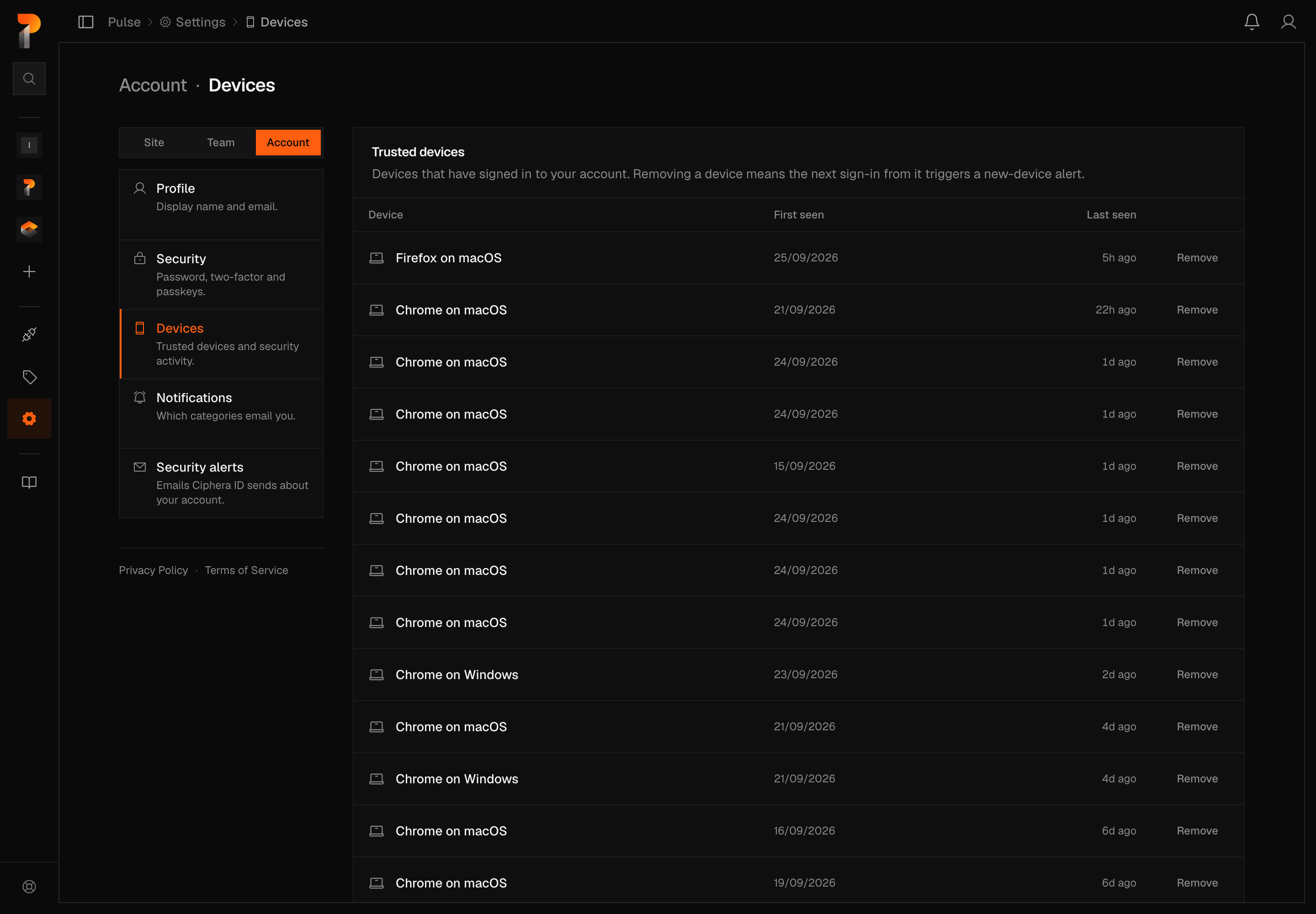
Trusted devices
Pulse recognises a device by an IP-derived fingerprint the first time it signs in and verifies, and lists it here with First seen and Last seen dates. The device you're using right now can't be removed from this list.
Warning
Removing a trusted device doesn't end any session. All it does is forget that the device was seen before — its next sign-in will trigger a new-device security alert email, the same as any device Pulse has never met. Nothing is lost that a normal sign-in doesn't put back: the device is simply trusted again once it verifies.
The confirm dialog says exactly that: "Remove device" / "A new sign-in from this device will trigger a security alert."
Security activity
A read-only, paginated log of security events on the account — Event, Details, When — grouped by day, with Load more underneath. Sign-ins, failed sign-ins, password changes, 2FA turned on or off, recovery codes regenerated, and the account being deleted all show up here. There's nothing to configure on this list; it's a record, not a setting.
Notifications
This tab is for Pulse's own notification emails, a different thing from Security alerts next to it, which belongs to Ciphera ID. It holds one panel: the same per-category email switches covered in Notifications. There's nothing else on this tab.
Security alerts
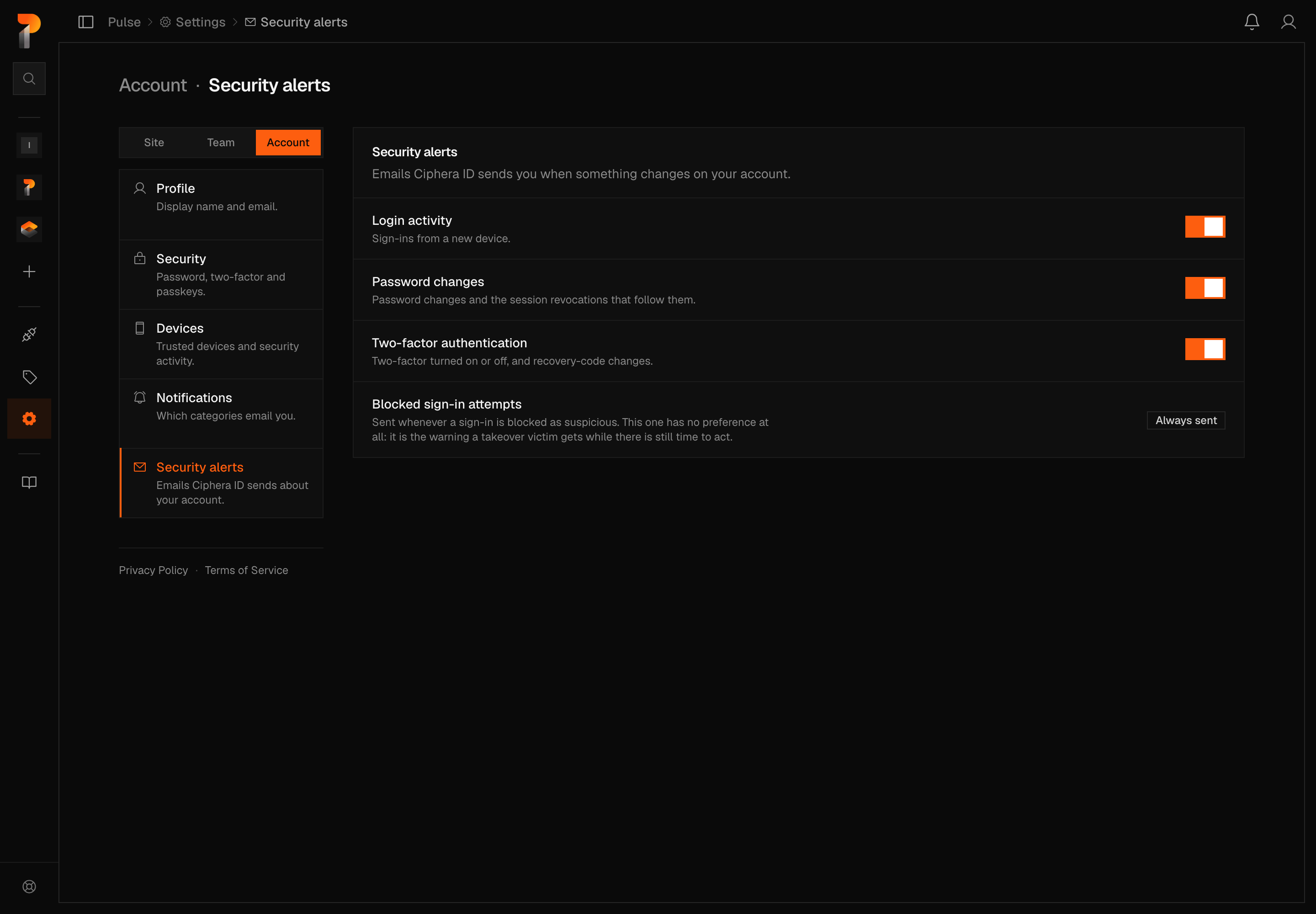
A small, separate surface: three toggles for the account-level emails Ciphera ID itself sends, distinct from everything on the Notifications tab above.
| Toggle | Sends when |
|---|---|
| Login activity | Sign-ins from a new device |
| Password changes | Password changes, and the session revocations that follow them |
| Two-factor authentication | Two-factor is turned on or off, or your recovery codes change |
All three default on — this is an opt-out list, not an opt-in one.
A fourth alert has no toggle at all: Blocked sign-in attempts shows as a read-only row with an Always sent chip, because Ciphera ID fires it unconditionally, with no per-user setting standing in the way.