Filtering
Filter your Pulse dashboard by any dimension — pages, countries, browsers, UTMs, and more.
Filters let you drill into a specific segment of your traffic without leaving the dashboard. All panels, KPI cards, and the chart update in real time as you apply filters.
Applying a filter
The fastest way to filter is to click any row in a dashboard panel. Clicking a country in the Audience panel, for example, immediately filters the entire dashboard to that country.
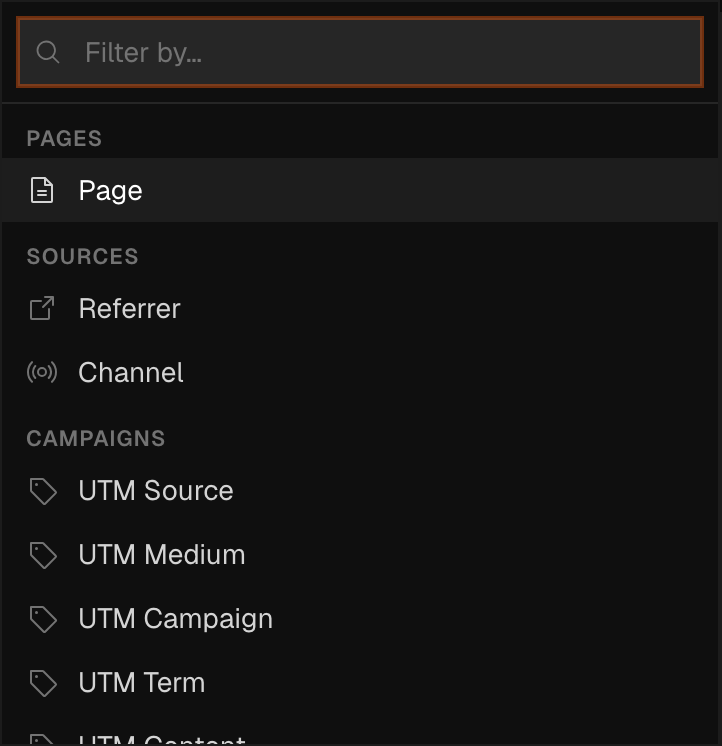
To build a filter manually, open the filter bar above the chart and select a dimension.
Available dimensions
| Dimension | Filters on |
|---|---|
page | URL path of the page |
referrer | Referring domain |
channel | Traffic channel (organic search, paid social, email, and so on) |
utm_source | UTM source parameter |
utm_medium | UTM medium parameter |
utm_campaign | UTM campaign parameter |
utm_term | UTM term parameter |
utm_content | UTM content parameter |
browser | Browser name |
os | Operating system |
device | Device type (desktop, mobile, tablet) |
screen_resolution | Screen resolution |
country | Visitor country |
region | Visitor region / state |
city | Visitor city |
event_name | Custom event name |
language and timezone are filterable too, but only by clicking a row in the Audience panel's Languages or Timezones tab — the manual filter bar above doesn't offer them as a dimension to select.
Operators
Each filter supports four operators:
| Operator | Meaning |
|---|---|
is | Exact match |
is_not | Exclude exact match |
contains | Substring match |
not_contains | Exclude substring match |
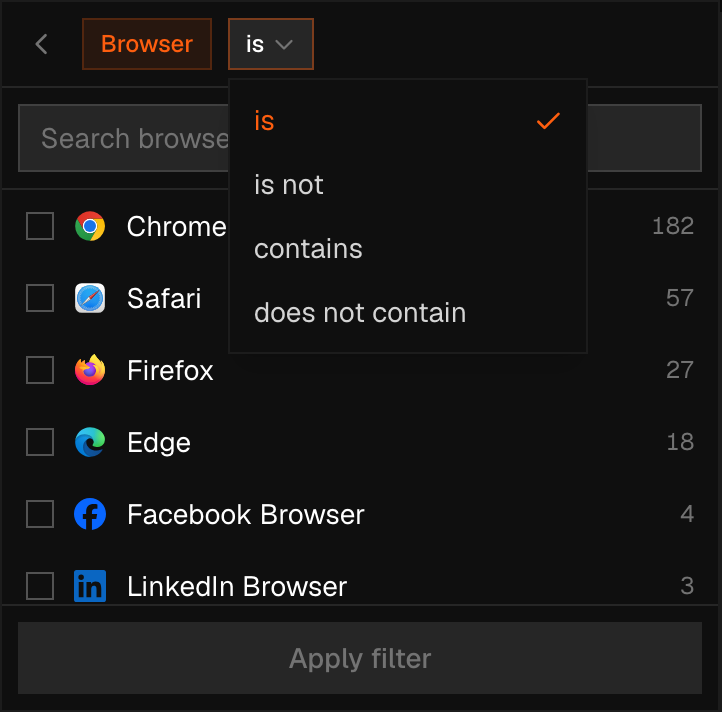
To match multiple values with a single filter, select more than one value in the picker — checking both google and bing under referrer with is matches traffic from either domain.
Stacking filters
Multiple filters can be active at once and stack with AND logic — a visitor must satisfy all of them to appear in the results.
Note
Active filters are serialised into the URL as query parameters. Copy the URL to share a pre-filtered view with a teammate or embed it in a report.
Clearing filters
Click a filter chip's label to reopen it for editing, or click the × to remove it. Clear all appears once more than one filter is active, and resets the dashboard to its unfiltered state.
Warning
Shared dashboard links don't support filtering. A visitor viewing a shared link sees the dashboard exactly as published — filtering is only available to you and your team, signed in.
