Google Search Console
Connect Google Search Console to see search queries, impressions, CTR, and position data alongside your Pulse Analytics data.
Connecting Search Console brings organic search data directly into Pulse so you can see what people search before landing on your site — without leaving the dashboard.
Connect Search Console
Go to Settings → Integrations → Google Search Console and click Connect with Google. You will be redirected to Google's OAuth flow, requesting the webmasters.readonly scope plus email (used only to show which Google account is connected) — Pulse can read your Search Console data but cannot modify anything. Once you authorize, Pulse matches a property in your Google account to your site's domain automatically; if none matches, the connection fails and tells you no matching property was found.
OAuth tokens are encrypted at rest using AES-256-GCM. Pulse syncs data automatically every 6 hours.
Note
You must be a verified owner or full user of the Search Console property you want to connect. Restricted users do not have API access.
Search performance dashboard
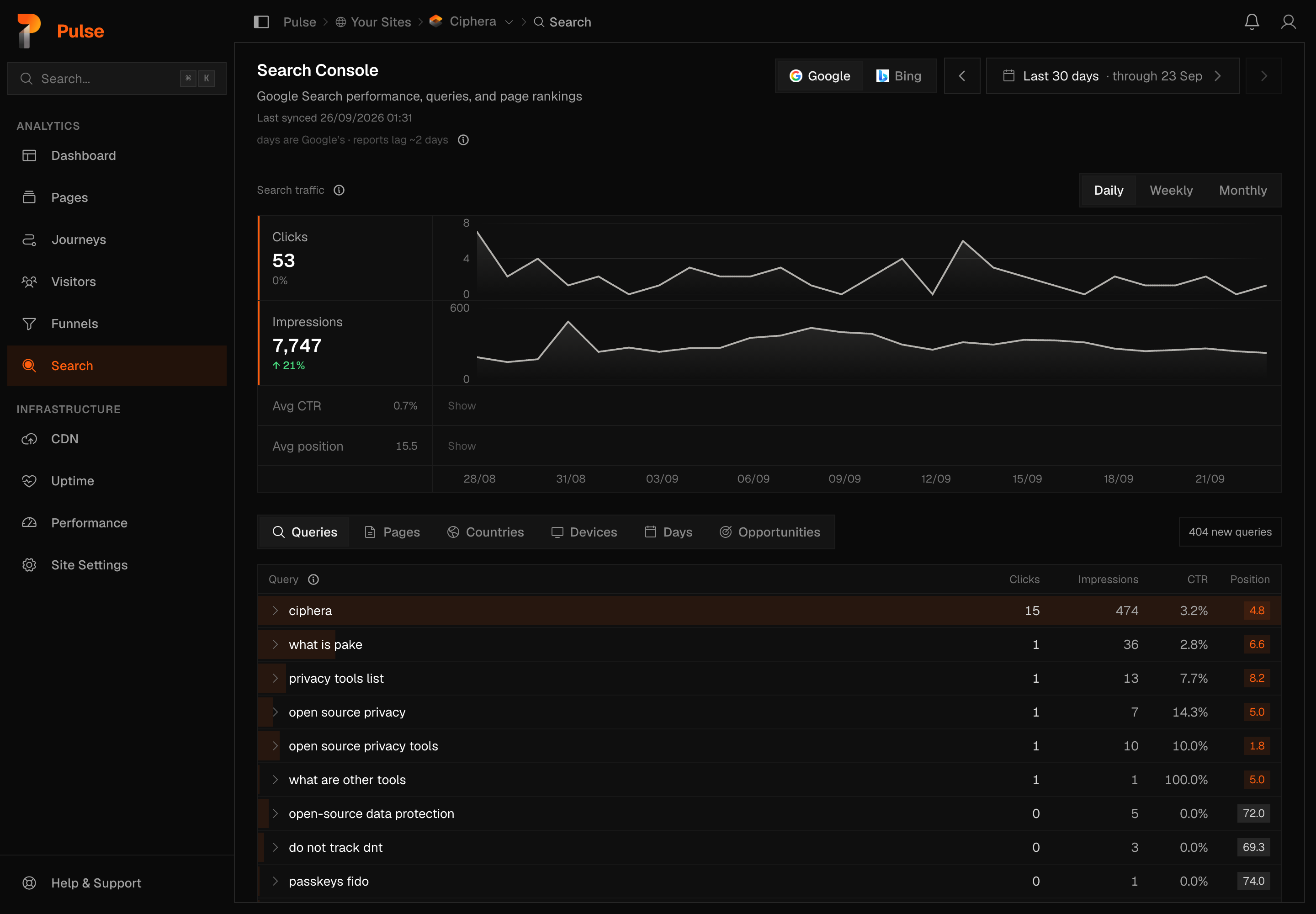
Once connected, visit /sites/{id}/search to see the full search report.
Overview cards at the top show totals for the selected period with a delta against the prior equivalent period:
| Card | What it shows |
|---|---|
| Clicks | Total clicks from Google Search |
| Impressions | Times your pages appeared in results |
| Avg CTR | Click-through rate |
| Avg position | Mean ranking position across all queries |
A clicks and impressions trend chart sits below the cards.
Top queries
A table of the search queries driving traffic to your site:
| Column | Description |
|---|---|
| Query | The search term |
| Clicks | Clicks from this query |
| Impressions | Times it appeared in results |
| CTR | Click-through rate |
| Position | Average ranking position |
Expand any query row to see which pages it lands on.
Top pages
The same breakdown inverted — pages first, expandable to show the queries driving traffic to each page.
Countries and Devices
Two more tabs in the same segmented control: Countries lists each country's flag and name, Devices breaks results into desktop, mobile, and tablet. Both carry the same clicks, impressions, CTR, and position columns as Top queries.
Date presets and pagination
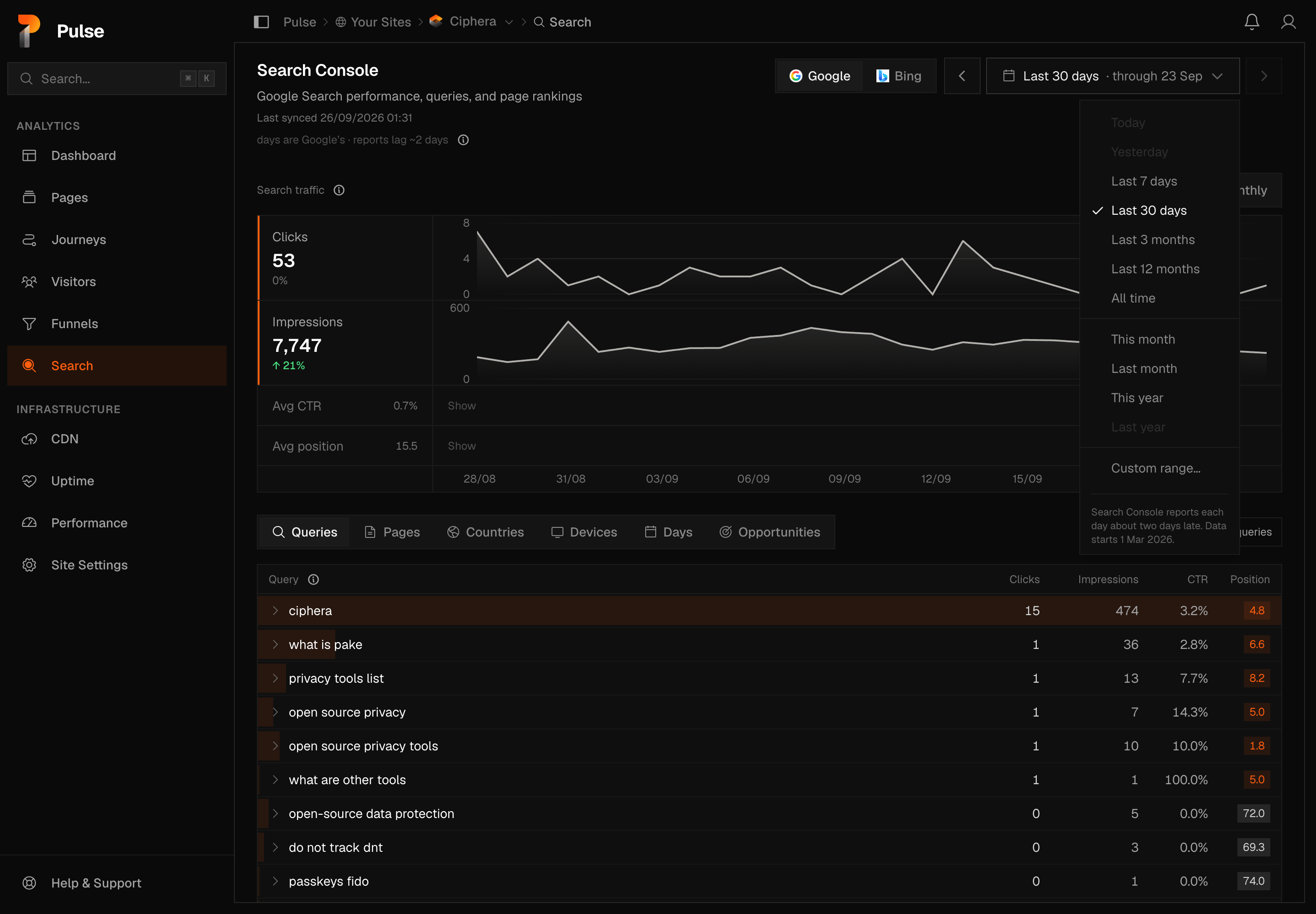
The view switcher lists the same twelve rows as every other page — see Time ranges. A custom range can reach back 480 days here, the longest of any page, because that is how much history Search Console keeps. Links carrying the old Search-only ranges (28 days, 6 or 16 months) still open, with their dates on the button. Tables are paginated at 50 rows per page.
Note
Search Console reports each day about two days late, so Today and Yesterday are greyed on this page, and a range ending today reads "through 24 Sep" on its button. If your view is Today, the page shows the latest day Google has reported — "24 Sep · latest day" — and your view stays Today everywhere else.
Understanding the search data
Search Console data reaches Pulse through two different syncs, and they don't always agree. The gap between them explains most of the questions this page gets — read it first, then the individual figures below.
Search data source (why tables and tiles differ)
Warning
Google Search Console drops anonymised queries whenever a query dimension is requested, so a query-dimensioned sync undercounts clicks and impressions against Search Console's own totals. Pulse also syncs a separate, date-only table (gsc_daily) that matches Search Console's numbers exactly — but only once your site's backfill has finished with zero errors. An empty result still counts as finished; a partial write never does.
The overview cards, the trend chart, and the Days view switch to the date-only sync once that backfill has completed. The Top queries, Top pages, Countries, Devices, and Opportunities tables always read the older, query-dimensioned source, undercounting included, because there is no dimensioned equivalent of the accurate sync.
This is why the tables on this page will not sum to the totals in the cards above them. It is two upstream sources with different fidelity, each doing what it can — not a bug in either number.
Clicks
Clicks Search Console recorded on your results, summed over the period. Once your site's backfill has completed, this card and the trend chart read the accurate date-only sync; the row tables below always read the older, undercounting source. See Search data source above.
Impressions
Times your pages appeared in search results, summed over the period. Same two sources, and the same table-vs-card gap, as Clicks.
Avg CTR
The CTR card is clicks divided by impressions for the whole period, recomputed from the summed counts rather than averaged across daily CTRs — a week or month reflects that period's actual ratio, not an average of averages.
Avg position
The impression-weighted mean rank of your results over the period, so days with more impressions count for more. Only the date-only sync carries a daily position: before your site's backfill completes, and wherever this page still falls back to the older source, there is no daily position to weight, and the card shows an em dash rather than a made-up number. Wherever position is charted, the axis is drawn inverted so a higher bar is a better rank, and a position rounding to 10.4 or better is what earns the orange badge in the row tables.
Weekly and monthly rollups
When the trend chart or Days view groups by week or month, clicks and impressions are summed exactly across the days in the bucket, and CTR is recomputed from those sums — never averaged day to day. Average position is impression-weighted across the days in the bucket that have one, falling back to a plain mean only if none of those days recorded impressions. A bucket where no day has a position stays empty rather than showing a value.
Days view
The per-date breakdown, newest day first — the equivalent of Search Console's own Dates table. CTR is derived from each row's own clicks and impressions rather than trusted from the response, and a day with no recorded position shows an em dash.
Queries, Pages, Countries, and Devices tables
Top queries, Top pages, and the Countries and Devices breakdowns are all read from the query-dimensioned source described above, undercounting included. Sorting runs in your browser over the top 200 rows by clicks; when the period holds more rows than that, the table says so rather than quietly ranking a partial set.
Opportunities
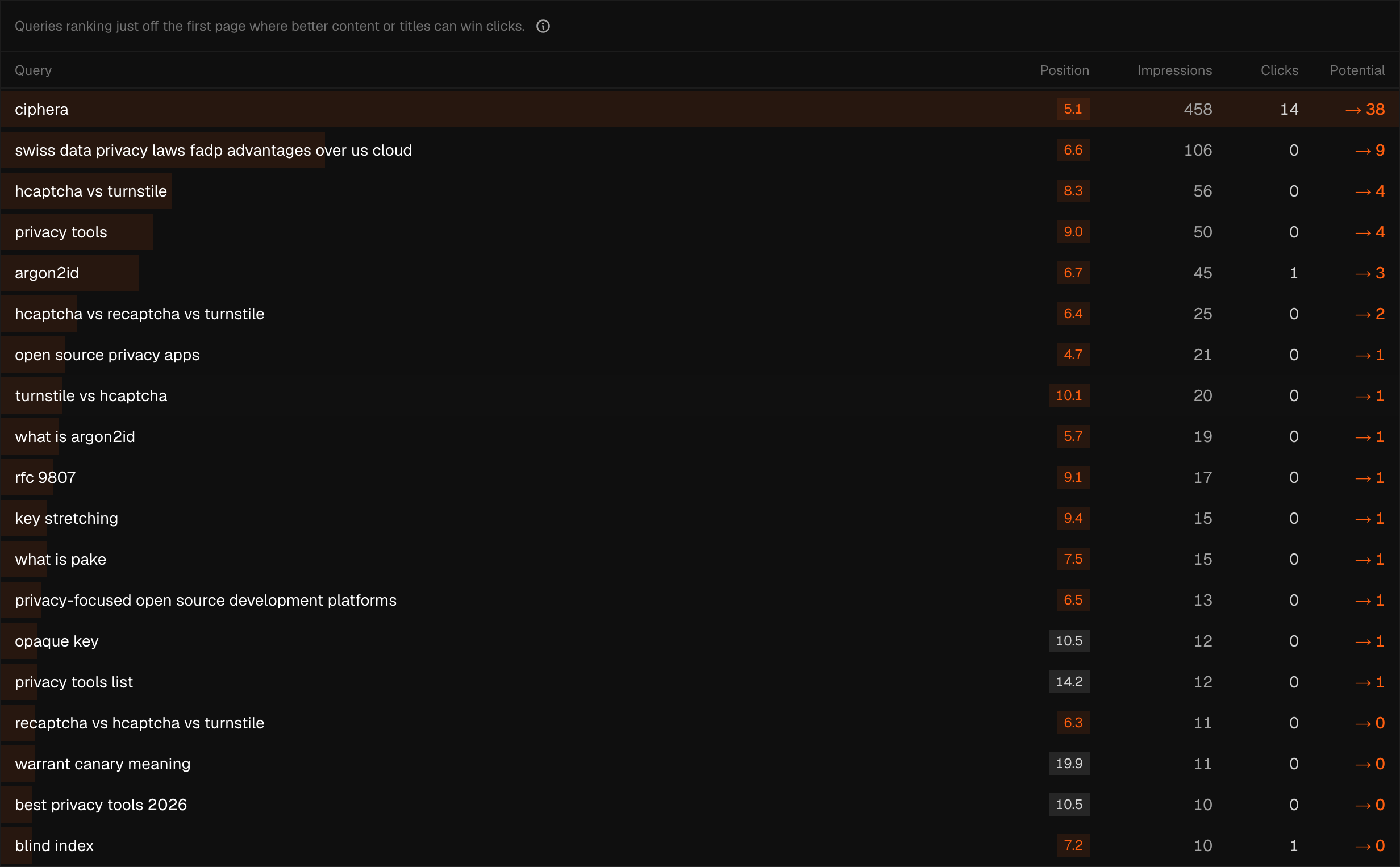
Queries averaging position 4–20 with at least 10 impressions over the period, ranked by impressions — results sitting just off the first page, worth a look for a quick ranking push. Drawn from the same undercounting query-dimensioned source as the other row tables. "Potential" clicks is a model, not a Google figure: impressions × 8.5%, shown in orange because it's an estimate of upside, not a measured gain.
New queries
A chip near Top queries counts distinct queries present in the current period that were absent from the immediately preceding period of the same length. The count itself is exact over the full set; the list you can open from the chip is capped at 100 queries. The chip is hidden at zero rather than showing "0 new".
Query position trend
The sparkline beside a query in Top queries plots that query's daily average position across the range, drawn inverted so a taller bar is a better rank, with the first-to-last change coloured by direction. Fewer than two days of data shows "not enough data for a trend" instead of drawing a flat line.
Bing Webmaster Tools
If your site has a Bing Webmaster Tools connection, Pulse shows a separate panel of daily clicks and impressions from Bing, Yahoo, and DuckDuckGo alongside the Google Search Console report above — not merged with it, and not on the same axis.
Connect Bing Webmaster Tools
Go to Settings → Integrations → Bing Webmaster Tools and click Connect. Unlike the Google row above, nothing redirects — a form opens under the row instead. Paste an API key from Bing Webmaster Tools → Settings → API Access, click Load properties, then pick one of the account's verified properties from the dropdown and click Connect Bing. Nothing is saved until that second click: the key is used once, server-side, to list properties, and only stored, encrypted at rest, once you've confirmed which one to connect.
Note
Site-level daily totals only — Bing's API doesn't expose per-query data by date. Your API key is encrypted at rest and grants access to every property on your Bing account, so it's used solely to read search statistics.
Only properties Bing reports as verified appear in the dropdown. An unverified one is never offered, because querying it would return an empty result indistinguishable from a verified property with zero traffic. If the account has no properties, or none are verified yet, Pulse tells you rather than leaving the picker empty.
Connecting triggers an immediate sync, so the panel isn't blank for up to 6 hours. After that, Pulse re-syncs automatically every 6 hours, the same cadence as Search Console.
Clicks, Impressions, and CTR (Bing)
Bing's site-level daily clicks and impressions are the only figures the synced endpoint returns — there is no average position from Bing. Bing's per-query endpoint exists but is deliberately not synced: neither Bing endpoint accepts a date range, so a per-query breakdown would silently ignore the date picker above it rather than honour it. The panel shows these three rails rather than padding the gap with data that couldn't respect your selected range. CTR is derived at read time and never stored.
Bing's day, Bing's timezone
Warning
Each Bing daily row is bucketed in Bing's own reporting day — parsed from a timestamp carrying a Pacific offset and stored as-is — which can differ from a Google calendar day by up to 24 hours. That's why the Bing panel sits behind its own toggle instead of sharing an axis with Google's numbers, and why both Bing endpoints state whose day they're reporting. Don't line up a Bing date with a Google Search Console date and expect them to describe the same 24 hours.
A rejected key stops syncing
Warning
If Bing rejects the stored key, most often because it was regenerated in Bing Webmaster Tools and the old one no longer works, the connection's status turns to Error and Pulse stops retrying it on the 6-hourly sync rather than re-firing the same failed attempt forever. Data already synced stays exactly where it is; only the key needs replacing, and there's no way to paste a new one into an existing connection — disconnect and reconnect with the current key instead.
Disconnect
Go to Settings → Integrations → Google Search Console and click Disconnect. This immediately revokes the OAuth token and permanently purges all Search Console data stored for your site. Your data in Google Search Console itself is unaffected.
Bing Webmaster Tools disconnects the same way — Settings → Integrations → Bing Webmaster Tools, then Disconnect. It immediately and permanently deletes all synced Bing search data for your site, with no grace period and no way to recover the deleted rows even by reconnecting. Your data in Bing Webmaster Tools itself is unaffected.