Goals
Track specific actions on your site by defining goals that map to custom events.
Goals let you measure conversions — signups, purchases, button clicks, form submissions — anything you instrument with pulse.track().
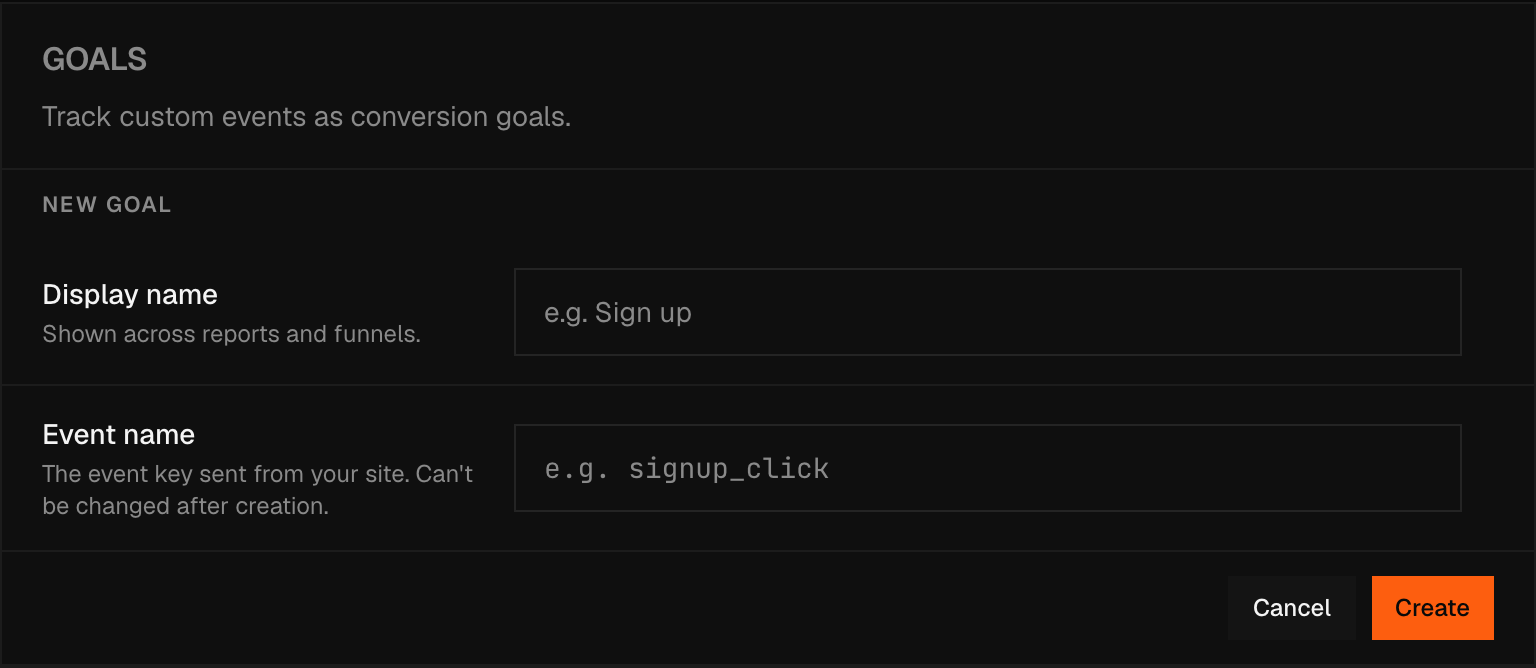
Creating a goal
- Go to Settings → Goals.
- Click Add goal.
- Enter a Display name — this is what appears in the dashboard.
- Enter an Event name — this must exactly match the event name you pass to
pulse.track(). - Click Create.
Warning
The event name cannot be changed after the goal is created. If you need to rename it, delete the goal and create a new one. Historical data for the old event name will not carry over.
Editing and deleting
Each goal in the list carries two icon actions. The pencil reopens the same form with the goal's values filled in, and the submit button reads Update rather than Create. In practice this means the display name, since the event name is fixed once the goal exists.
The bin asks first, in a dialog titled Delete goal with a Delete button to confirm.
Deleting a goal does not delete anything your site sent. The events are still there and still counted — the row simply loses its friendly name and falls back to the raw event name. Create a goal on the same event name again and the history reappears under the new name, because the goal was only ever a label.
Warning
The one thing that does destroy goals is Reset Data with Funnels checked. That box deletes every goal definition along with every funnel. See Site settings.
Viewing goals in the dashboard
Goals appear under the Events tab in the Content section of the dashboard, alongside every other custom event your site fires, including automatically tracked ones you never called pulse.track() for, like outbound-link clicks and file downloads. A goal only supplies a friendly display name for a specific event name; without one, the row falls back to showing the raw event name with its underscores turned into spaces. Each row shows the event count for the selected period.
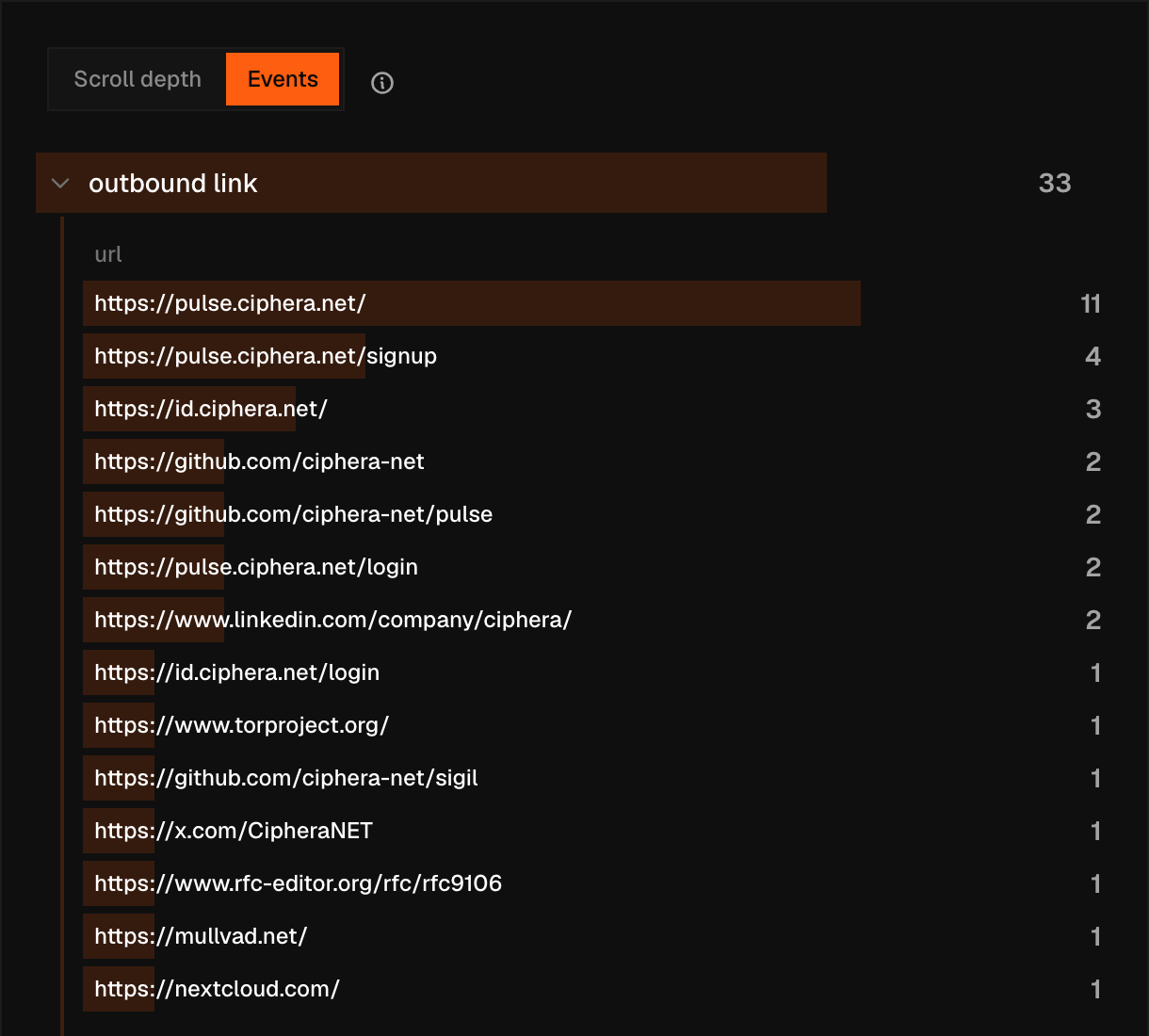
Click an event row to open the property breakdown — a list of all custom properties sent with that event, along with counts per value.
Custom properties
When you call pulse.track(), you can attach arbitrary key-value properties:
pulse.track('signup', { plan: 'pro', source: 'homepage' });Both plan and source will appear as drillable dimensions in the property breakdown for the signup goal. Properties are free-form — no schema definition required, though each event is capped at 30 properties, with keys limited to 200 characters and values to 2,000.
pulse.track() also takes an optional third argument, a revenue number (zero or greater), recorded on the event:
pulse.track('purchase', { plan: 'pro' }, 49.99);Scroll depth
Scroll depth milestones (25 %, 50 %, 75 %, 100 %) are tracked automatically by the core script, so they are never something you define here. They are reported in Scroll depth on the dashboard rather than under the Events tab, and the share shown there is per visit — the deepest point a visit reached across every page it viewed.
Note
Goals are site-specific. Each site in your account has its own goal list.