Get Started
Add Pulse to your website in under five minutes.
1. Create your account
Go to pulse.ciphera.net and sign in with your Ciphera ID. If you don't have one, you'll be prompted to create an account during sign-up.
2. Complete the welcome flow
Pulse creates your first team for you automatically, with a two-word name like Quiet Forge — but while you're working alone, you never see it. The first time you invite someone, Pulse asks you to name it (pre-filled from your own name); the team itself doesn't appear until that person actually joins — an unused invite link isn't a member. From then on, you can rename it or manage it from Team Settings. You land straight on the site screen.
3. Register your site
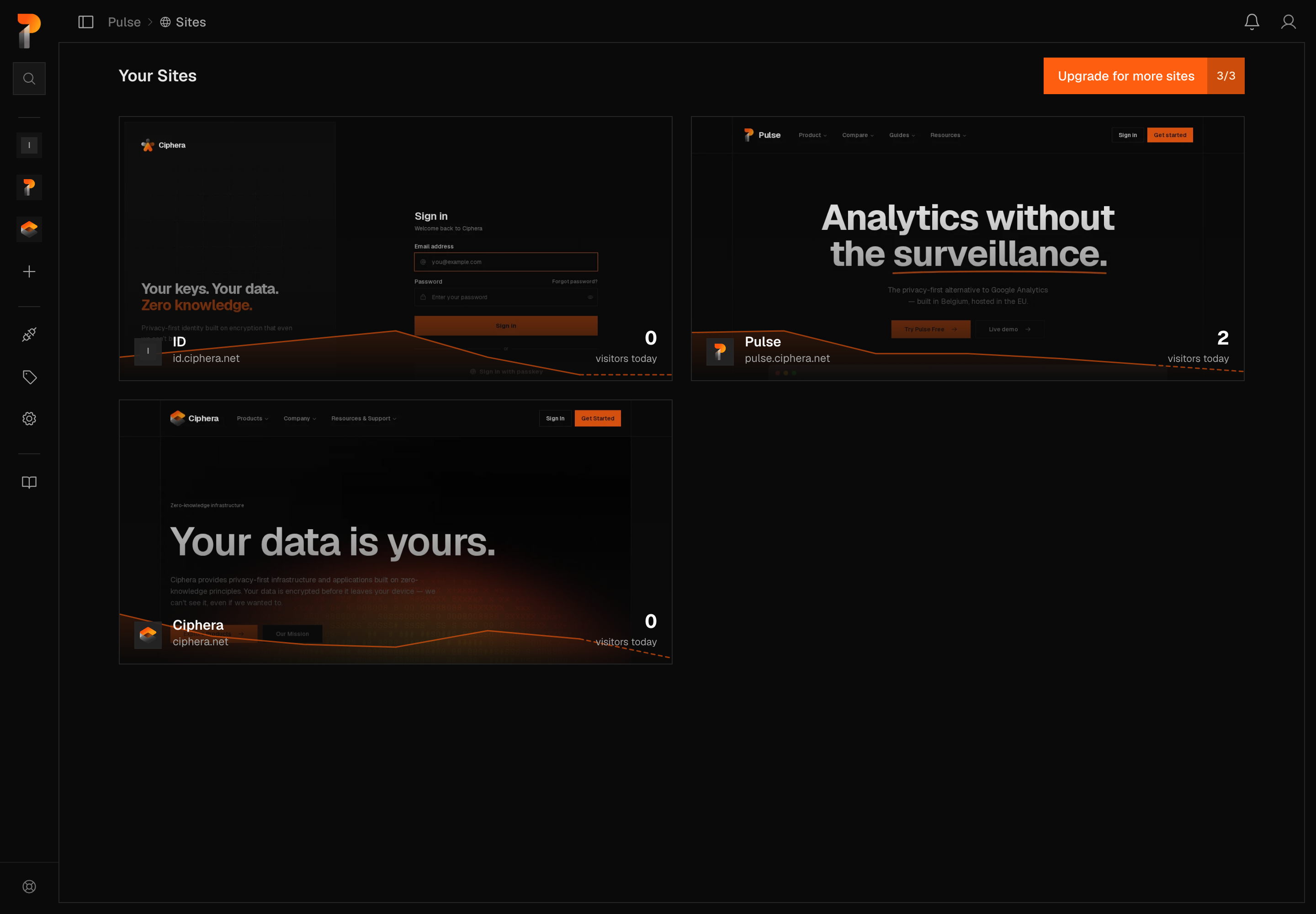
Enter your domain — for example, example.com. Do not include https:// or a trailing slash. Pulse uses the domain as the site's display name too; change that later from Site Settings. Click Add site to save it.
4. Copy the tracking script
Once the site is saved, Pulse shows you the snippet to install:
<script defer data-domain="example.com" src="https://js.ciphera.net/script.js"></script>example.com above is a placeholder for this page — the snippet Pulse actually shows you already has your real domain filled in, so there's nothing to replace.
5. Paste the snippet into your site
Place the snippet inside the <head> element of every page you want to track — ideally in a shared layout or template file. The defer attribute ensures the script never blocks page rendering. On a single-page framework (Next.js, Nuxt, SvelteKit, and similar) or on WordPress, follow the framework guides or the WordPress plugin instead — client-side navigations don't reload the document, so the snippet placed this way can undercount pageviews.
6. Verify the installation
There's no button to click. Pulse watches for the first event from your domain and updates the dashboard on its own — load example.com in a browser and it confirms the install within seconds. That visit is an ordinary pageview, not a synthetic one, so it lands in your data like any other and there's nothing to filter out afterwards.
7. Start seeing data
Once verified, data begins appearing in the real-time dashboard immediately. Historic data populates as visitors arrive — there is no back-fill from before the script was installed.
Troubleshooting
If Pulse hasn't picked up an event within 90 seconds, check the following:
Ad blocker active in your browser. The verification request is made by your browser. Disable your ad blocker for the test, or use a browser profile without one.
Wrong domain. The domain in data-domain must exactly match the domain registered in Pulse, without www. unless you specifically registered it with www..
Script not in <head>. Some page builders inject scripts into <body>. Pulse works from <body> too, but make sure the script tag is present on the page before verifying.
Testing on localhost. This isn't the problem — Pulse's origin check allows localhost and 127.0.0.1 regardless of the domain registered for the site, so a snippet pointed at your real data-domain still gets accepted from a local server.
Warning
If you are using a Content Security Policy, make sure js.ciphera.net and pulse-api.ciphera.net are included in your script-src and connect-src directives respectively. See Content Security Policy for the full directive.