User Journeys
Explore the paths visitors take through your site with a Sankey flow diagram.
User Journeys shows you the actual sequences of pages visitors navigate in a session — not a predefined funnel, but the organic paths that emerge from real usage.
Navigate to Sites → your site → Journeys.
The flow diagram
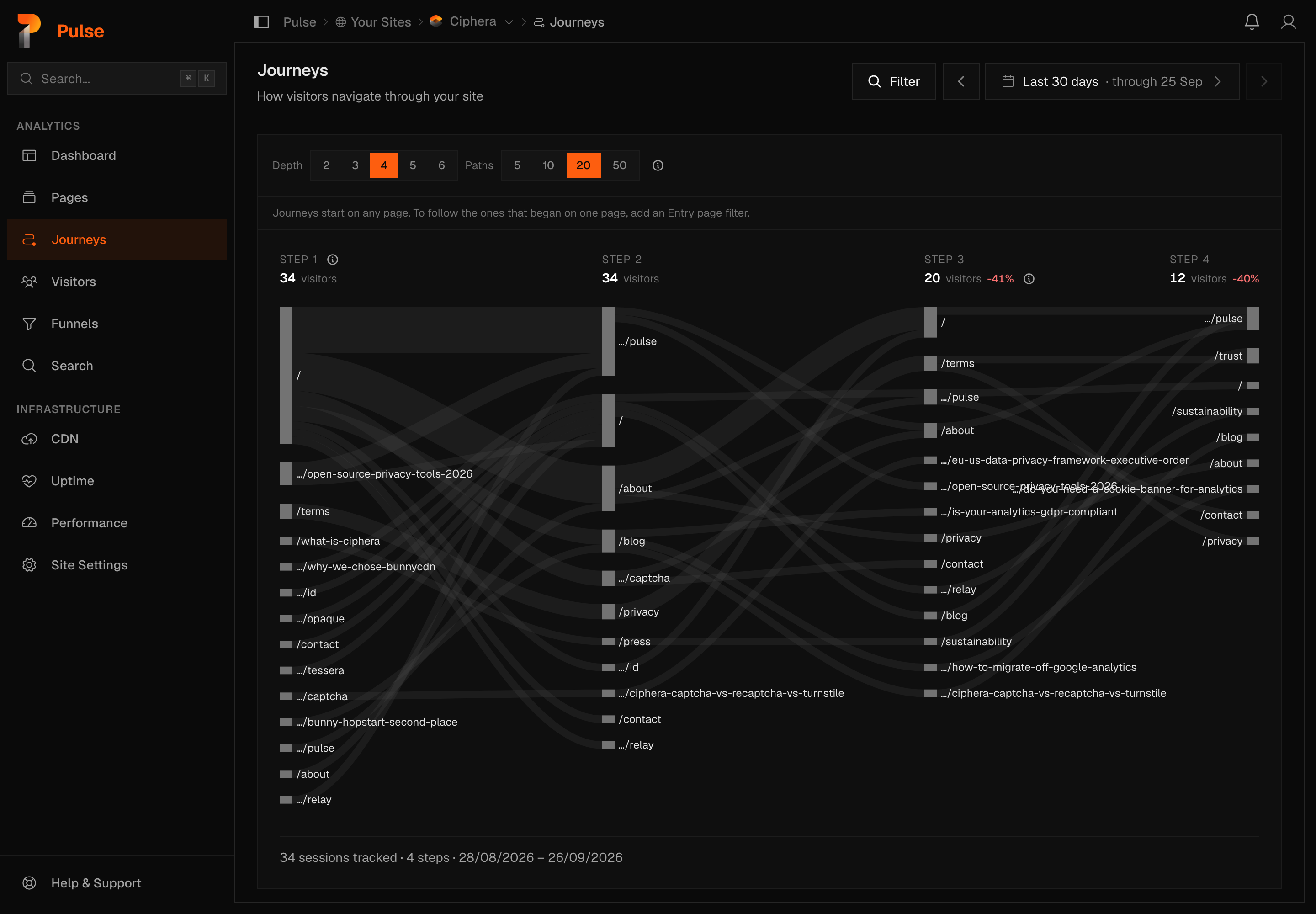
Journeys render as a single Sankey diagram now — the columns layout is gone. Each band's width shows the volume of sessions flowing from one page to the next: convergent paths merge visually, divergent ones fan out, and you can see at a glance which paths dominate and where sessions consolidate or scatter.
Controls
| Control | What it does |
|---|---|
| Depth | How many steps to show — a fixed ladder of 2, 3, 4, 5, or 6 |
| Paths | How many branches to keep per step before the rest roll into (other) — a fixed ladder of 5, 10, 20, or 50 |
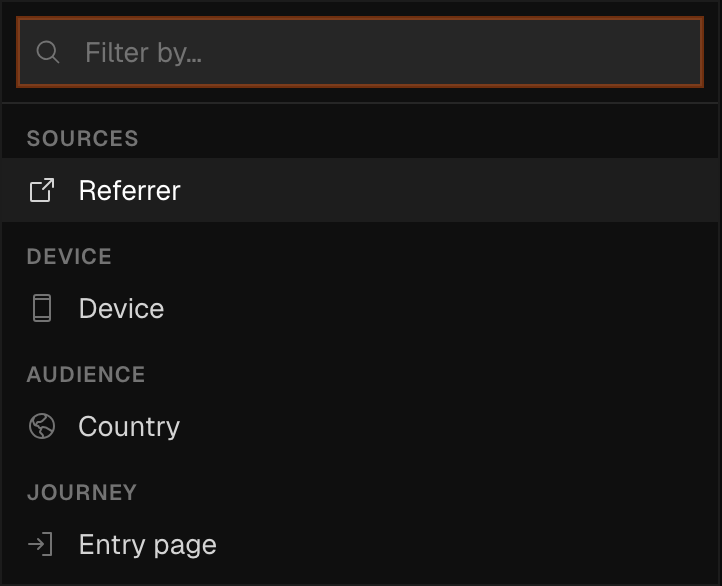
| Filter | Narrows the canvas by entry page, country, device, or referrer |
| Date range | Scope sessions to a time window |
Depth and Paths sit above the diagram as two switchers, and each remembers the value you last picked. Entry page now lives inside the Filter panel, alongside country, device, and referrer — pick it there and it shows up as a pill next to the date range, with its own × to clear it.
The total session count for the current filters is shown below the diagram, in a footer line under the flow itself. It counts the sessions that viewed at least two pages, the only ones with a path to draw.
Note
Increasing depth and paths can make the diagram harder to read on sites with many distinct pages. Start with the defaults (depth 4, paths 20) and expand from there.
Warning
Single-page visits are not part of Journeys. A session that viewed one page made no hop, so it is in no step and not in the footer's session count.
What each number means
Step
One column of the journey. Step 1 is the pages sessions started on; each column after it is one more recorded hop. The number under each step's heading is that step's total in sessions, (other) included. A row's count is how many sessions were on that page at that step, out of the step's total.
Entry point
The page a session started its tracked journey on. It's a filter like any other now, grouped under Journey inside the Filter panel and labelled Entry page — pick it there and it narrows the whole canvas to sessions that began there. A journey link saved before the entry point moved still opens; the old parameter is read into this filter automatically.
Depth and Paths
Depth and Paths are switchers now, each snapping to a fixed ladder rather than any number in a range. Depth plots 2, 3, 4, 5, or 6 steps. Paths keeps 5, 10, 20, or 50 individual pages per step before rolling the rest into (other). Both remember the value you last picked.
(other)
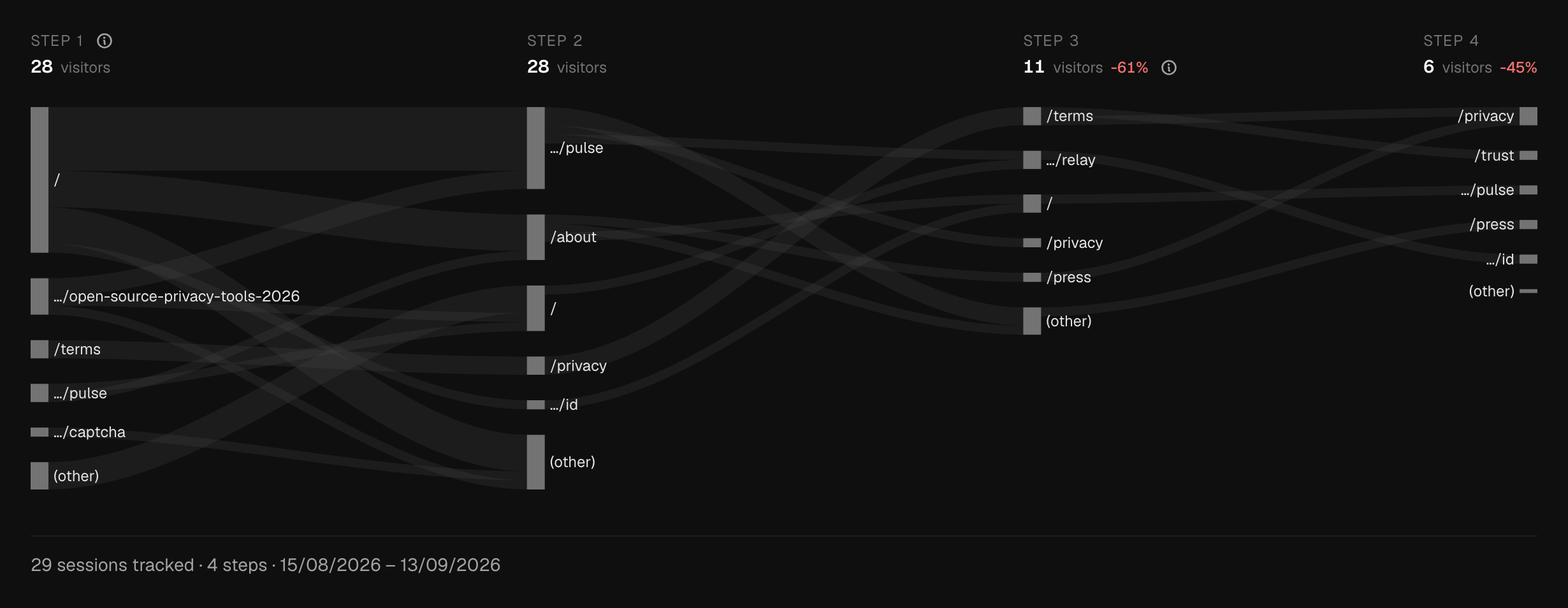
Pages beyond a step's Paths limit are rolled into one (other) row instead of being dropped: the session count is kept, only the individual page identities are collapsed. A hop from (other) to (other) is treated as noise and is not drawn; the footer line says how many such hops were left out, for example "13 hops from (other) to (other) not drawn".
Note
(other) is a display convention, not a filter — no sessions are discarded when a page falls into it: every step's heading counts them. Only the (other) to (other) hops go undrawn, so the strips under a heading can add up to less than its number, and the footer says how many such hops there were. Raising Paths reveals pages that were already counted inside (other); it does not add sessions that weren't already in the data.
Drop-off
The change in session count from the previous step to this one: negative when fewer sessions reached this step, positive when several paths converged into it. Step 1 has no previous step to compare against, so it shows nothing rather than 0%.
Lens
Pinning a page as the lens highlights every hop connected to it, traced forwards and backwards across every step it appears at, and dims the rest. Hovering a row without pinning it highlights only that row's own flow, not every other appearance of the same page.
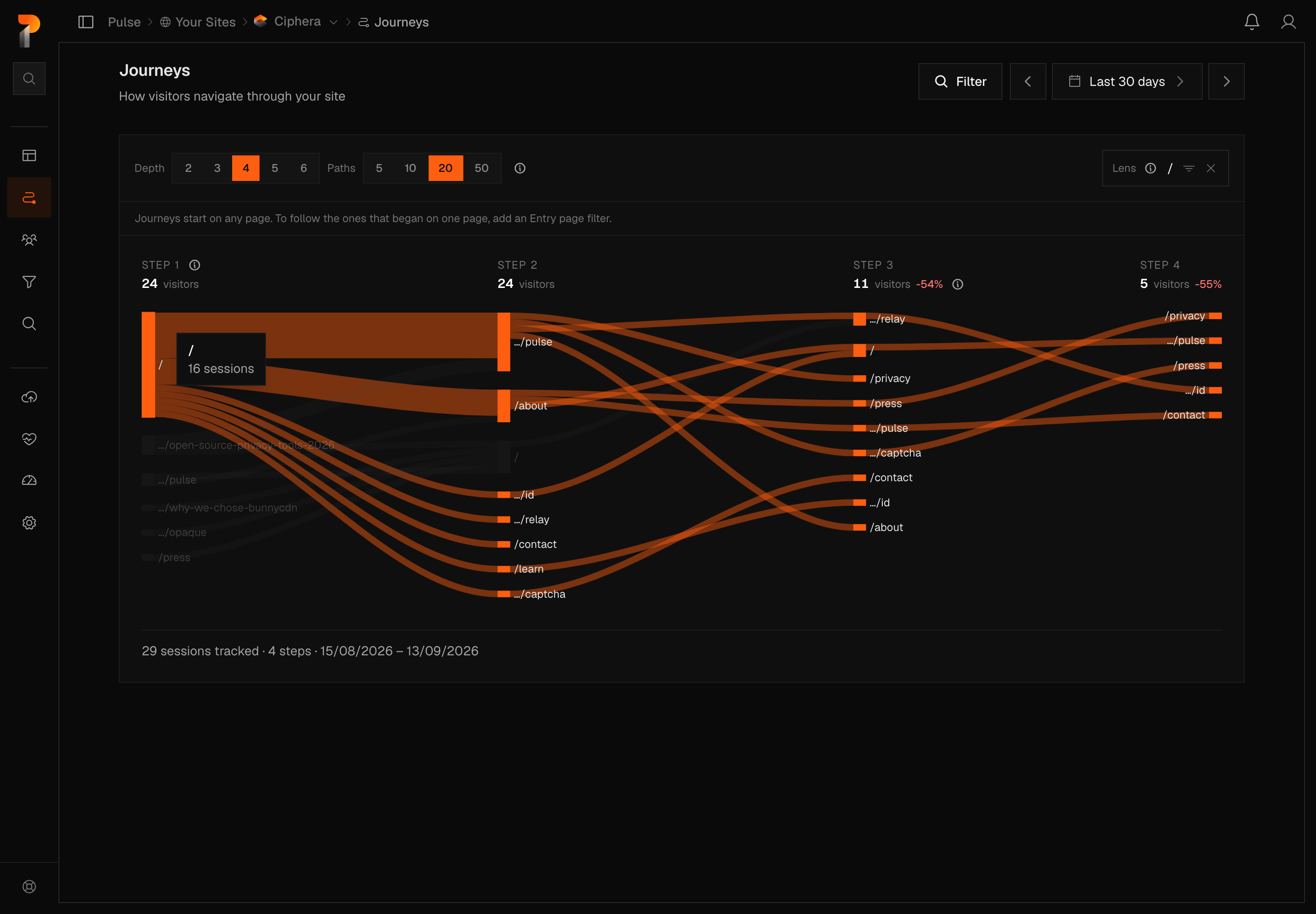
A pinned lens also shows a small funnel icon next to it. Clicking it opens Funnels with a new funnel already filled in — the steps are the heaviest path through the pinned page, ready to save or adjust.