Site Settings
Rename a site, fix its timezone, reset a module's history, or delete it outright — plus where the other five site-settings tabs live.
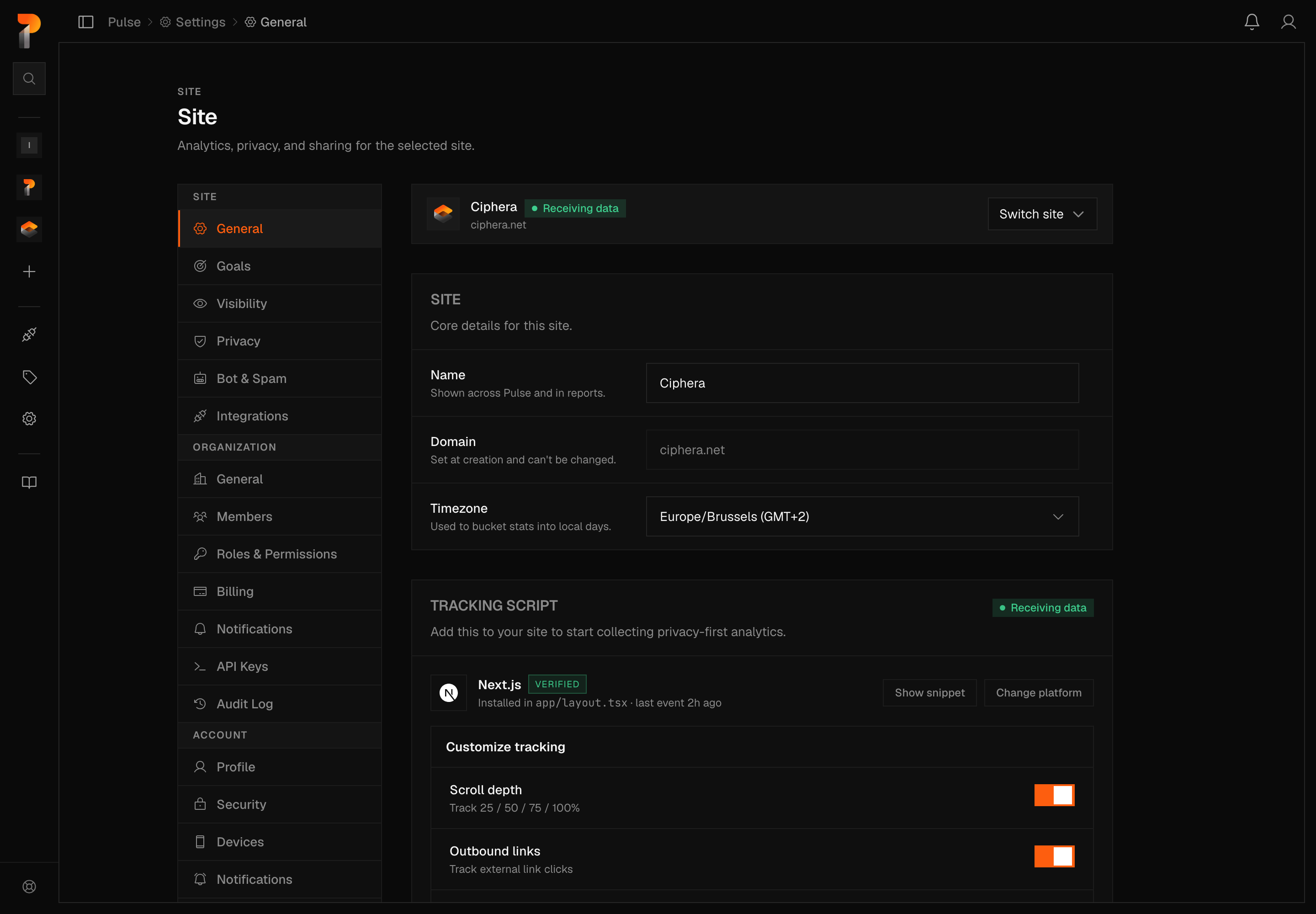
Site Settings is always scoped to one site at a time, picked by a switcher band at the top of the page. It has seven tabs, all filed under the Site heading wherever you reach them: General, Goals, Visibility, Privacy, Bot & Spam, Integrations and Export. This page documents General in full, since it's where a site's identity lives and where both ways of getting rid of one sit. The other six each have their own page, linked at the bottom.
Getting there
- From a site's own dashboard, the Site Settings link in the sidebar and the settings gear on a site's own card both go straight to
/settings/site/general, setting that site active as they go: the sidebar link via a?siteId=query parameter, the gear via a small write to the browser's session storage. - From the global Settings area, the same six tabs are one click away, and the switcher band at the top lets you change which site you're configuring without leaving Settings.
Site details
The Site panel at the top of General holds three fields:
- Name — shown across Pulse and in reports.
- Domain — set at creation and can't be changed. It's present on this tab as a disabled field, not an editable one.
- Timezone — used to bucket stats into local days.
Note
Changing the timezone here isn't a display tweak. Pulse buckets every day-level stat (pageviews, visits, daily rollups) by the timezone a site holds at the moment the row is written. Saving a new timezone changes which calendar day or month future visits and sessions land in, going forward only; it doesn't touch a single row already written under the old one.
Saving a new timezone is also an identity event. It moves your site's midnight, so a visitor already mid-session can come back as a new visitor and a new session on their next pageview, because the day they land in has just shifted under them. Pulse logs the change to the audit log as site_timezone_changed for that reason.
Tracking script
Below Site details, a Tracking script panel shows the install snippet next to a status chip: Receiving data, No recent data, or No data yet. That chip isn't something you set yourself — it reflects whether the server has actually seen an event from this site recently.
Treat this panel as a shortcut to get installed, not a reference. For the full set of script attributes and a snippet for your framework, see Script installation and Framework guides.
Danger Zone
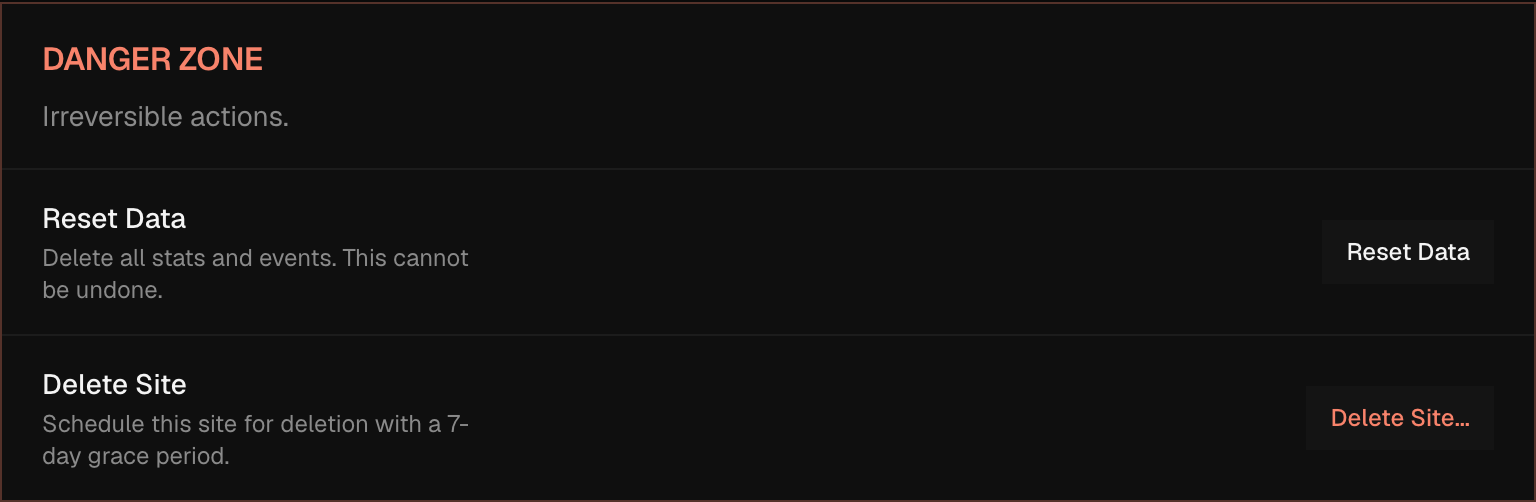
Three actions live here, and they aren't variations on each other — each does something distinct.
Reset Data
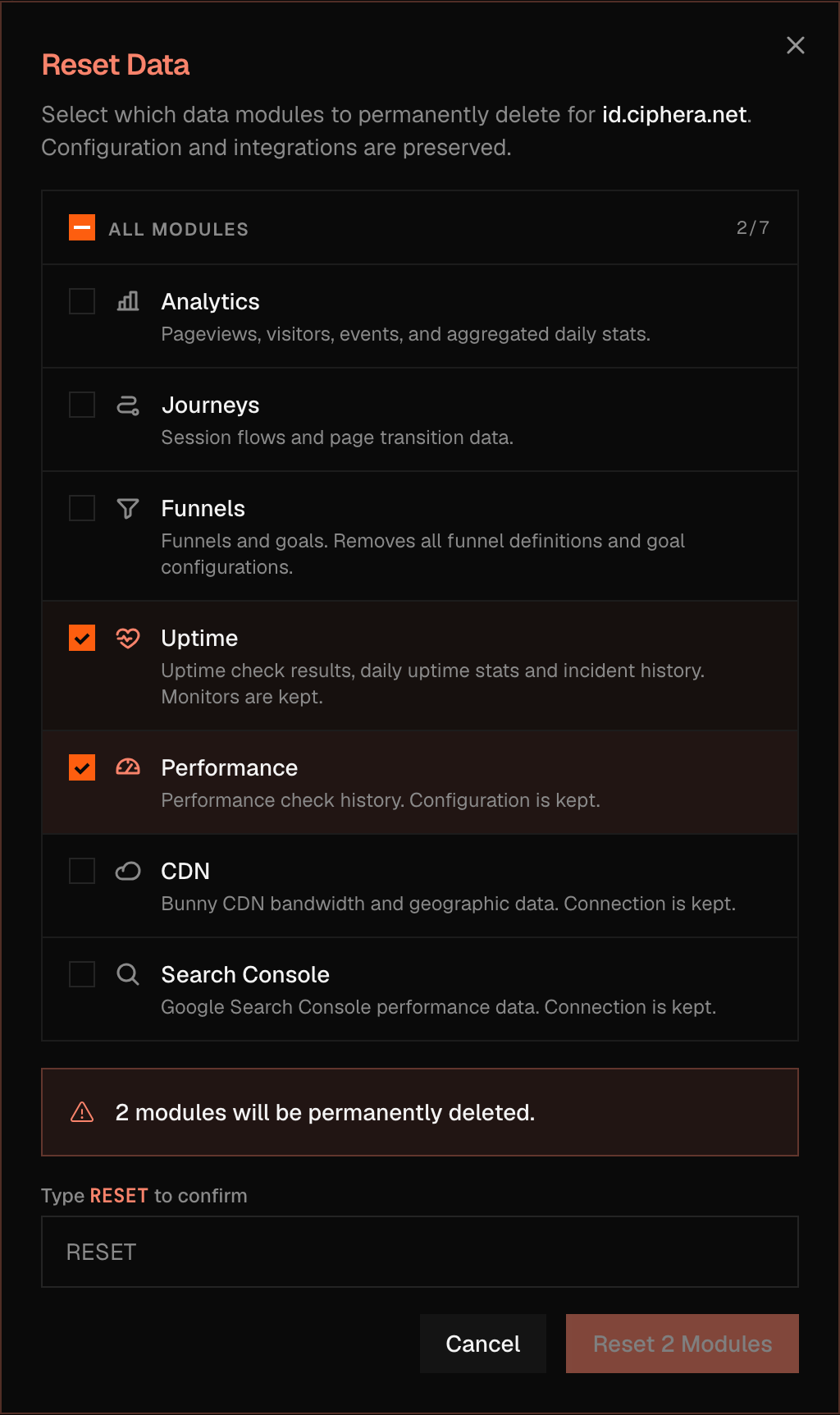
The Reset Data button opens a modal of the same name. It permanently deletes the historical rows behind one or more of seven independent modules, immediately. Where a module has a connection, a monitor or a schedule of its own, that part survives — the third column below says what. Funnels is the exception to the whole idea: it stores no history, so the box deletes the funnels themselves. Check any combination of the seven, and the blast radius is scoped to exactly what you checked:
| Module | Erases | Keeps |
|---|---|---|
| Analytics | Every pageview, visitor, and event, plus the daily rollups built from them | — |
| Journeys | Recorded session paths and page-to-page transitions | — |
| Funnels | Every funnel and every goal you have built — the names, descriptions and steps themselves, not the numbers behind them | — |
| Uptime | Checks, daily rollups, and incident history | The monitors themselves |
| Performance | Every past PageSpeed check | The check schedule |
| CDN | Stored CDN traffic history | The Bunny connection — Pulse immediately requests a fresh sync, bounded by Bunny's own roughly 364-day backfill limit |
| Search Console | The query-level breakdown — the per-search-term rows behind the Search tab's query table | The connection, and your daily totals. Clicks, impressions and average position by day are stored separately and survive the reset. No fresh sync is requested either, so the query rows don't come back on their own |
Warning
Funnels is the one box that deletes what you built, not what was measured. A funnel keeps no history of its own. Its conversion and drop-off numbers are computed fresh from your analytics data every time you open it, so there is no funnel history to clear, and checking the box deletes the funnels themselves. Every definition on the Goals tab goes with them, under the same box. Pulse's own modal puts it in one line: "Removes all funnel definitions and goal configurations." It is easy to miss, because Goals lives on its own separate tab and is never mentioned on this one.
A reset has no grace period and nothing to restore from. Unlike deleting a site below, the data is gone the moment you submit.
To confirm, type the literal word RESET — unless every module is checked, in which case Pulse asks for the site's exact domain instead. The submit button reads Reset N Module(s), counting whatever you selected.
Delete Site
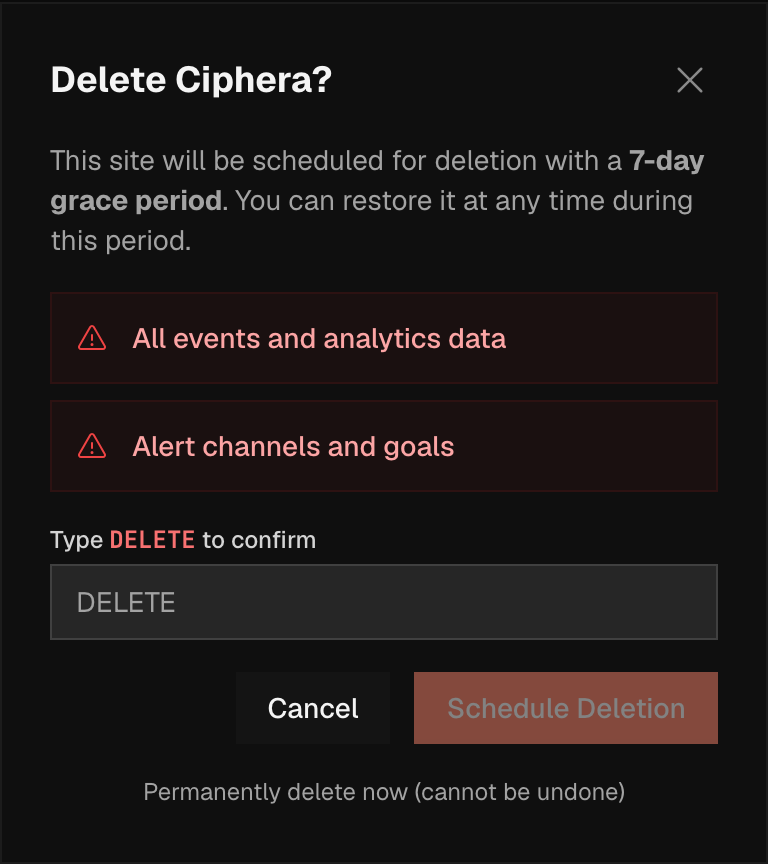
Clicking Delete Site... opens a confirmation modal titled Delete {Site Name}?. Nothing is deleted at this step: typing DELETE and clicking Schedule Deletion flips the site into a pending-deletion state and starts an exact seven-day countdown, enforced in the database rather than only shown on screen. A toast confirms it — "Site scheduled for deletion. You have 7 days to restore it."
Warning
If the seven days run out unrestored, Pulse deletes the site and everything that references it — events, daily stats, goals, funnels, uptime monitors and their history, performance check history, CDN and Search Console connections and data, and every other table scoped to the site — the moment the site row itself goes. This is reversible for exactly seven days (see Recovering a scheduled deletion below) and not reversible after.
Delete permanently
A small link at the bottom of the same modal, Permanently delete now (cannot be undone), skips the grace period entirely. It opens a second step asking for the site's exact domain — not a fixed word — with a submit button that reads Delete Forever.
Warning
This deletes the site and every cascading table immediately: no seven-day window, no restore. It's the same end state as letting the countdown above lapse, just without waiting for it.
Recovering a scheduled deletion
Restoring a site, or finishing off its deletion early, isn't something you do in Site Settings — both live on the main sites list, your Home dashboard, in a Scheduled for Deletion section that only appears while at least one of your sites is pending deletion. Each row carries a Deleting in N day(s) badge and two buttons: Restore, which cancels the deletion and returns the site to normal, and Delete Now, which opens the same domain-typed confirmation as Delete Forever above and skips the rest of the countdown.
The seven-day window counts from the instant you clicked Schedule Deletion, and it's enforced by the restore query itself — attempting to restore after the window closes returns an error, not a stale button. Left alone, a scheduled site is purged automatically shortly after the seven days run out: a background sweep deletes its events and the site row directly, and every other site-scoped table follows through cascading foreign keys, exactly as if you'd clicked Delete Forever yourself.
Warning
Once the seven-day badge reaches zero, there's nothing left to click. The purge runs on its own, with no further confirmation step — the badge on Home is the only warning you get before it happens.
Seeing the button isn't the same as being allowed to click it
The whole General tab, Danger Zone included, only renders for someone holding the Edit site settings permission. But the two Danger Zone actions each check a narrower permission at the API, and neither is implied by the one that shows you the tab: Reset Data requires Reset site data, and both delete paths require Delete sites — all three live under the Site Management group in your role's permissions.
Note
The built-in Admin role's default permission set includes Delete sites but not Reset site data. A Pulse Admin can open General, see Reset Data, check a module, and type the confirmation — and still get turned away with a permission error at submit, because visibility and authorization are two separate checks answering two separate questions. Only the team's Owner is guaranteed both.
If a teammate hits this, it's a permissions gap, not a bug — see Team management for how roles work.
The other six tabs
- Goals — define the events you want counted as conversions; seeing the tab itself needs a manage-level permission. See Goals.
- Visibility — turn on a public, read-only dashboard link, with optional password protection. Documented under its feature name: Shared Dashboards.
- Privacy — what this site collects, geographic granularity and retention. See Privacy & Data Collection.
- Bot & Spam — Cerberus's bot and spam filtering, and the counts of what it's excluded. Everyone on the team can see this tab; flipping the toggle itself needs a manage-level permission. See Bot & Spam Filtering.
- Integrations — connect BunnyCDN, Google Search Console, and Bing Webmaster Tools; seeing the tab needs a manage-level permission. See Integrations, which covers the panel itself and what disconnecting a service deletes. What the data means once it arrives is on CDN Analytics and Google Search Console.
- Export — download your data as a spreadsheet, or share a growth report; needs the Export data permission. See Export.