Team Management
Invite team members, assign roles, and manage access to your Pulse team.
Pulse uses team-level membership. Members you add have access to all sites within the team, with permissions determined by their role.
This page covers the roster. Two neighbours cover the rest: the team's own name, URL, ownership and deletion are one tab over on Team Settings, and everything that belongs to you rather than to the team — your password, two-factor, passkeys, devices and sessions — is on Account Settings.
If you're the only person on your account — the only member of your only team — none of this shows up, because there's no team to manage yet. See Working alone below for what you see instead, and how inviting someone starts a team.
Working alone
You're alone when you belong to exactly one team and you're its only member. Pulse checks this fresh on every page load, so if your only teammate ever leaves, you land back in the alone view described here; anything else — a second team, or a second person on your one team — is the team view covered by the rest of this page.
The user menu, top right of any signed-in page, has no list of teams and no Team settings entry while you're alone. In their place is a single row, Invite people, which takes you to Settings → Account → Invite people — the same Members page a team sees, at the same address, just without a roster to show yet.
That page shows a People panel: Just you for now, with the caption "Invite people to share your sites, billing and assistant connections.", and an Invite people button.
The first time you click it, while your team has no invite link yet, Pulse doesn't open the invite form straight away — it asks you to Name your team first. The dialog has a Team name field, pre-filled with "your first name's team" if your account has a display name (falling back to your team's current name if it doesn't — never your email address), and the note "Everyone you invite joins this team. You can rename it later." Continue saves that name and moves straight on to the invite-link form covered in Inviting members below; Cancel closes the dialog without renaming anything and without inviting anyone.
Pulse remembers, per browser, once you've completed this step, so it's asked once per team: after you've named it, clicking Invite people again goes straight to the invite-link form, even if you'd cancelled out of an earlier invite-link attempt without creating a link. Cancelling the naming dialog itself doesn't count as completing it, though — your team keeps the name it already had, and you'll be asked again the next time you click Invite people.
The moment someone accepts an invite, you're no longer alone: your account picks up a Team section in Settings, the user menu grows a teams list, and everything below applies to you.
Roles
| Role | What they can do |
|---|---|
| Owner | Full access including billing management and team deletion |
| Admin | Full access to all sites and settings, except team deletion and billing management |
| Member | Read-only access to dashboards across all sites, plus exporting analytics data and viewing billing details |
Each team has exactly one owner. Ownership can be transferred, and the team can be deleted outright at any time — deletion takes every site with it, active or not.
Viewing permissions in detail
Settings → Team → Roles & Permissions breaks every role down by what it can actually do, category by category. It's Owner-only. The tab doesn't appear in the navigation for an Admin or a Member, and the server refuses the same request underneath it, so hiding the link is not all that's stopping them.
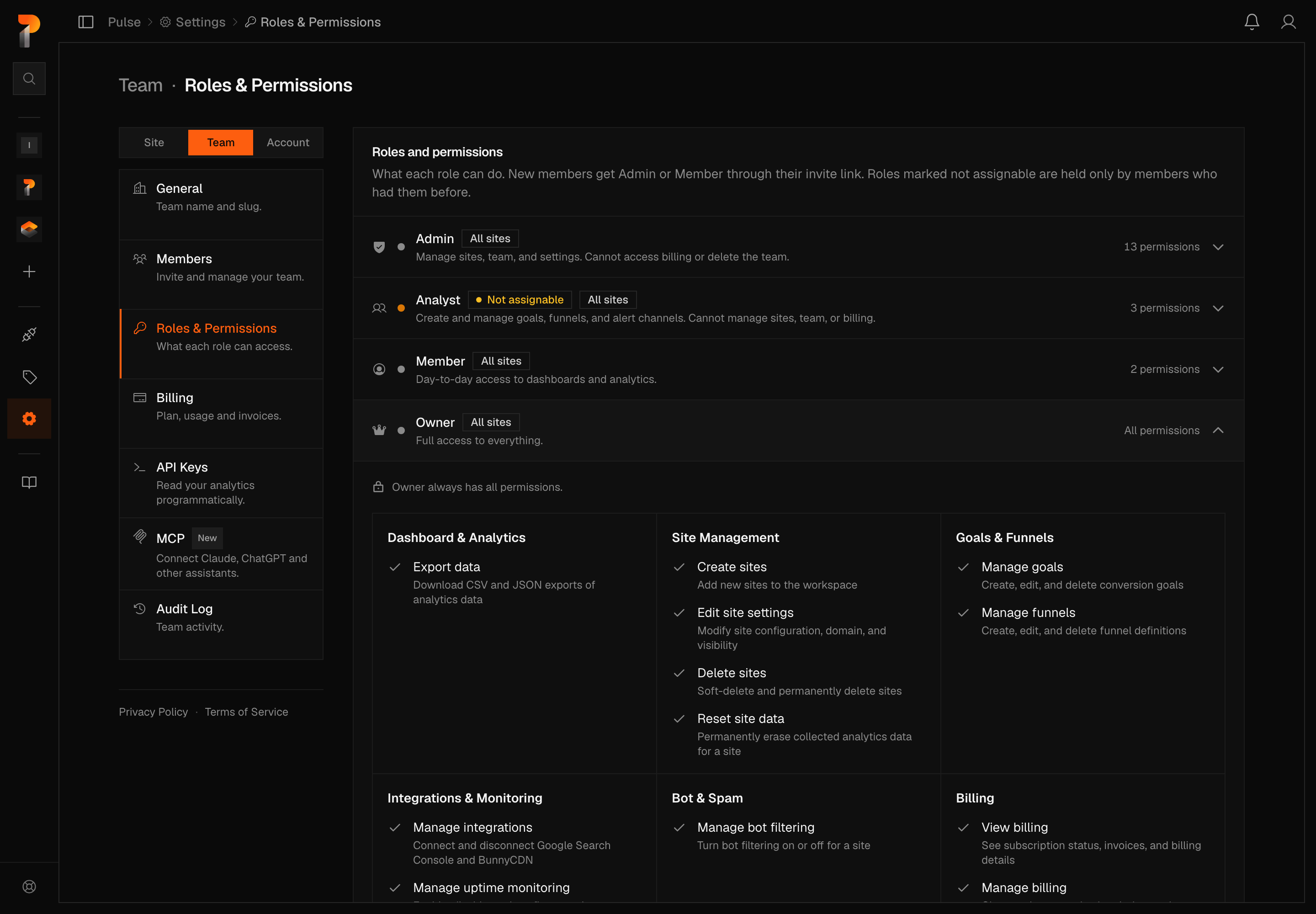
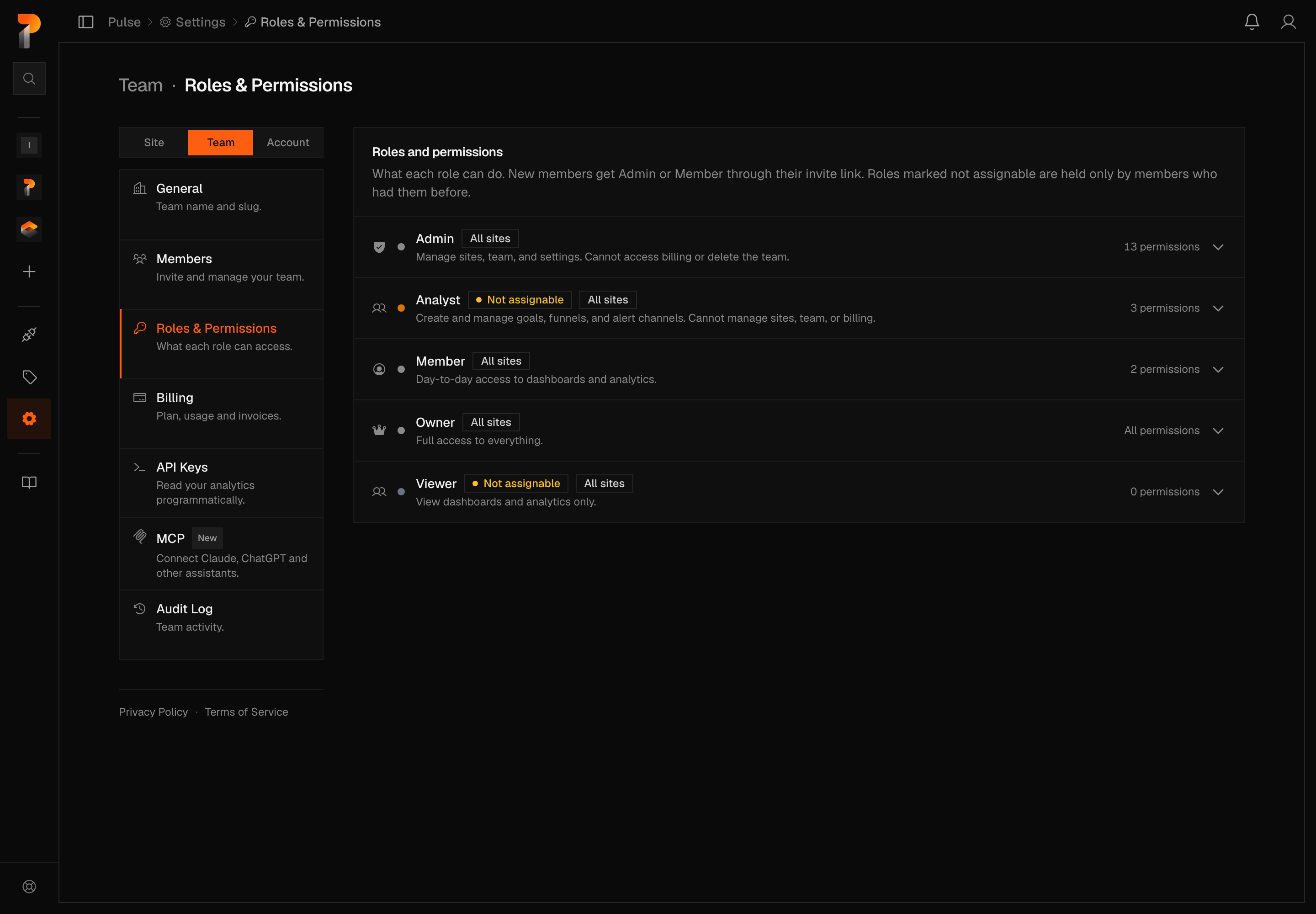
Each role lists as a collapsed row, built-in roles first, then any legacy custom roles, alphabetically, with a scope chip (All sites, or a site count for a handful of very old custom roles scoped to specific sites) and a permission count. Click a row to expand its checklist across eight categories: Dashboard & Analytics, Site Management, Goals & Funnels, Integrations & Monitoring, Bot & Spam, Billing, Notifications, and Administration — where Manage roles itself carries an Owner only chip on every role but Owner's. Every box is disabled: it tells you what a role can do, not a place to change it.
Owner's row expands like any other, except every box is checked, alongside a note of its own: "Owner always has all permissions." Two more built-in roles, Analyst and Viewer, only show up for teams old enough to have been seeded with them before new signups stopped getting either one. They carry a Not assignable badge — the panel's own description says why: "roles marked not assignable are held only by members who had them before."
Note
This tab is a reference, not a control. It doesn't change what a role can do, and it doesn't change who holds one either — that's fixed the moment someone accepts an invite, as Changing a member's role explains below.
Inviting members
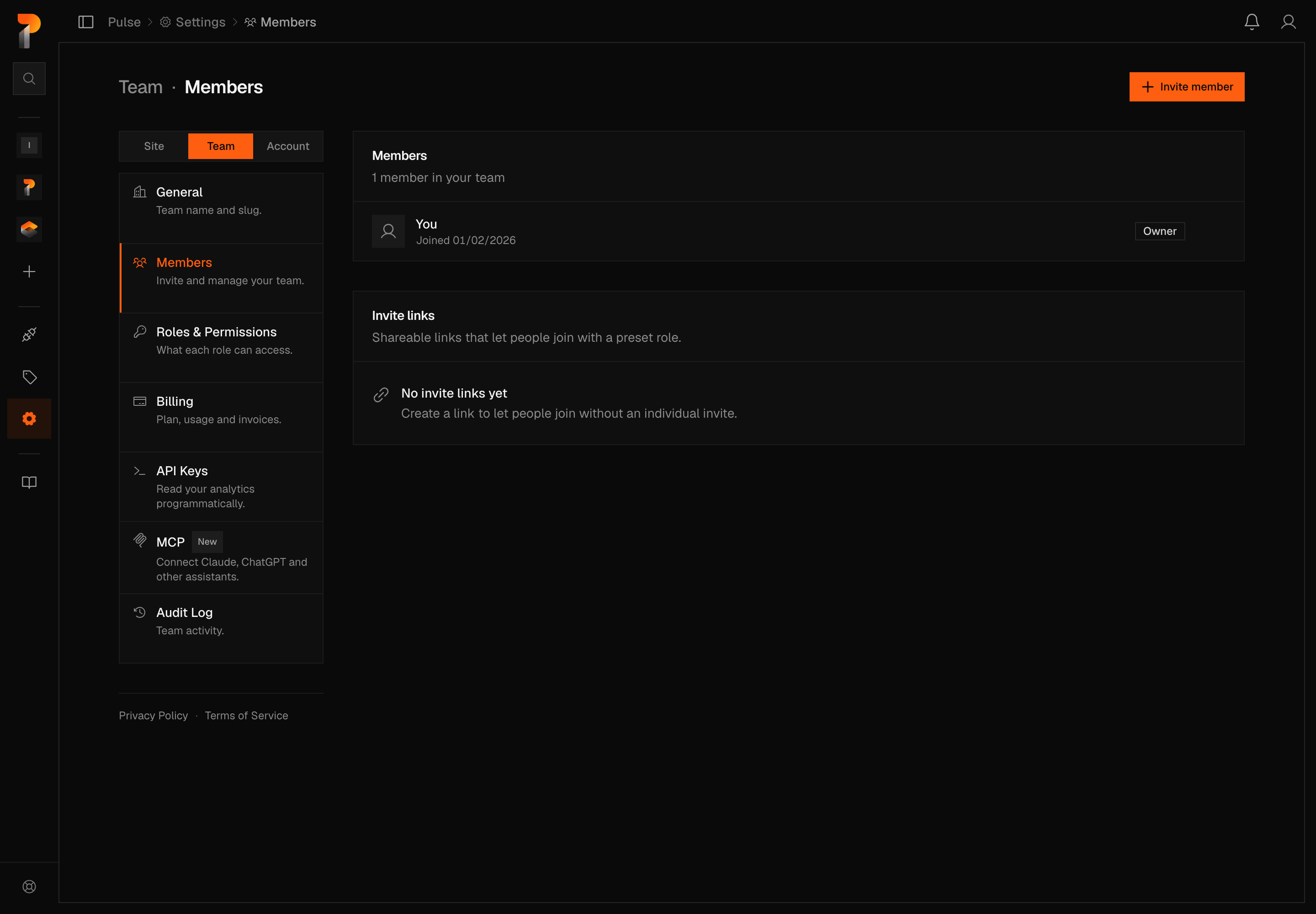
Go to Settings → Team → Members and click Invite member. This opens Create invite link — Pulse invites by shareable link, not by emailing an address.
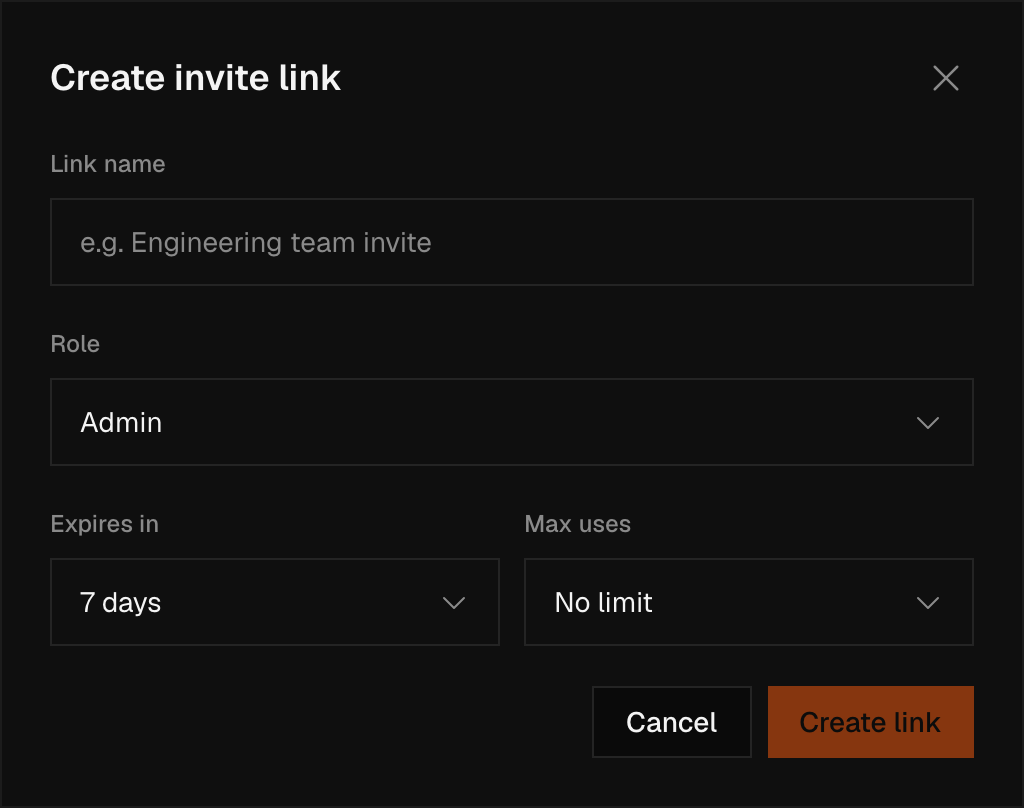
Give the link a Link name for your own reference (the person who uses it never sees it), choose a Role (Admin or Member; a link cannot grant Owner), and pick how long it lasts under Expires in: 1 hour, 24 hours, 7 days (the default), or 30 days. Max uses defaults to no limit, or you can cap it at 10, 25, 50, or 100. Click Create Link and Pulse hands you the URL to send on.
Note
Creating a link doesn't notify anyone. Pulse never sends an invitation email — copy the URL and share it yourself.
Every link you create lists under Invite links, below the member roster: its name, an Active, Expired, or Used status, the role it grants, a use count against its cap, and its expiry date. Owners and admins can copy the URL again or click Revoke to kill a link immediately, used or not.
A team can hold at most 25 active links at once — expiring or being fully used doesn't remove a link from that count, only Revoke does, so a team that keeps creating short-lived links without revoking the old ones eventually hits the cap.
Accepting an invite
Following an invite link opens a public page — no sign-in needed just to see what it's for. Pulse shows the team's name and the role the link grants before asking you to do anything.
If you're signed out, the button reads Sign in to join; it runs you through Ciphera ID sign-in, or through account creation via Don't have an account? Sign up, then brings you back to finish joining. You need a Ciphera ID to join either way. If you're already signed in, the button reads Join followed by the team's name, and one click adds you. Joining this way never hands you a spare team of your own — you land only in the team the link was for.
A link that's expired, been revoked, or hit its use limit shows the same "Invite link unavailable" message rather than sorting the reason out for you. One that was mistyped or has since been deleted shows "Link not found." And if you're already a member of the team, Pulse tells you that instead of adding you twice.
Removing members
Owners and admins can remove any member from the team. Go to Settings → Team → Members, find the member, and click Remove. Removal takes effect immediately — the member loses dashboard access and will not receive any further alerts.
Warning
Removing a member does not delete any data they created, such as goals, funnels or uptime monitors. Those remain intact and continue to function. What leaves with them is their own notification delivery: notifications route to each member individually, so nothing that was going to them goes anywhere after they're removed. See Notifications.
Changing a member's role
There's no way to change an existing member's role. Roster rows show it as a badge, not a control — there's no menu, no toggle, nothing to click. A role is fixed the moment someone accepts the invite link that brought them in.
To move someone between Admin and Member, remove them and have them rejoin through a new invite link created with the role you want. Owner isn't reachable this way at all — it's transferred, never granted by a link (see Roles above).