Uptime Monitoring
Monitor your site's availability and response times with automated checks every 5 minutes.
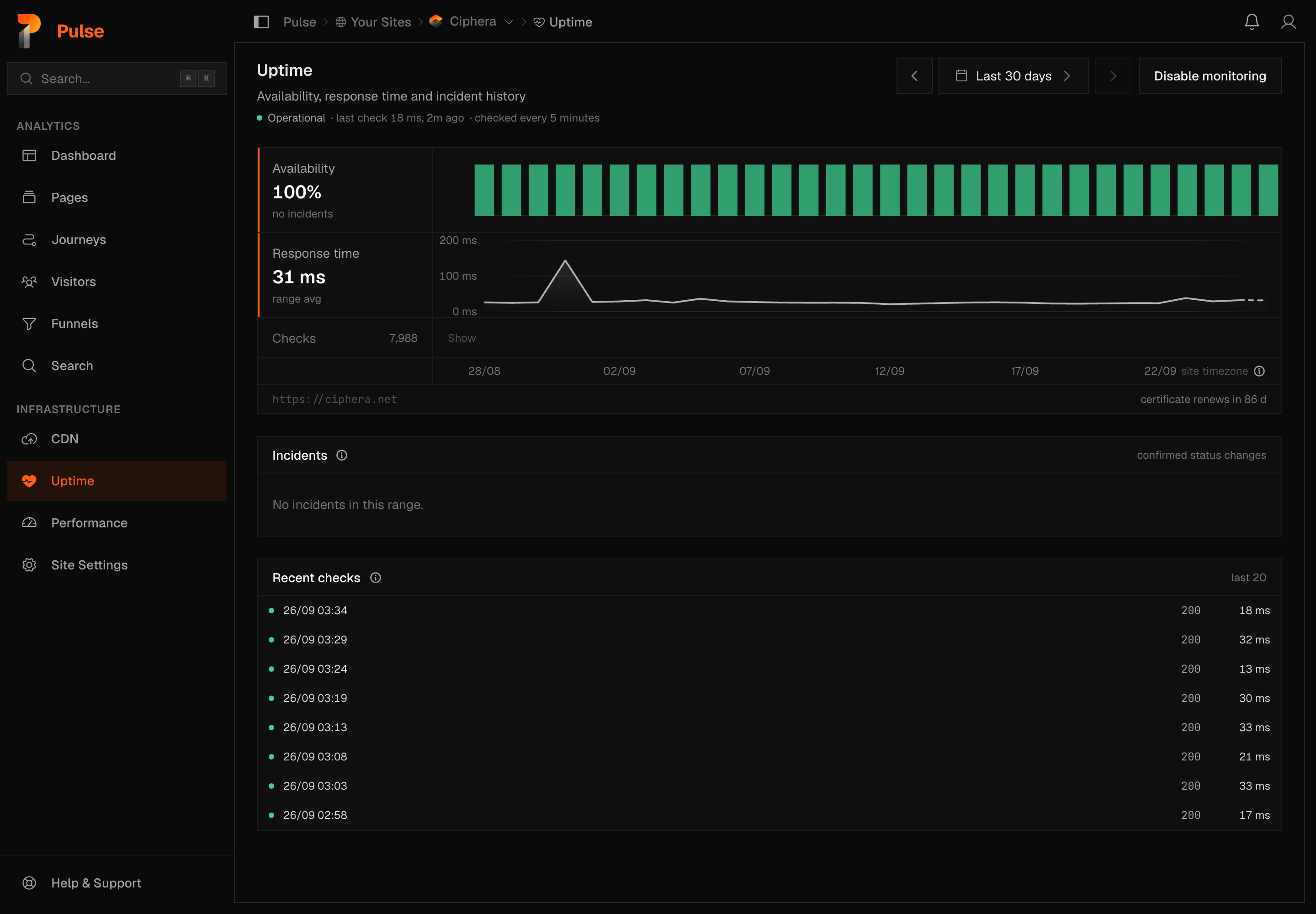
Pulse checks your site every 5 minutes and records whether it responds successfully. The results are displayed in a dedicated uptime dashboard alongside your analytics.
Enable uptime monitoring
There is no toggle in Settings. Enabling lives on the uptime dashboard itself. Open the dashboard for your site; if monitoring is off, it shows an enable panel in place of the charts, with an Enable uptime monitoring button. Select it and Pulse immediately begins sending HTTP GET requests to https://your-domain from a remote monitoring node, expecting an HTTP 200 response within a 30-second timeout. The button only shows if you have permission to manage the site's uptime monitoring — without it you'll see the same panel with no way to act on it.
Note
Monitoring checks the root domain only. If you want to monitor a specific path or subdomain, register it as a separate site in Pulse.
Uptime dashboard
The uptime dashboard is at /sites/{id}/uptime.
Status indicator
The current status appears at the top:
| Status | Meaning |
|---|---|
| Operational | Healthy — recovers the moment a check succeeds |
| Degraded | Confirmed after 3 consecutive slow responses (above threshold) |
| Down | Confirmed after 3 consecutive failed or timed-out checks |
Availability strip
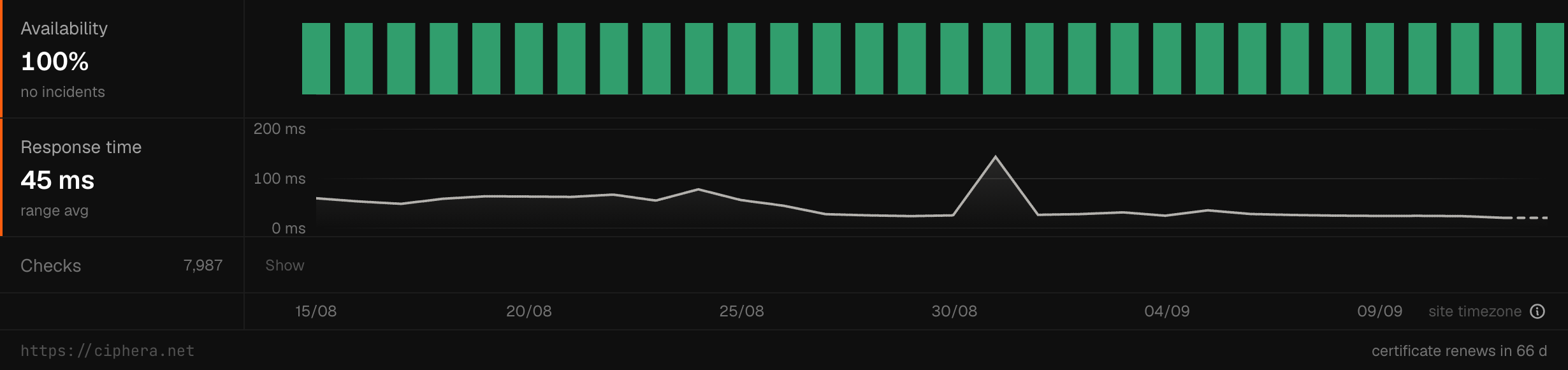
A colour-coded strip with one cell per bucket across the range picked in the view switcher at the top of the page — the same twelve rows as every page (Time ranges), with a custom range up to 366 days. Uptime history starts at your first check, and a range that reaches back before it says so on the button. Ranges of 8 days or less bucket by hour; anything longer buckets by day. Green is fully operational, yellow is degraded, red is down, and hovering any cell brings up a card with:
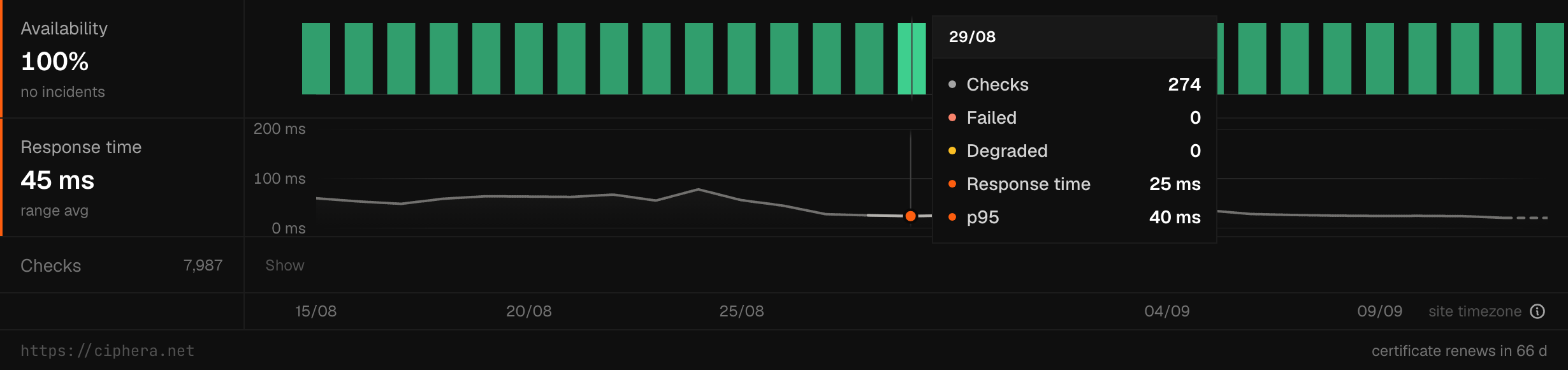
- Checks
- Failed
- Degraded
- Response time
- p95
Response time chart
A line chart plotting the same buckets as the availability strip, over whatever range is selected — hourly for a week or so back, daily beyond that. Useful for spotting gradual degradation before an outage.
Certificate expiry
Every HTTPS check reads the certificate from its own handshake and stores its expiry. The panel shows this next to the monitored URL — certificate renews in N d, or certificate expired N d ago once it's overdue — and Pulse sends a one-time notification through the Monitoring category below when a certificate is within 14 days of expiring.
Recent checks
A list of the most recent check results, showing timestamp, HTTP status code, and response time in milliseconds. Failed checks display the error reason.
Overall uptime percentage
A single figure showing availability over the selected period, calculated as (successful checks / total checks) × 100.
Alerts
Alerts aren't configured per site any more. When your site's status changes, going down or recovering, each teammate hears about it through their own Monitoring notification preferences instead, set at Settings → Account → Notifications: every notification arrives by email, and each member can switch the category's emails off independently.
Note
See Notifications for the full category list.
What each number means
Availability
The share of uptime checks that came back healthy across the range. A degraded check — an unexpected status code under 500, or a response slower than 5 seconds — counts against it, and a failure only counts once the checker has confirmed it, so a single blip inside the grace window still reads as up. Days are your site's calendar days, like the rest of the product.
Response time
Average response time across every timed check, failures included. Exact p50 and
p95 come from raw checks (kept 90 days) on ranges up to 8 days; longer ranges
fall back to the stored daily average, labelled avg — never an invented
percentile.
Checks
Every uptime check run in the range. The Recent checks list shows the newest checks for the monitor whatever range is selected: when each ran, the status code it saw, and how long it took. The dot shows the confirmed status, so a blip inside the grace window still reads as up.
Incidents
Confirmed down or degraded episodes — the durable record. Raw checks are purged after 90 days; incidents are not, so the history of an episode outlives the individual checks that detected it.
Note
An incident is written when a status change is confirmed, not on the first failed check, so a single blip does not open one. Boundaries come from the check rows' own timestamps.

Site timezone
Days on this page are your site's calendar days, set per site in settings.
Warning
Uptime days recorded before the site-timezone conversion were cut as UTC days. Those days' raw checks have since been purged, so they cannot be re-cut — the page labels the boundary rather than silently mixing two kinds of day.