Notifications
Pulse tells you by email when something needs attention, and you choose which categories of email reach you.
Pulse tells you when something needs attention, like a site going down or a payment failing, by email. Each notification is an email sent to you as it happens, and its link opens the page in Pulse that it is about.
There is no inbox inside the app. The bell and the full inbox at /notifications were removed on 21 October 2026, and an old link to /notifications now opens your notification settings.
Choosing what reaches you
Pulse notifies you about uptime and other site or account events through your own notification preferences, not through channels attached to a site.
Warning
The old per-site alert setup (Email, Slack, Discord and a generic webhook, all configured in site settings) was retired on 31 August 2026. Uptime and site notifications now route through each member's own notification settings instead.
Where preferences live
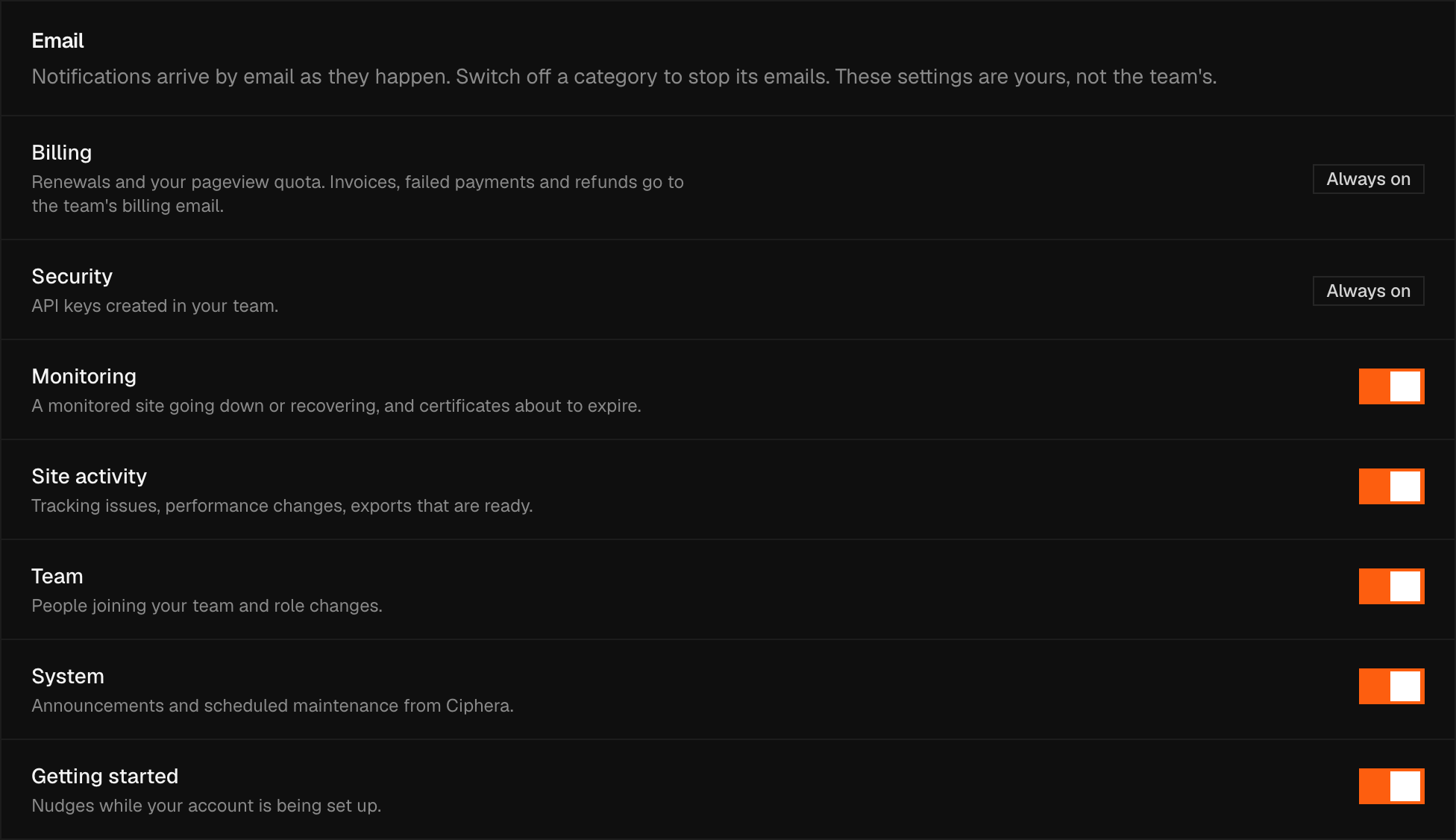
Open Settings → Account → Notifications to set yours. Preferences are per member, not per team or per site: each person chooses their own emails. The page sums it up in its first line: "Notifications arrive by email as they happen. Switch off a category to stop its emails."
What triggers an uptime notification
The underlying event isn't scheduled. It fires on a status change, and there are three:
- Site goes down: a check fails or times out
- Site recovers: a check succeeds after a failure
- Certificate nearing expiry: the TLS certificate the checker sees on an HTTPS check is within 14 days of its own expiry date
If the Monitoring category's email switch is on, the email goes out right away.
Note
Uptime monitoring must be turned on before any notification can fire. There is no toggle for this in site settings; enabling lives on the uptime dashboard itself. See Uptime Monitoring for setup.
The categories
Notifications are grouped into categories: Billing, Security, Monitoring, Site activity, Team, System, and Getting started. Monitoring is the category uptime notifications belong to, not a surface of its own. Every category emails by default, and each has one switch to turn its email off. Email is the only way a notification reaches you, so a category you switch off tells you nothing at all.
If you work alone (the only member of your only team), the Team category doesn't appear on this page. It covers people joining your team and role changes, neither of which can happen while you're on your own, and it shows up again once someone joins your team. Sending an invite link is not enough on its own: an unused link is not a member.
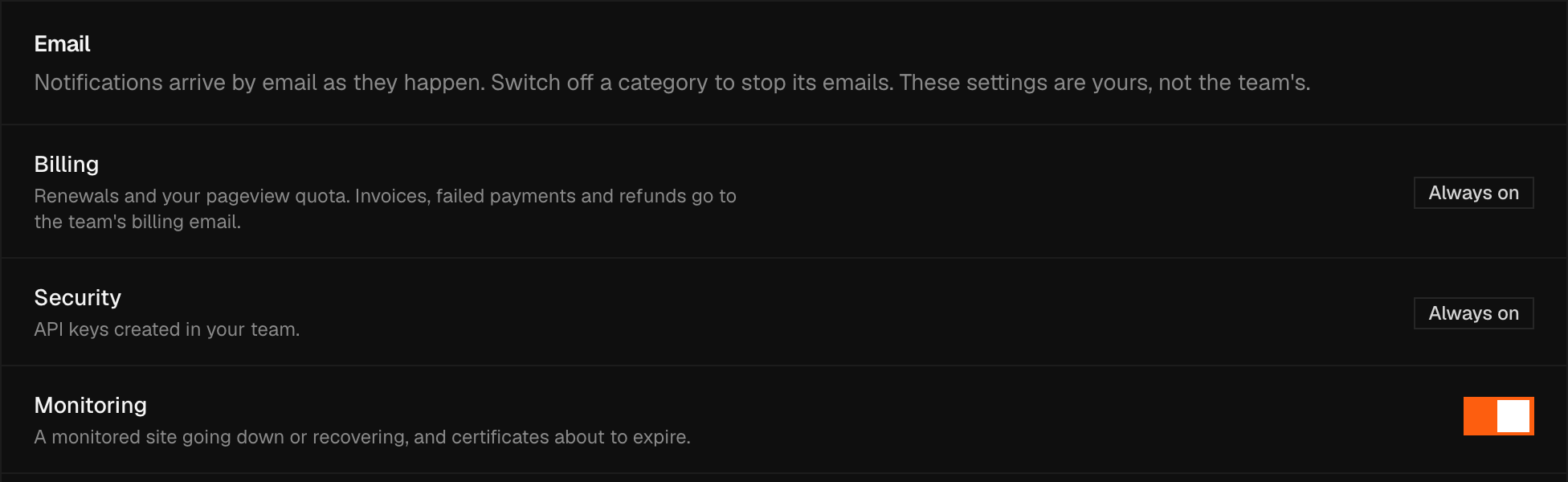
Billing and Security can't be turned off. They show an Always on chip in place of a switch, and their email always sends. Three billing notices go to one address rather than to every member: a failed payment, an invoice and a refund are emailed to the Billing email in your billing details, or to the team owner when none is set. Every other Billing and Security email reaches each member.