Framework Guides
Where to add the Pulse script in popular frameworks, CMS platforms, and tag managers.
The Pulse tracking script works on any website that renders HTML. Below are the most common setups — each shows where to paste the snippet for your stack. For script attributes and configuration, see Script Tag.
Next.js
In app/layout.tsx, add one next/script tag inside <body> — strategy="afterInteractive" loads it after hydration without blocking the page.
import Script from 'next/script'

export default function RootLayout({ children }) {
  return (
    <html lang="en">
      <body>
        {children}
        <Script defer data-domain="example.com" src="https://js.ciphera.net/script.js" strategy="afterInteractive" />
      </body>
    </html>
  )
}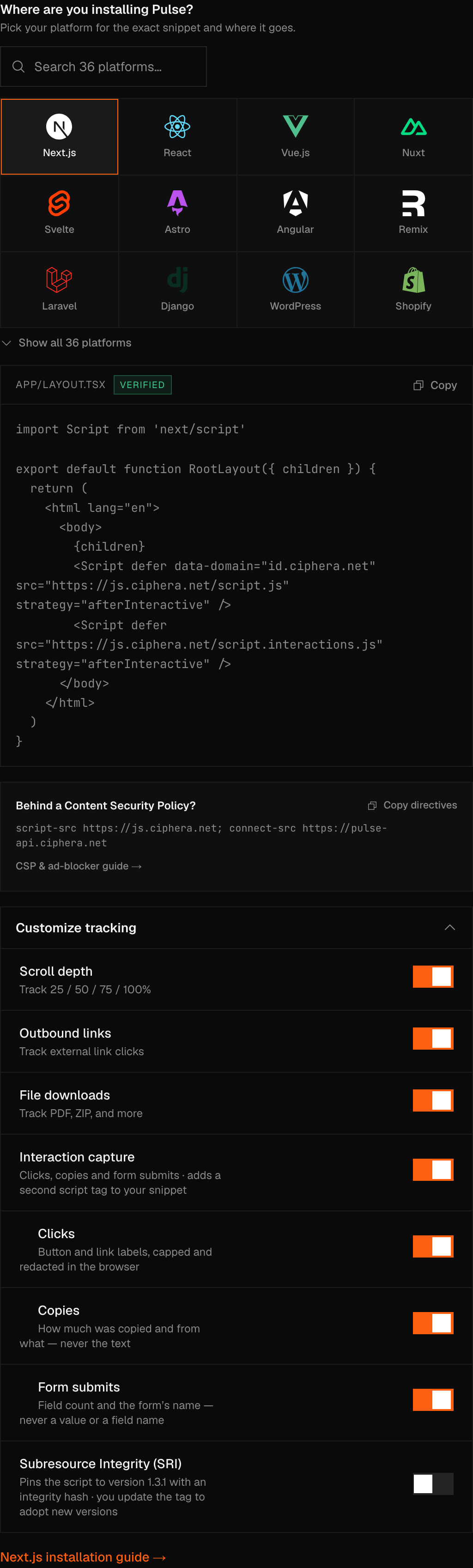
The install step in Pulse writes this for you with your domain and any tracking options you switch off (for example data-no-outbound) already on the tag.
React / Vite
Add the snippet directly to index.html inside <head>:
<head>
  <script defer data-domain="example.com" src="https://js.ciphera.net/script.js"></script>
</head>
Vue / Nuxt
In nuxt.config.ts, use the app.head option:
export default defineNuxtConfig({
  app: {
    head: {
      script: [
        { defer: true, 'data-domain': 'example.com', src: 'https://js.ciphera.net/script.js' },
      ],
    },
  },
})
If your project uses Nuxt Scripts, Pulse is in its registry as pulseAnalytics from @nuxt/scripts 2.0.0-beta.7 — the 1.x line does not carry it. Register it once in nuxt.config.ts, with a trigger — a registry entry without one is configured but never loaded:
export default defineNuxtConfig({
  modules: ['@nuxt/scripts'],
  scripts: {
    registry: {
      pulseAnalytics: { domain: 'example.com', trigger: 'onNuxtReady' },
    },
  },
})
Or call the composable from app.vue or any component:
const { proxy } = useScriptPulseAnalytics({ domain: 'example.com' })
proxy.track('signup', { plan: 'pro' })
The options map to the script attributes: apiUrl sets data-api, and trackScroll, trackOutbound or trackDownloads set to false write the matching data-no-* attribute. Nuxt Scripts serves the tracker from your own origin at build time; events still go directly to the Pulse API, so nothing about visitor identity or bot filtering changes. Its proxy mode is not available for Pulse — the registry page explains why.
For plain Vue with Vite, add the tag to index.html the same way as the React/Vite approach above.
Svelte
In src/app.html, add the snippet inside <head>, alongside SvelteKit's own placeholders:
<!doctype html>
<html>
  <head>
    <script defer data-domain="example.com" src="https://js.ciphera.net/script.js"></script>
    %sveltekit.head%
  </head>
  <body>%sveltekit.body%</body>
</html>
Astro
Install the official integration:
npx astro add @ciphera-net/pulse-astroThen set your domain in astro.config.mjs:
import pulse from '@ciphera-net/pulse-astro'

export default defineConfig({
  integrations: [pulse({ domain: 'example.com' })],
})
It has zero runtime dependencies and is measured against Astro 5, 6 and 7. The domain is optional — leave it out and the tracker uses the browser's own hostname, which is correct for a site served on one domain.
Note
The integration does not inject during astro dev. Astro's injectScript
takes JavaScript rather than HTML, so the integration adds a small DOM
bootstrap the way @astrojs/vercel does, and it runs on a built site.
To add it by hand instead, put the snippet in your base layout inside <head>:
---
// src/layouts/Base.astro
---
<html>
  <head>
    <script defer data-domain="example.com" src="https://js.ciphera.net/script.js"></script>
  </head>
  <body><slot /></body>
</html>
Shopify
In your Shopify admin, go to Online Store → Themes → Edit Code. Open layout/theme.liquid and paste the snippet just before </head>. That covers your storefront only — Shopify checkout doesn't run theme scripts, on Plus or non-Plus, so it needs its own hookup: add a Customer Events Custom Pixel that forwards page_viewed and checkout_completed. Skip that step and pageviews come through fine while checkout and conversion data never do.

Remix
In app/root.tsx, add the tag inside <head>:
export default function App() {
  return (
    <html>
      <head>
        <Meta />
        <Links />
        <script defer data-domain="example.com" src="https://js.ciphera.net/script.js" />
      </head>
      <body>
        <Outlet />
        <Scripts />
      </body>
    </html>
  )
}
Gatsby
In gatsby-ssr.js, use onRenderBody to add the tag to every page's <head>:
export const onRenderBody = ({ setHeadComponents }) => {
  setHeadComponents([
    <script key="pulse" defer data-domain="example.com" src="https://js.ciphera.net/script.js" />,
  ])
}
Angular
In src/index.html, add the snippet inside <head>. Angular's router never reloads the document, so the universal tag handles route changes on its own:
<head>
  <script defer data-domain="example.com" src="https://js.ciphera.net/script.js"></script>
</head>
Laravel
In resources/views/layouts/app.blade.php, add the snippet inside the <head> block your other layouts extend:
<head>
    @stack('meta')
    <script defer data-domain="{{ config('app.domain') }}" src="https://js.ciphera.net/script.js"></script>
</head>
Django
In your base template — usually base.html — add the snippet inside <head>. Every template that extends it inherits the tag:
{% raw %}<head>
  {% block head %}{% endblock %}
  <script defer data-domain="example.com" src="https://js.ciphera.net/script.js"></script>
</head>{% endraw %}
Hugo
In layouts/partials/head.html, add the snippet. If your theme ships its own head.html, copy it into your site's layouts/ first so an update cannot overwrite the change:
<script defer data-domain="example.com" src="https://js.ciphera.net/script.js"></script>Docusaurus
Install the official plugin:
npm i @ciphera-net/pulse-docusaurusThen add it to docusaurus.config.js:
plugins: [['@ciphera-net/pulse-docusaurus', { domain: 'example.com' }]]It has zero runtime dependencies and is measured against Docusaurus 3.0.1 through 3.10.2. Set interactions: true if you also want clicks, copies and form submits.
Jekyll
In _includes/head.html, add the snippet. As with Hugo, copy the theme's version into your own _includes/ before editing if you are using a gem-based theme:
<script defer data-domain="example.com" src="https://js.ciphera.net/script.js"></script>Drupal
Install the Pulse Analytics module from drupal.org:
composer require drupal/pulse_analytics
drush en pulse_analytics
Then go to Configuration → Web services → Pulse Analytics and enter the domain your site is registered under. Leave it empty and the tracker uses the browser's own hostname.
It supports Drupal 10 and 11, adds no database tables and has no Composer dependencies beyond core. Administration pages are excluded by default, because counting them inflates every number on the dashboard.
To add it by hand instead, put the snippet in your theme's html.html.twig before </head>. A small custom module implementing hook_page_attachments() works too, and survives a theme change:
<script defer data-domain="example.com" src="https://js.ciphera.net/script.js"></script>Joomla
Go to Extensions → Templates, open your template's index.php, and paste the snippet before </head>.
Framer
Install the Pulse Analytics plugin from the Framer Marketplace. It reads your published domain, writes the tag into Site Settings → Custom Code for you, and touches only its own tags — any other custom code on the site stays exactly as you wrote it. It works on every Framer plan, including the free one.
To add it by hand instead, go to Site Settings → Custom Code and paste the snippet into the head field. Either way, Framer's canvas routing is a single-page app and the universal tag already follows it — nothing extra to configure.
Webflow
In your Webflow project, go to Project Settings → Custom Code. Paste the snippet in the Head Code field and publish. This needs a paid Site plan — the free Starter plan can't inject custom code.

Google Tag Manager
- In GTM, go to Tags → New.
- Choose Custom HTML as the tag type.
- Paste the tracking snippet:
<script defer data-domain="example.com" src="https://js.ciphera.net/script.js"></script>- Set the trigger to All Pages.
- Click Submit to publish.
GTM can strip data-* attributes from a Custom HTML tag, so configure the script with window.pulseConfig instead of relying on data-domain surviving:
<script>window.pulseConfig = { domain: 'example.com' }</script>
<script defer src="https://js.ciphera.net/script.js"></script>
Warning
This route puts Google back in your critical path. Every pageview now depends on a container loaded from Google's servers, which is most of the reason people move off Google Analytics in the first place — and it is the one setup here where a consent banner may still be required for the container itself, whatever Pulse does. Adding the tag directly to your template avoids it entirely.
Note
Running a self-hosted Pulse backend? Add a configuration script before the tracking snippet. The key is api, not apiUrl, and it takes a bare origin — the script appends its own path (/api/v1/events) to whatever you give it:
<script>window.pulseConfig = { api: 'https://pulse.yourdomain.com' }</script>
This is for a real Pulse instance of your own. Pointing it at a server that forwards requests on to our API does not work: a forwarded request carries no Origin header, which Pulse requires, so every event is rejected and nothing is recorded.
WordPress
Use the official Pulse Analytics plugin — it handles script loading and configuration without editing theme files.
Squarespace
In your Squarespace admin, go to Settings → Advanced → Code Injection. Paste the snippet in the Header field and save. This needs a Business plan or higher.
Wix
In your Wix dashboard, go to Settings → Custom Code. Add the snippet to the Head section. Requires a Premium plan.
Ghost
In your Ghost admin, open Settings, find Code injection under Advanced and click Open. Paste the snippet in the Site header tab and click Save. Code injection is available on every Ghost plan.
Other platforms
For any platform not listed here, paste the Pulse script tag into your site's <head> element. See Script Tag for the full snippet and configuration options.