Export
Download your Pulse Analytics data as a spreadsheet, or share a growth report — from Settings, not the dashboard.
Export lives in Settings → Export (/settings/site/export), not on the dashboard chart. You'll need the Export data permission — every built-in role holds it except Viewer — or the tab won't appear at all.
The tab is four tiles: Spreadsheet, Growth report, Scheduled email, and Your own tools.
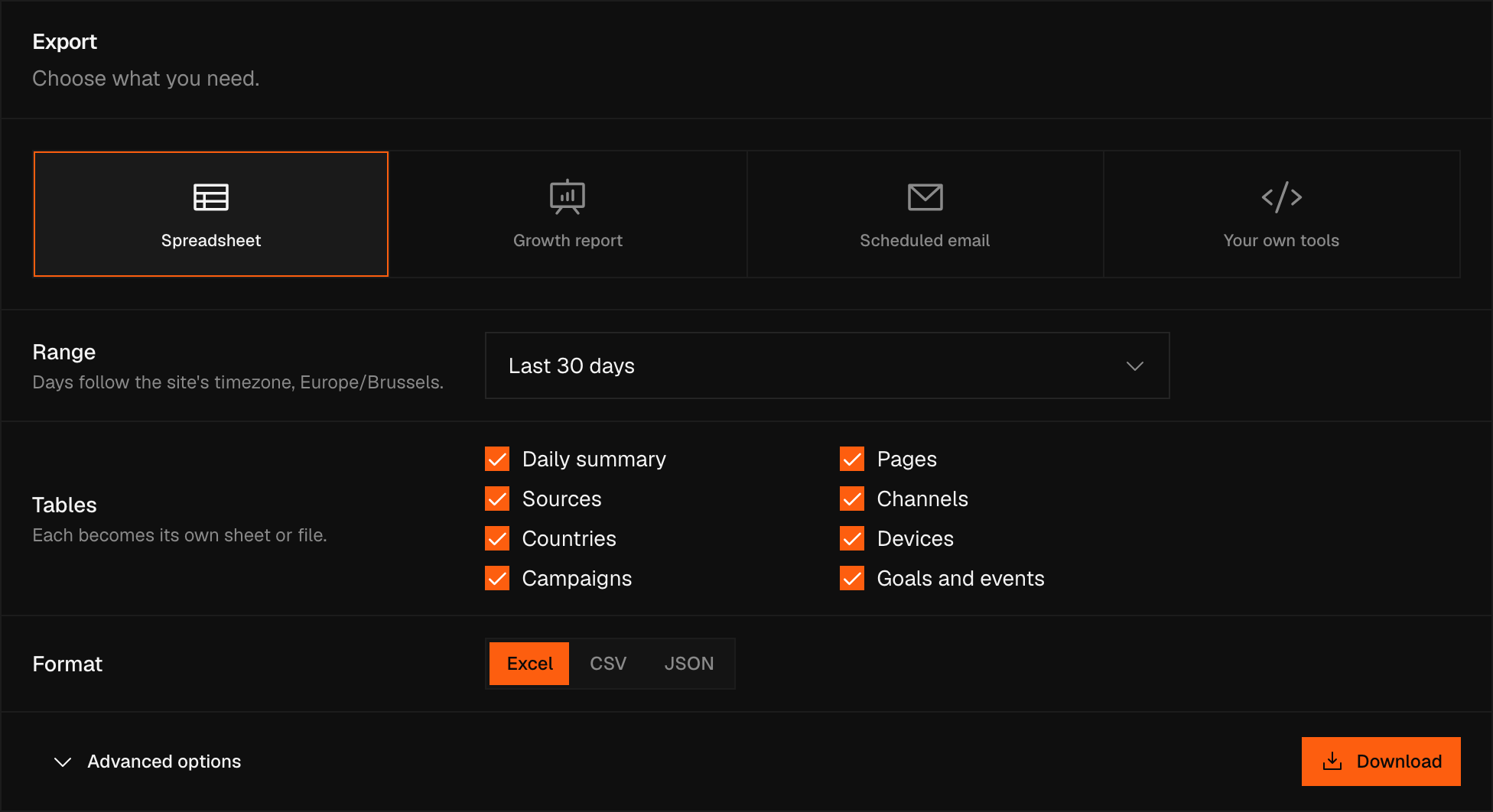
Spreadsheet
Pick a range, choose what to include, and download. Unlike the old export button, this file is built on Pulse's servers from your full data — not just what happens to be loaded in your browser — so a long history or every goal event downloads cleanly.
Range
Choose a preset or a custom range. All time reaches back to the site's very first day, but only for the daily summary — every other table caps at a year (366 days) per download. Pick a longer range and the tab disables those tables, with a line explaining why: "Other tables cover up to a year at a time."
Tables
By default you get the daily summary plus Pages, Sources, Channels, Countries, Devices, Campaigns, and Goals and events. Advanced options open up all 18 tables, grouped under Traffic, Acquisition, Audience and Outcomes, and let you narrow further:
- which metrics each table includes
- the daily summary's time grain — hour, day, week, or month
- the same filters you'd apply on the dashboard
- rows per table — Top 100, Top 1,000, or all rows (up to 50,000)
Warning
If a request is too large to build in one go — a very long range at hour grain, say, or "all rows" across several big tables at once — Pulse refuses it with a clear message instead of sending back a partial file. Shorten the range or drop to a coarser grain and try again. The daily summary itself is never truncated to fit: it downloads whole, or not at all.
Formats
| Format | What you get |
|---|---|
| Excel | One workbook: a Notes sheet first, then one sheet per table |
| CSV | A zip file: README.txt plus one CSV per table |
| JSON | One file: a notes object and a tables object |
In CSV, a text cell starting with =, +, -, or @ gets a leading apostrophe, so a spreadsheet program never runs it as a formula.
Daily summary columns
| Column | Description |
|---|---|
date | The day, in the site's own timezone |
visitors | Unique visitor count |
visits | Session count |
pageviews | Total page loads |
bounce_rate | Bounce rate as a percentage (0–100) |
visit_duration | Engaged time on the visit's pages, in seconds |
scroll_depth | Average scroll depth as a percentage (0–100) |
instrument | measured or imported |
Notes
Every file opens with its own notes: the site, the range, its timezone, any filters you applied, which days (if any) were imported from another tool, and — when your range crosses one of these dates — two short notes on what changed:
- "Before 26 August 2026, Pulse counted a returning visitor once a day; since then, once a month. Months before that date read higher than they would today."
- "Visit duration counts the time a visitor was active on the page. Before 4 September 2026 it is an upper-bound estimate."
Read the notes before you compare a number across one of those boundaries.
Every spreadsheet export is recorded in your team's Audit Log as Exported data.
Growth report
A growth report is built to hand to someone outside day-to-day analytics — an investor, a client, a board. It's five 16:9 slides, one idea each: headline numbers (each compared against the period before it or the same period last year), twelve months of visitors, where visitors come from, what they read and where they are, and devices, goals, and how the numbers were measured.
The numbers are frozen the moment you make it — a report shared in March still says what it said in March, even if the underlying data changes later.
Share it as a link at pulse.ciphera.net/r/…, with an optional password, an expiry of 7, 30 or 90 days or never, and a Revoke button — revoking deletes the report outright, not just the link. You can also download a PDF of the same slides: pick light or dark when you create the report, and that's the look everyone gets who downloads its PDF. The pages are sized 16:9, a deck's own page size, so they drop straight into Keynote or Google Slides rather than sitting letterboxed on A4.
Note
A growth report shows every row exactly as you see it on your own dashboard, small ones included. It's your data, and your call who sees it.
Creating or deleting a growth report needs the Edit site settings permission — the same one that unlocks Site Settings → General.
Scheduled email
A scheduled email regenerates a fresh growth report every month or quarter, made on the 1st for the period that just ended, and emails it to whichever team members you pick. It only reaches people already on your team — to hand the report to anyone else, send them the link instead. Any member it's sent to can turn it off for themselves.
Your own tools
The fourth tile is a shortcut, not a new feature: your API keys, the pulse CLI, and MCP all live here too, for pulling data into your own systems rather than downloading a file.