Team Settings
Rename your team, change its URL, hand off ownership, or delete it outright.
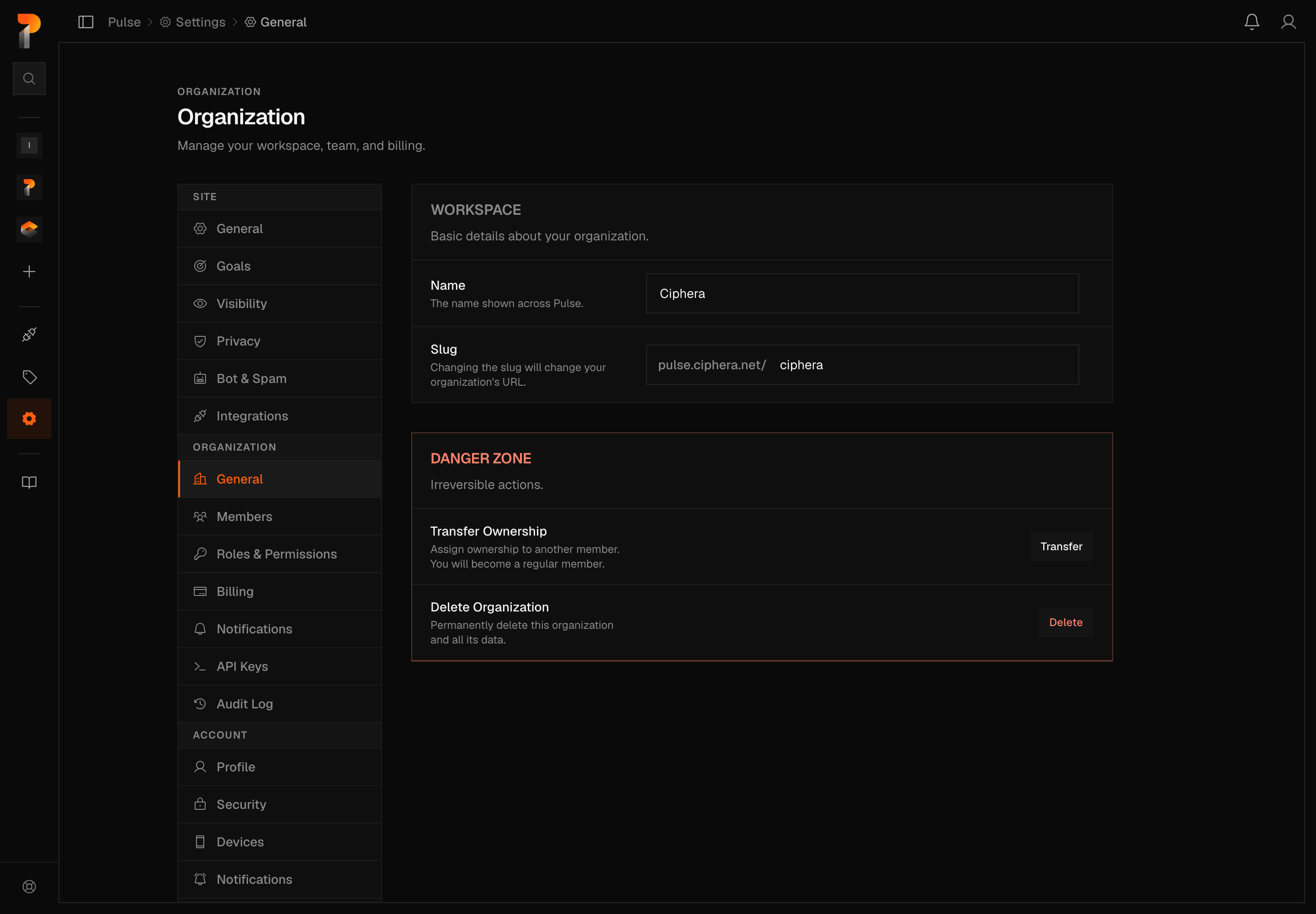
Team Settings is where your team's identity lives — its display name, its URL, and who owns it. You'll find it at Settings → Team → General.
Adding or removing members and managing invite links is covered on Team management; this page doesn't repeat that.
If you work alone
If your team has nobody in it but you, Settings drops the Team column entirely — you get Site and Account, not Site, Team and Account. This page (General), Roles & Permissions and Audit Log aren't listed anywhere, and Members becomes an Invite people row instead. Billing, API Keys and MCP move under Account, since they're simply yours rather than a team's. Every one of those routes, including this page's own address, still opens if you have it bookmarked or follow a link here — Settings just doesn't point you at it. Opened while you work alone, this page words itself as yours: the panel is titled Details, and the delete row in the Danger Zone reads Delete all data.
The user menu follows the same rule: no Teams list and no Team settings entry, just one Invite people row where the switcher would be. Both come back — the switcher and Team settings in the menu, this page under Team in Settings — the moment you stop working alone: you join a second team, or someone actually accepts an invite into yours. Sending an invite link doesn't flip it by itself — an unused link isn't a member — and it's re-checked on every page load, so if your only teammate later leaves, you're back to working alone.
Belonging to more than one
You can be a member of several teams at once, and one of them is active at any moment — it decides which sites you see and which settings these pages are about. The list lives in the user menu at the top right of any signed-in page, under a Teams heading, with the active one marked.
Switching is immediate and needs no reload. ⚠️ It does not keep your place: the switch clears the caches holding the old team's data and returns you to Home, your sites. That is on purpose, because almost nothing carries across — a site id, a funnel, a saved filter all belong to the team you just left.
Create team, in the same menu, starts the same first-run flow you saw when you signed up, and you become its owner. There is no limit on how many you can belong to, and a team with just you in it is perfectly normal — it is how most people keep client work apart. (Belonging to two teams is not working alone, even if you are the only member of each: the switcher is how you move between them, so it stays.) The same menu carries a Team settings item that jumps straight to this page.
Note
Membership is per team, and so is everything measured by one. Being an owner here says nothing about your role anywhere else, and a site cannot be moved between teams: it belongs to the one it was created in.
Name and slug
Two fields, under the Team panel:
- Name — the name shown across Pulse. Placeholder
Acme Corp. - Slug — the segment of your team's URL,
pulse.ciphera.net/<slug>. Changing it changes your team's URL. Placeholderacme-corp.
Both are editable by an Owner or an Admin. Anyone else who opens this tab sees the same two fields, disabled. Nothing saves as you type. A save bar appears once a field is dirty, with Save changes and Discard.
Notifications
Preferences are per person, not per team: there's nothing to configure here for the team as a whole. Each member sets their own delivery at Settings → Account → Notifications, covered in Notifications. Billing and Security reach every member by email regardless of what anyone chooses.
Danger Zone
This section only exists for the team's Owner. An Admin can rename the team above, but the Danger Zone doesn't render for them at all — not grayed out, just absent. Each row's button reveals an inline confirmation on the same page; neither action opens a separate screen.
Transfer Ownership
Hands the Owner role to another existing member and demotes you to a regular Member. Click Transfer and a picker appears listing every other member who isn't already an Owner — Admins and Members are both eligible, picked by role alone, not seniority. If the team has no other members, the panel shows No other members, with "Invite and verify a member first." underneath.
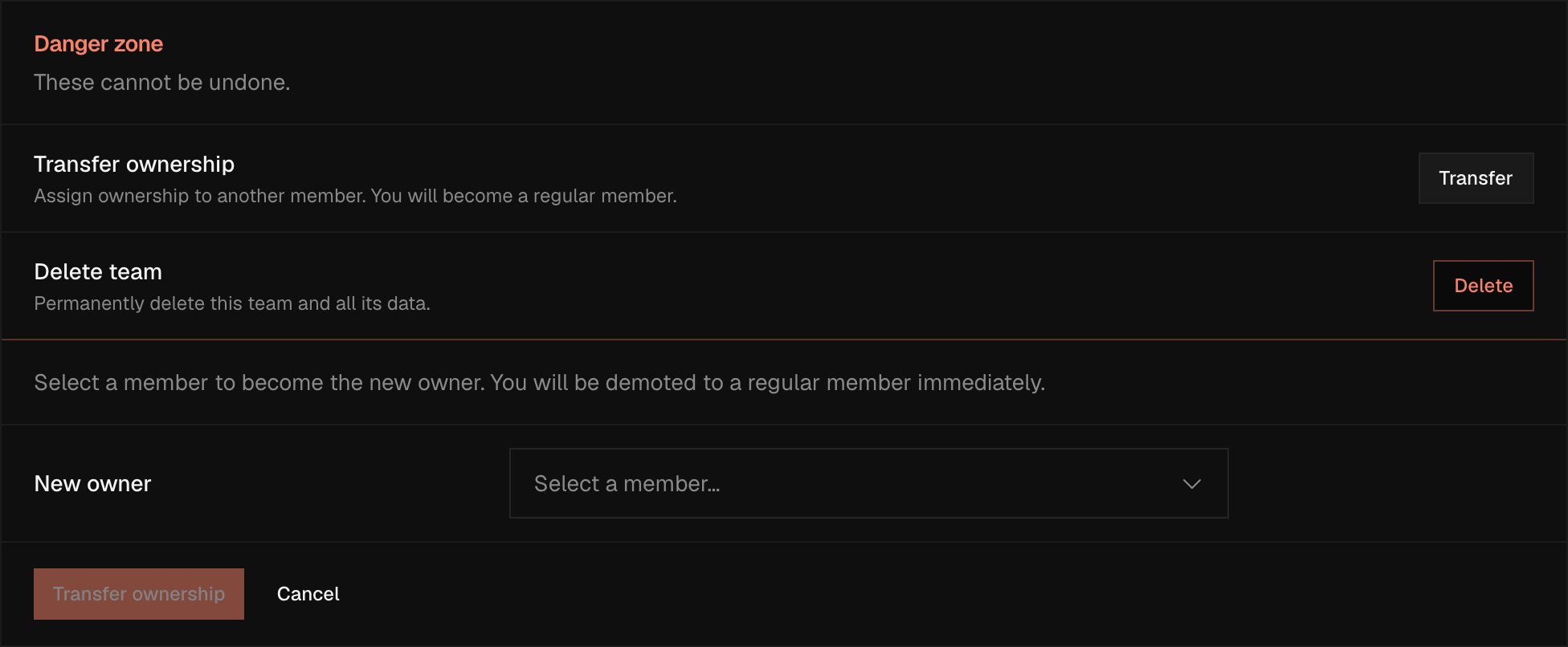
Each option in the picker shows the member's email if Pulse has one, or
Member <first 8 characters of their id> if it doesn't, alongside their
current role. Pick one and click Transfer ownership (it shows
Transferring… while it runs). The server re-checks three things
independently of what the picker already filtered for: that you're still the
Owner, that your pick is still a member, and that their email is verified — an
unverified target is rejected with its own error even though the picker
doesn't hide unverified members from the list.
On success you get "Ownership transferred. You are now a member.", your session is refreshed against your new role, and you land back on this same tab, Owner-only rows and all, as a plain Member. A failure shows the server's own message: "Only the team owner can transfer ownership", "That person is not a member of this team", "Target user must have a verified email address", or a generic "Failed to transfer ownership".
Warning
Nothing is deleted here, but the privilege change is immediate and one-way. The instant your pick confirms, you lose Owner — billing management, transfer, and delete rights — and become a regular Member. There's no "transfer back" button; getting Owner back means the new owner running this same flow again, choosing you.
Delete Team
Click Delete and the confirmation panel says exactly what it's about to do — "This will permanently delete:" — then lists:
- All sites and their analytics data
- All team members and pending invitations
- All notifications and settings
with one more line underneath: "It also cancels any active subscription." Working alone, the row and its button read Delete all data, and the second item reads All pending invitations: there are no other members to remove.
That's the summary. In practice it reaches further than "sites and analytics data" suggests: everything hung off a site — goals, funnels, uptime monitors, annotations, journeys, report schedules — every membership row, every role the team defined, every API key it issued, every AI assistant connected through MCP, and all team-level notification data. Your live Mollie subscription is cancelled the same moment, and your invoices are anonymised (the personal details scrubbed) rather than deleted outright, kept only for Belgian VAT and legal retention.
Type DELETE, exact case, into the field below the list. Delete team
stays disabled until the text matches exactly; delete or Delete won't do
it. Click it and it runs (Deleting… while it does).
The delete runs in two ordered stages: Pulse cleans up every downstream record first, and the team itself is removed only once that entire pass has succeeded. If something goes wrong, the message you get tells you which stage failed, and the two mean different things.
"Deletion failed. Nothing was deleted. Try again." is the first stage failing. Read it as an instruction rather than as a description of your data: the cleanup works through sites, then notifications, then keys and memberships, and it stops at the first step that fails, so how much of it had already run depends on where it stopped. Invoice anonymisation sits in that same sequence but isn't one of the stopping points — a failure there is logged, not surfaced, so the rest of the cleanup carries on and the delete can still report success with your invoices' personal details left unscrubbed.
"Deletion could not complete. Try again." is the second stage failing, and there the answer is definite: the cleanup finished, so your sites, analytics, memberships, API keys and billing are already gone, and only the team record itself is still standing.
Either way, retry until it succeeds, and treat only a success as the end of it. Every step is written to be safe to repeat — a second attempt re-runs the sequence and skips whatever is already done rather than duplicating it — so the retry is what carries a half-finished delete over the line. If it keeps failing, contact support rather than leaving it part-done.
Once it succeeds, you're moved off the team you just deleted: if you belong to another one, your session switches to it and you land on its dashboard; if this was your only team, you're sent into the team-creation wizard instead.
Warning
This is a hard delete, not an archive. Pulse does write a tombstone during the
process, but it exists only to block a race, stopping a stale session from
re-creating rows mid-delete, and isn't a way back. Once the confirmation
succeeds, the team and everything recorded against its sites is gone,
with no restore path, second factor, or cooling-off period standing between
the DELETE field and losing it.
Audit Log
Everything above lives under General. Settings → Team → Audit Log is a different kind of page — a running record of what happened across the team, not the settings on this page.
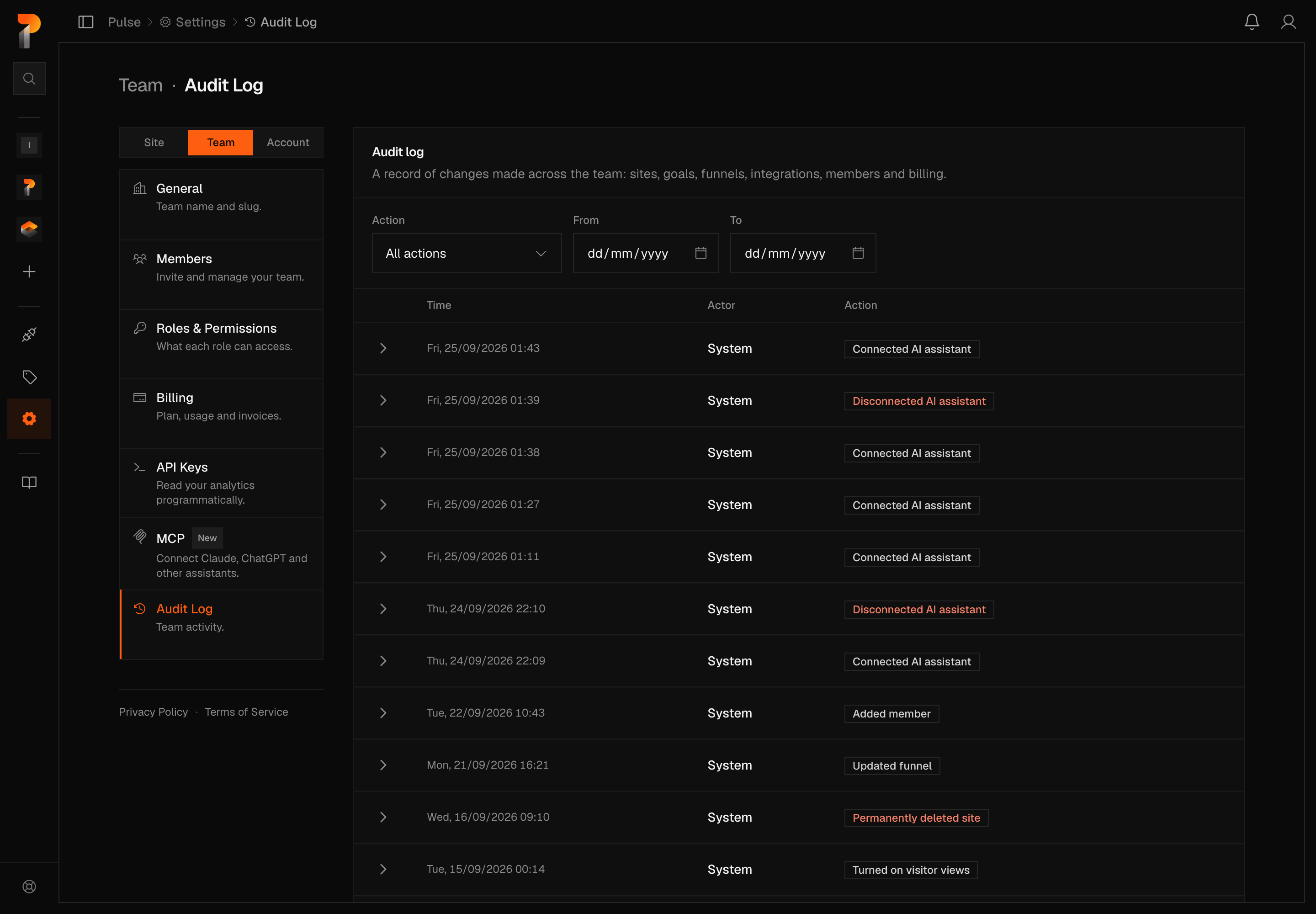

Owner and Admin can open it — a Member can't, the nav item isn't there, and the request behind it is refused the same way. It's a record, not an editor — nothing on this screen can be annotated, exported, or cleared. Working alone, the page still answers at this same address (folded under Account, per above) — its own description just talks about your account rather than a team, since there's nobody else yet to log.
Filter by Action (defaulting to All actions) and by a From/To date range; a Clear button appears once either is set. Set the end before the start and Pulse shows a banner instead of quietly handing back nothing: "Start date is after end date."
Each row shows Time, Actor (the member's email, or System when nothing human triggered it, such as an automatic billing-cycle event), and Action as an uppercase badge. The badge turns red only when the action ends in deleted, removed, disconnected, or cancelled — creating something or connecting an integration stays neutral, deliberately not styled as good news. A row with more to say (which site, which plan) expands under a chevron into its own breakdown. Results page 20 at a time, with Previous/Next and a running count of how many you're looking at.
Logged actions span site changes (created, updated, deleted, restored), goals and funnels (created, updated, deleted), Search Console and BunnyCDN (connected, disconnected), team changes (a member invited, removed, or given a different role), the team's own settings, and billing (plan changed, checkout started, a subscription cancelled or resumed, and a plan granted on your behalf by Ciphera's team, labelled separately so it doesn't read as something you did yourself). Anything this list doesn't cover still shows — under a plain-language version of its own name rather than a raw code word.
If nothing matches your filters, or nothing has happened at all, the log says so: "No activity yet." The caption underneath explains what will show up once something does: "Team actions like site changes and member updates will appear here as they happen." (Working alone, it reads "Changes like new sites and billing updates will appear here as they happen." instead.)