Settings
The ten pages of Pulse settings in the order the app lists them, with what each one holds and who can use it.
Settings is one list of ten pages: General, Goals, Sharing, Privacy, Data, Team, Billing, Developers, Account and Notifications. The list is the same whether you work alone or in a team.
Open it with Settings in the sidebar. It lands on General, or on Team if your team has no sites yet, because a site page has nothing to show until there is a site. Inside a site, Site Settings (shortcut ,) opens that site's pages. The Settings entry in the account menu opens Account.
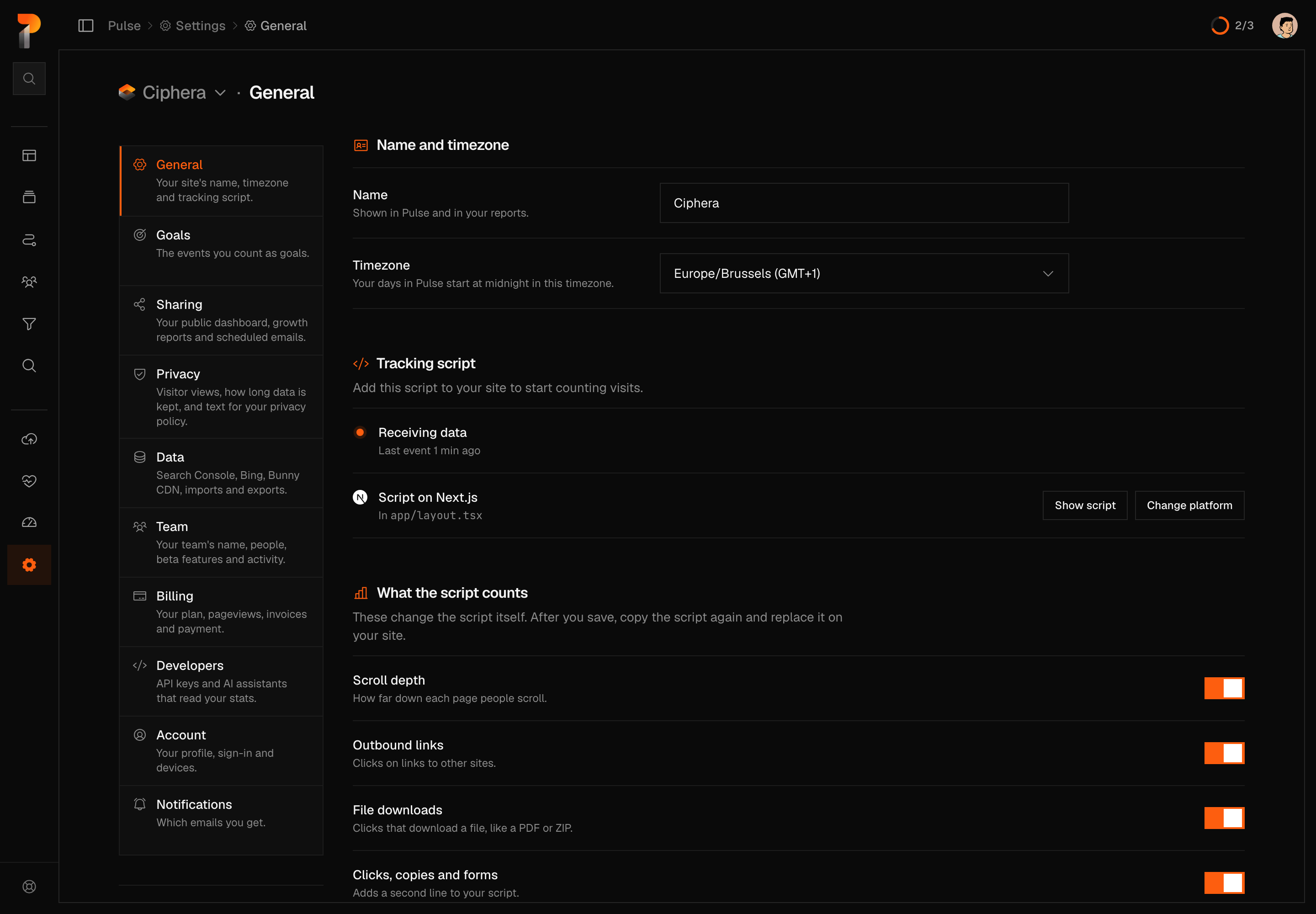
The first five pages belong to one site. Their header names the site, and a picker appears beside the name when your team has more than one. Team, Billing and Developers belong to the team. Account and Notifications belong to you, and they are the same in every team you are in.
Who can use what
Pulse has three roles: owner, admin and member. The roles are fixed, and there is no page for setting them up. Team management says what each one can do. A page you can't use is not listed in the settings list, so a member sees six of the ten.
| Page | Owner | Admin | Member |
|---|---|---|---|
| General | Yes, and the only one who can reset a site's data | Yes | Not listed |
| Goals | Yes | Yes | Not listed |
| Sharing | Everything | Everything | Reads the lists and downloads PDFs |
| Privacy | Yes | Yes | Not listed |
| Data | Everything | Everything | Reads an import's status and exports stats |
| Team | Everything | Everything except changing roles, transferring ownership and deleting the team | Reads it, and can leave |
| Billing | Changes the plan | Reads it | Reads it |
| Developers | Yes | Yes | Not listed |
| Account | Yours alone | Yours alone | Yours alone |
| Notifications | Yours alone | Yours alone | Yours alone |
If you open a page you can't use by its address, Pulse says who can use it instead of showing nothing.
Changes you make to a page's fields do not apply as you type. A bar at the bottom of the page offers Save changes and Discard. A few switches act at once instead, such as the ones on Notifications. Most deletions and removals are a hold: you press and hold the button for about a second and a half, and then a bar offers Undo for 6 seconds before anything is sent.
General
Everything about one site's identity and its tracking script. Owners and admins can use it.
Six sections, top to bottom:
- Name and timezone. The name is shown in Pulse and in your reports, up to 100 characters. The timezone decides where your days start: your days in Pulse start at midnight in it.
- Tracking script. The script to add to your site, with its status.
- What the script counts. Switches that change the script itself.
- Kept out of your stats. How many bot and spam events Pulse left out.
- Dashboard display. One switch, Show referrers as web addresses: in Sources, it shows
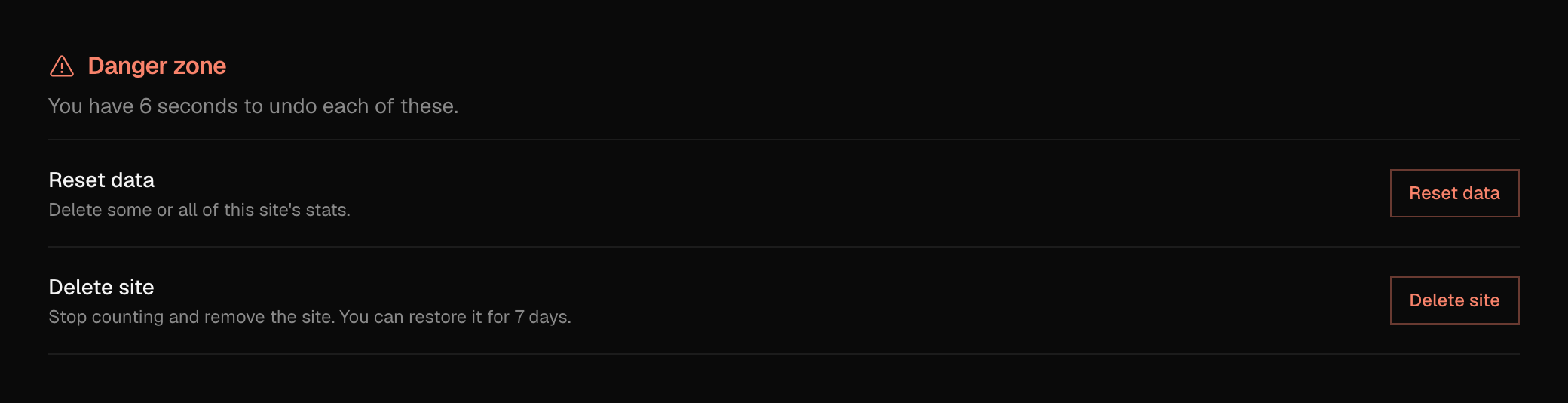
google.cominstead of Google. Direct visits and shared links keep their names. It changes how the dashboard shows data, not what Pulse collects. - Danger zone. Reset data and Delete site.
Note
Changing the timezone is not a display setting. Pulse regroups past days into the new timezone, and it moves your site's midnight, so a visitor who is on the site at that moment can count as a new visitor. The change is recorded in the activity log as Changed site timezone.
Tracking script
The status line says whether data is arriving: Receiving data with the time of the last event, Waiting for the first visit before there is one, Last event 3 days ago once a site goes quiet, and No events for N days when it has stopped, with a link to Troubleshooting. When Pulse turned events away in the last 7 days, a second line names why.
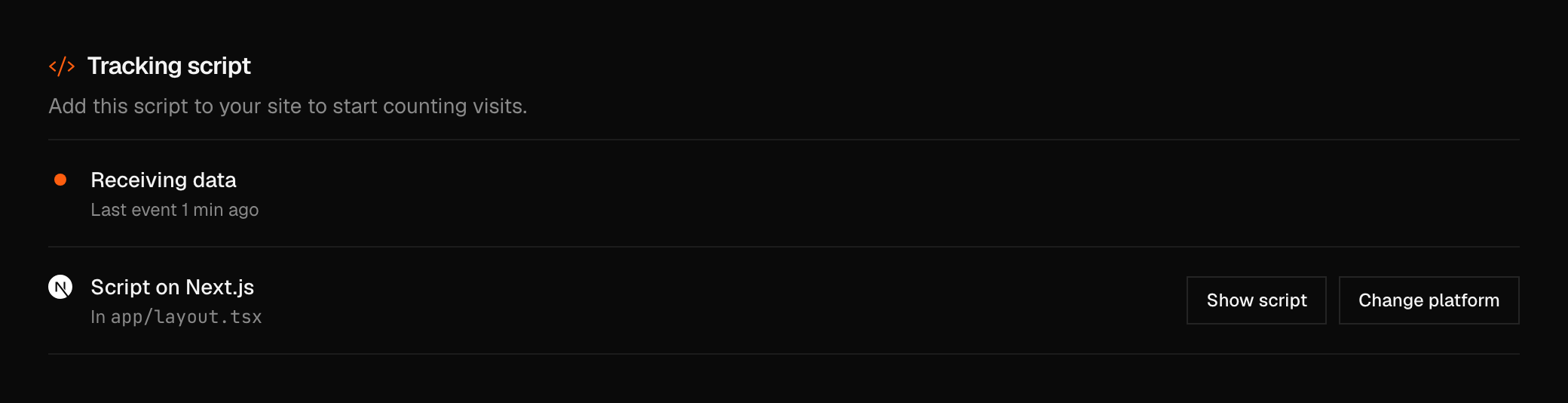
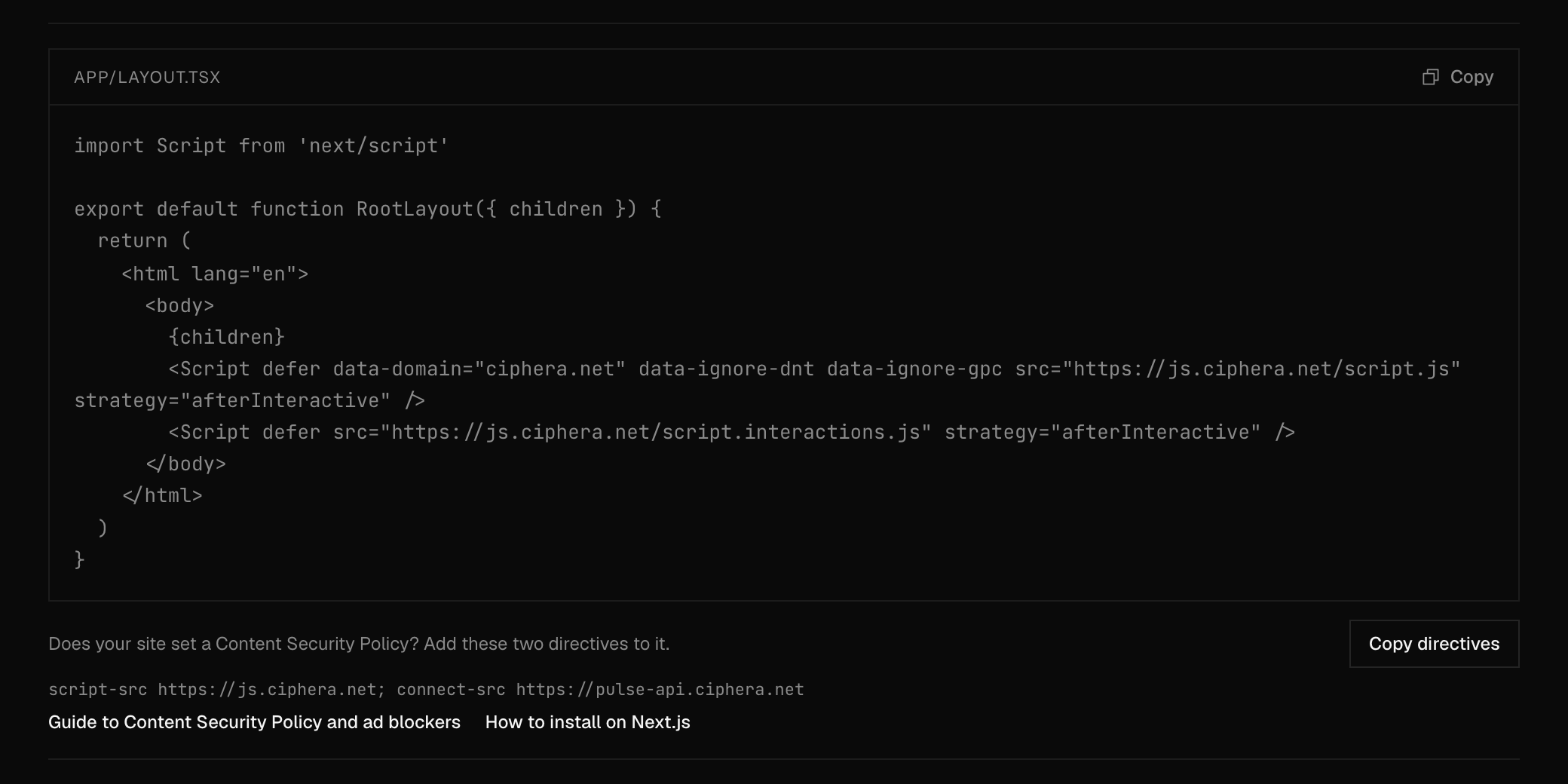
The next row shows the platform you picked and where the script goes. Show script reveals the script with a copy button, and Change platform (or Pick platform) lists the platforms Pulse has steps for. For the script's attributes and a snippet for your framework, see Script installation and Framework guides.
Below the script, a note for sites that set a Content Security Policy lists the two directives to add, with a Copy directives button. Content Security Policy and ad blockers explains them.
What the script counts
These switches change the script itself. After you save, copy the script again and replace it on your site, or nothing changes for your visitors.
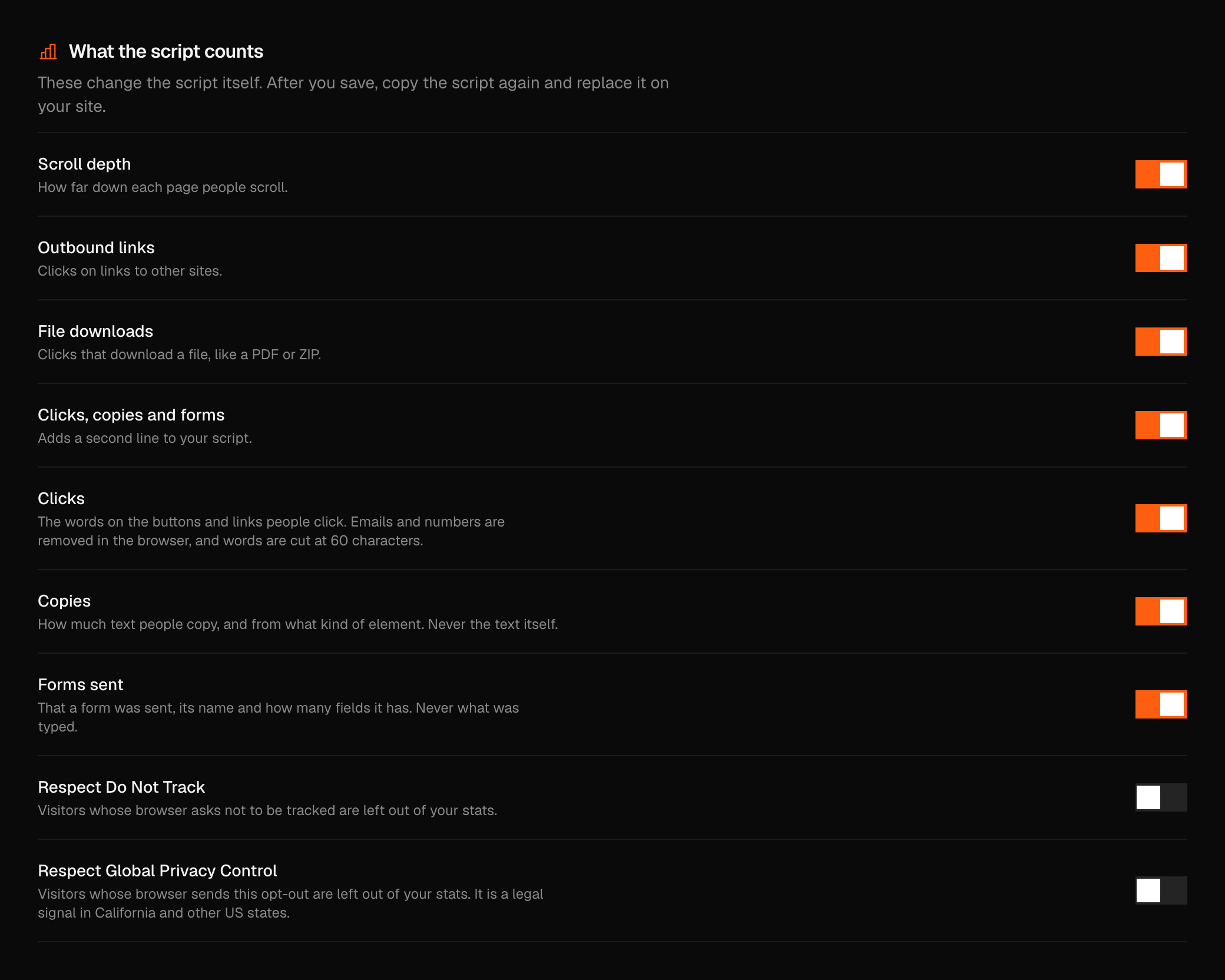
- Scroll depth, Outbound links and File downloads turn each kind of tracking on or off.
- Clicks, copies and forms adds a second line to your script, and it is off until you turn it on. Its three switches, Clicks, Copies and Forms sent, choose what it records. Privacy and data collection says exactly what each one keeps and what it never does.
- Respect Do Not Track and Respect Global Privacy Control leave out visitors whose browser sends either signal. Both are on by default.
Kept out of your stats
Three numbers: All time, Last 7 days and Last 24 hours. They count the bot and spam events Pulse left out of your stats. There is no switch: Pulse always filters them. Bot and spam filtering explains how it decides.

Reset data
Reset data deletes some or all of a site's stats. Pick what to delete and hold Hold to reset. Connected services stay connected.
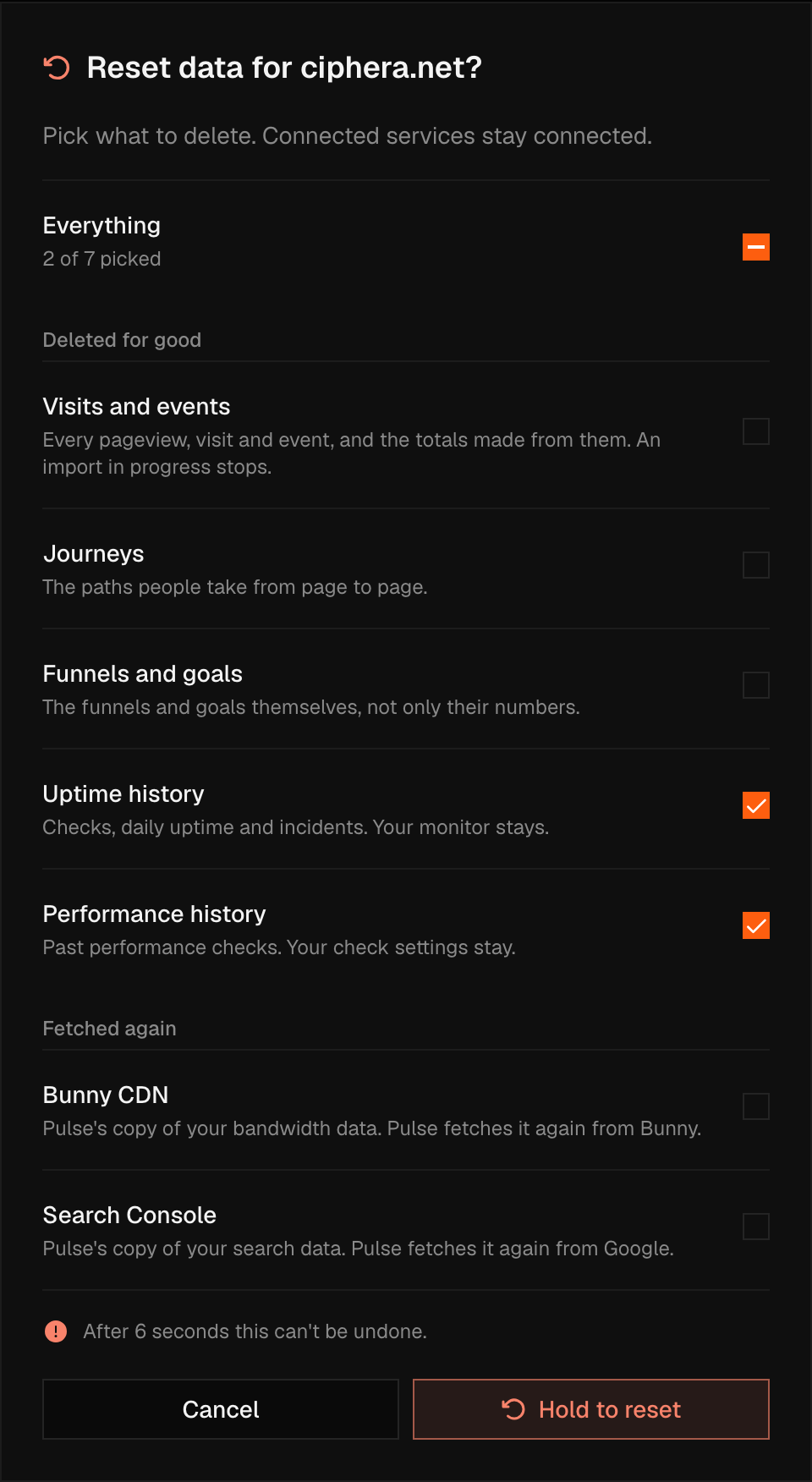
The list has two groups. These are deleted for good:
- Visits and events: every pageview, visit and event, and the totals made from them. An import in progress stops.
- Journeys: the paths people take from page to page.
- Funnels and goals: the funnels and goals themselves, not only their numbers.
- Uptime history: checks, daily uptime and incidents. Your monitor stays.
- Performance history: past performance checks. Your check settings stay.
These are fetched again, because Pulse only holds a copy:
- Bunny CDN: Pulse's copy of your bandwidth data, fetched again from Bunny.
- Search Console: Pulse's copy of your search data, fetched again from Google.
After 6 seconds a reset can't be undone. Only the owner can reset a site's data, so admins do not see the row.
Delete a site
Delete site stops Pulse counting visits on the site and removes it from your sites. Everything stays for 7 days, and you can restore the site from the home page under Scheduled for Deletion, where each row shows Deleting in N days, Restore and Delete Now. After 7 days Pulse deletes the site and everything set up for it. The restore window is enforced by the server, not only shown on screen.
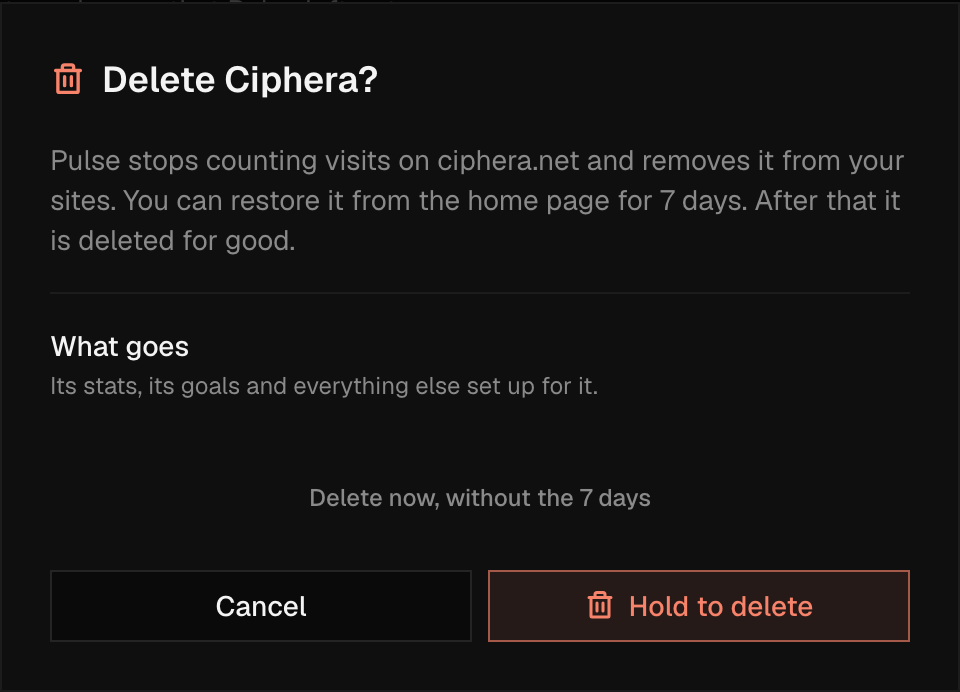
Delete now, without the 7 days in the same dialog skips the wait: the site and all its data go at once and can't be restored. Owners and admins can delete a site.
Goals
A goal gives one of your site's events a name. It shows by that name on the dashboard and in funnels, and growth reports list it. Owners and admins can use the page.
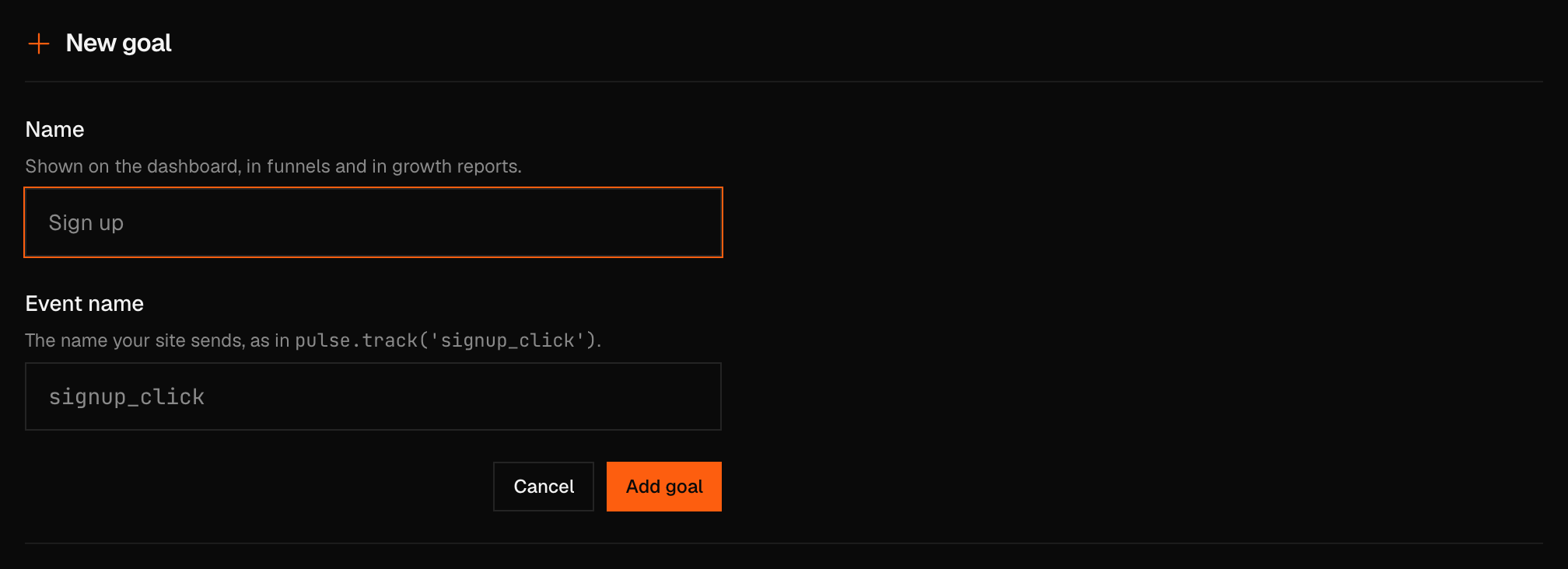
Each goal is a row with the name and the event it counts. Add goal opens a form with two fields: Name and Event name, and a goal can be edited or deleted from its row. Deleting a goal removes the name only: growth reports and exports stop listing the event as a goal, and every event stays counted on the dashboard. You can add the goal again at any time. Goals covers how to send an event first, and Custom events how to name one.
Sharing
Your public dashboard, growth reports and scheduled emails for one site. Owners and admins can use all three sections. Members see the two lists and can download a report's PDF, but they can't make, delete or stop anything, and they do not see the public dashboard section.
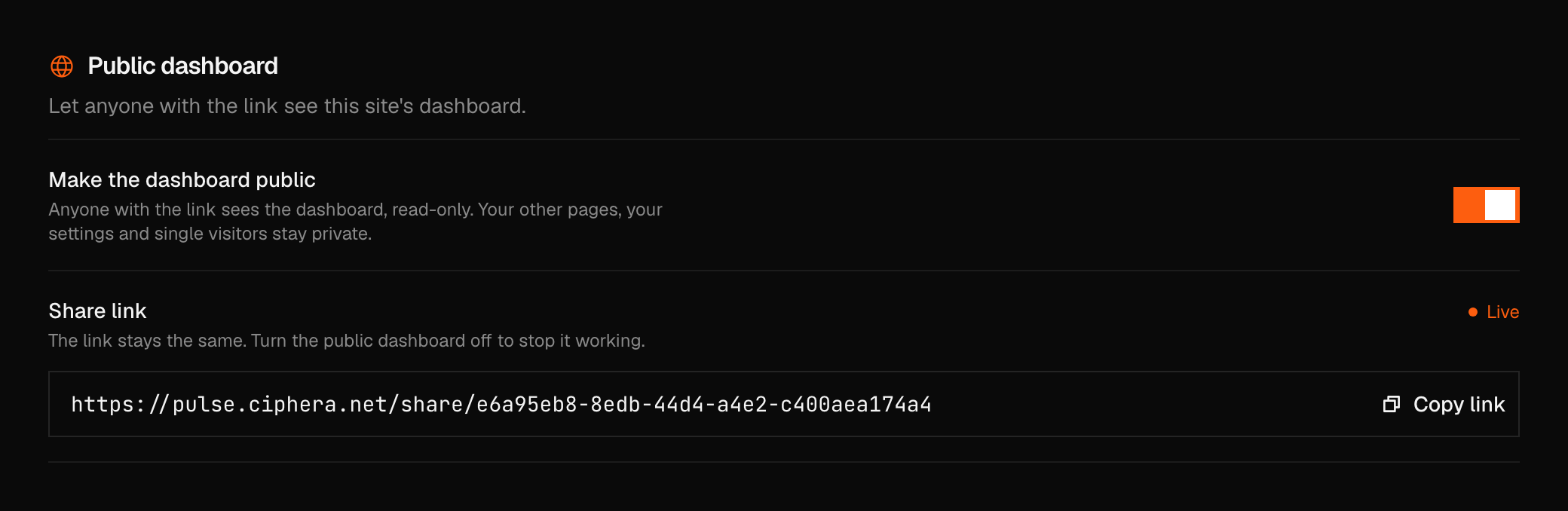
- Public dashboard. One switch, Make the dashboard public. Anyone with the link sees the dashboard, read-only. Your other pages, your settings and single visitors stay private. While it is on, the Share link shows with a Live status and a Copy link button, and the link stays the same. Turn the switch off to stop it working. The switch applies when you save the page. Shared dashboards covers what the link shows.
- Growth reports. A designed report of the site's growth, for investors, clients or your board. Its numbers are fixed when you make it. New growth report opens the form, and each report in the list has buttons to copy its link, download its PDF and delete it. Export and reports has the details.
- Scheduled emails. On the 1st, Pulse makes a growth report of the past month or quarter and emails its link to the people you pick. Schedule emails opens the form, and each schedule can be stopped from its row.
Privacy
Collection and the text for your privacy policy, for one site. Owners and admins can use it.
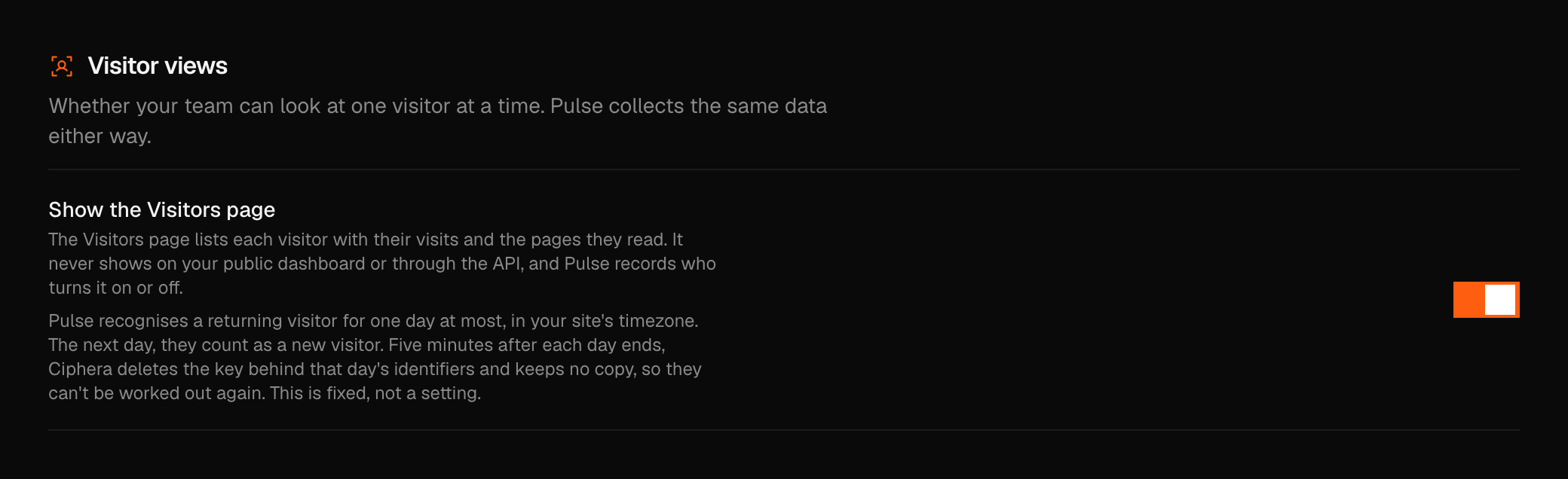
- Visitor views. Show the Visitors page lets your team look at one visitor at a time. Pulse collects the same data either way. The page never shows on your public dashboard or through the API, and Pulse records who turns it on or off. It is off until you turn it on. See Visitors.
- Data retention. Keep data for shows a period instead of a setting. A site keeps data for the most its plan allows: 6 months on Personal and 2 years on Business. Older visits and events are deleted once a day, with their journeys, CDN numbers and performance checks, and the dashboard starts from that day. A plan change moves the period, and a downgrade deletes the older data at the next daily pass. When a paid plan or a grant ends, the old period holds for 30 days first.
- Your own visits. Stop counting me and Count me again open your site and set a flag in that browser. Do it once in each browser you use.
- Advanced, closed until you press Show. Group addresses that contain an ID, Rules for leaving pages out or grouping them, and Query parameters to keep.
- Text for your privacy policy. Text you can paste into your site's privacy policy, with a copy button. It follows your settings, so copy it again after you change them. It is not legal advice.
Privacy and data collection covers each of these in depth, including how rules and grouping work.
Data
What comes into Pulse and what goes out, for one site.
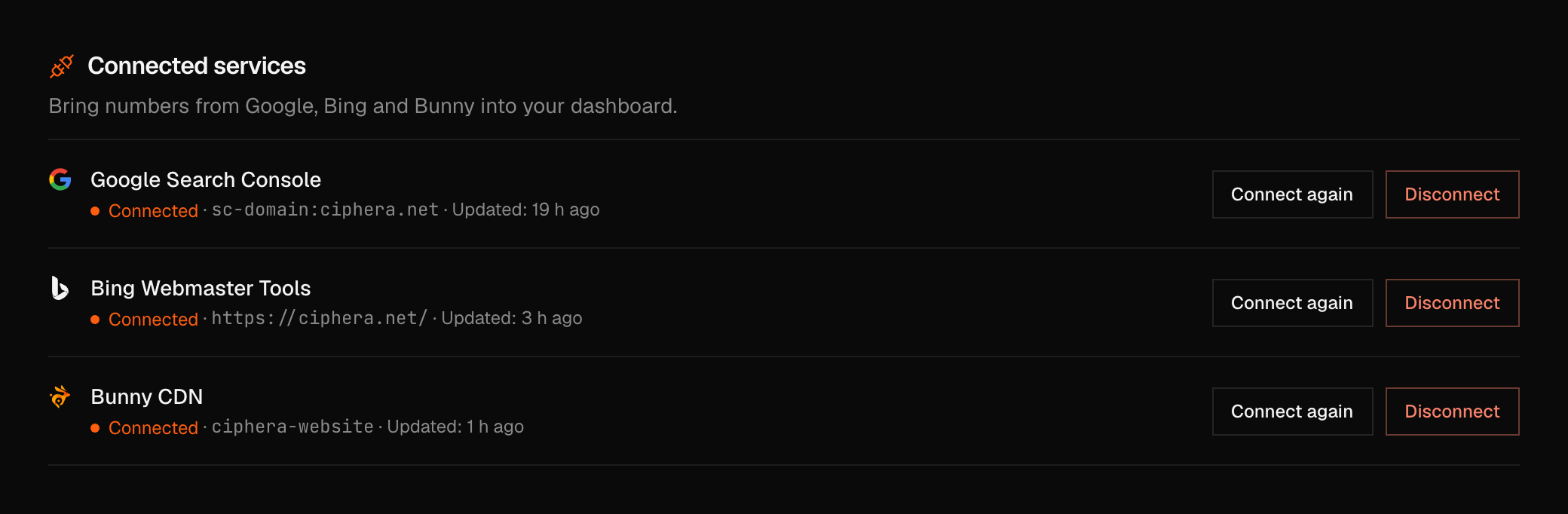
- Connected services. Google Search Console, Bing Webmaster Tools and Bunny CDN, one row each with its status, when it last updated, Connect again and Disconnect. Disconnecting deletes Pulse's copy of that service's data and stops updating it, and connecting again fetches it again. Owners and admins see this section.
- Import history. Bring a site's history from another analytics tool. One import per site, and imported days are marked as imported on the dashboard and in exports. Everyone in the team sees an import's status. Owners and admins start, continue and delete one.
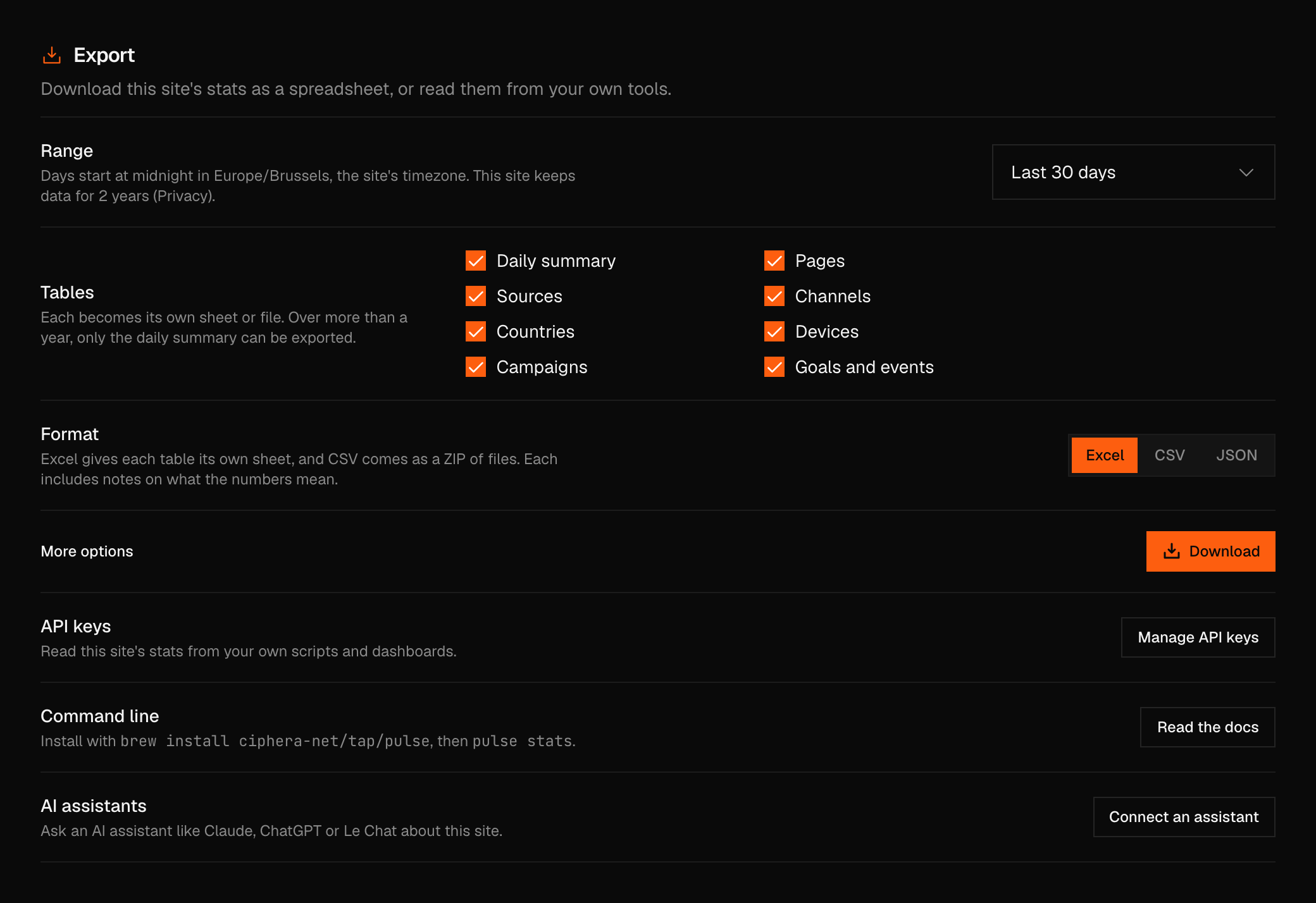
- Export. Download the site's stats as a spreadsheet, or read them from your own tools: API keys, the command line and AI assistants. Anyone who can export, members included, sees this section.
See Integrations for the connected services, Import history for imports, and Export and reports for the spreadsheet.
Team
The team's name, its people, beta features and activity. Everyone in the team can open the page. What you can change depends on your role.
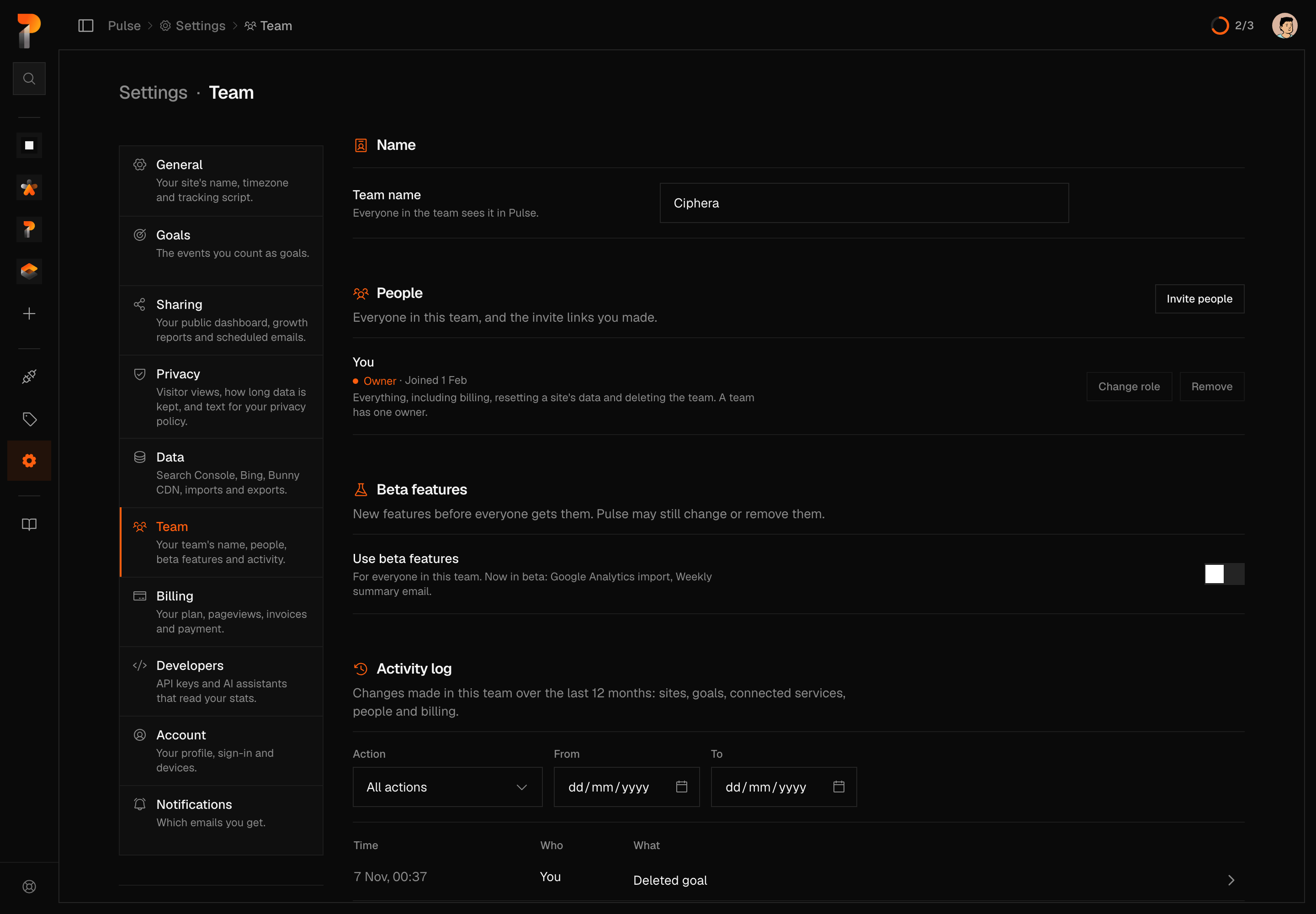
- Name. The team's name, shown to everyone in the team. Owners and admins can change it, and it takes 2 to 50 characters. If you work alone this section is hidden, and the first invite asks for a name instead.
- People. Everyone in the team with their role, and the invite links owners and admins made. Invite people makes a link. Only the owner can Change role, and owners and admins can Remove a person. Team management covers inviting, roles and removing.
- Beta features. One switch, Use beta features, for everyone in the team. Owners and admins change it, and everybody else sees its state.
- Activity log. Changes made in the team over the last 12 months. Owners and admins see it, in teams of more than one person.
- Danger zone. Transfer ownership, Leave team and Delete team. You have 6 seconds to undo each of these.
If you work alone, Team shows Only you so far with an Invite people button, and a Danger zone with Delete all data only.
Team names
Team, Developers and a scheduled email's recipients show your teammates by name instead of by id. Each name is the display name your teammate set on their Ciphera account, encrypted by their browser for each of you, so Pulse can't read it. A teammate's name shows after their next visit to Pulse, if they've set one.
Team emails
Owners and admins see each teammate's email address beside their name, on Team and in a scheduled email's recipients. Each address is the one on your teammate's Ciphera account, encrypted by their browser for each owner and admin, so Pulse can't read it. A teammate's address shows after their next visit to Pulse.
Beta features
Some Pulse features arrive in beta before they are released to everyone. Use beta features turns every feature in beta on for your whole team, and turning it off hides them again. The caption names what is in beta now: Google Analytics import and Weekly summary email. Beta features can still change, and some may be removed. Anything you already made with one, such as imported history, stays when you turn the switch off. A change takes effect within a minute, and the activity log records it as Changed beta features setting.
Activity log
A record of what happened in the team, not a setting. Each row has a time, who did it (You, a teammate's name once it has reached your browser, Teammate and the start of their id until then, or Pulse when no person did) and what happened. You can filter by Action and by a From and To date, and a row with more to say opens under a chevron into its details. It lists 20 rows at a time with Previous and Next.
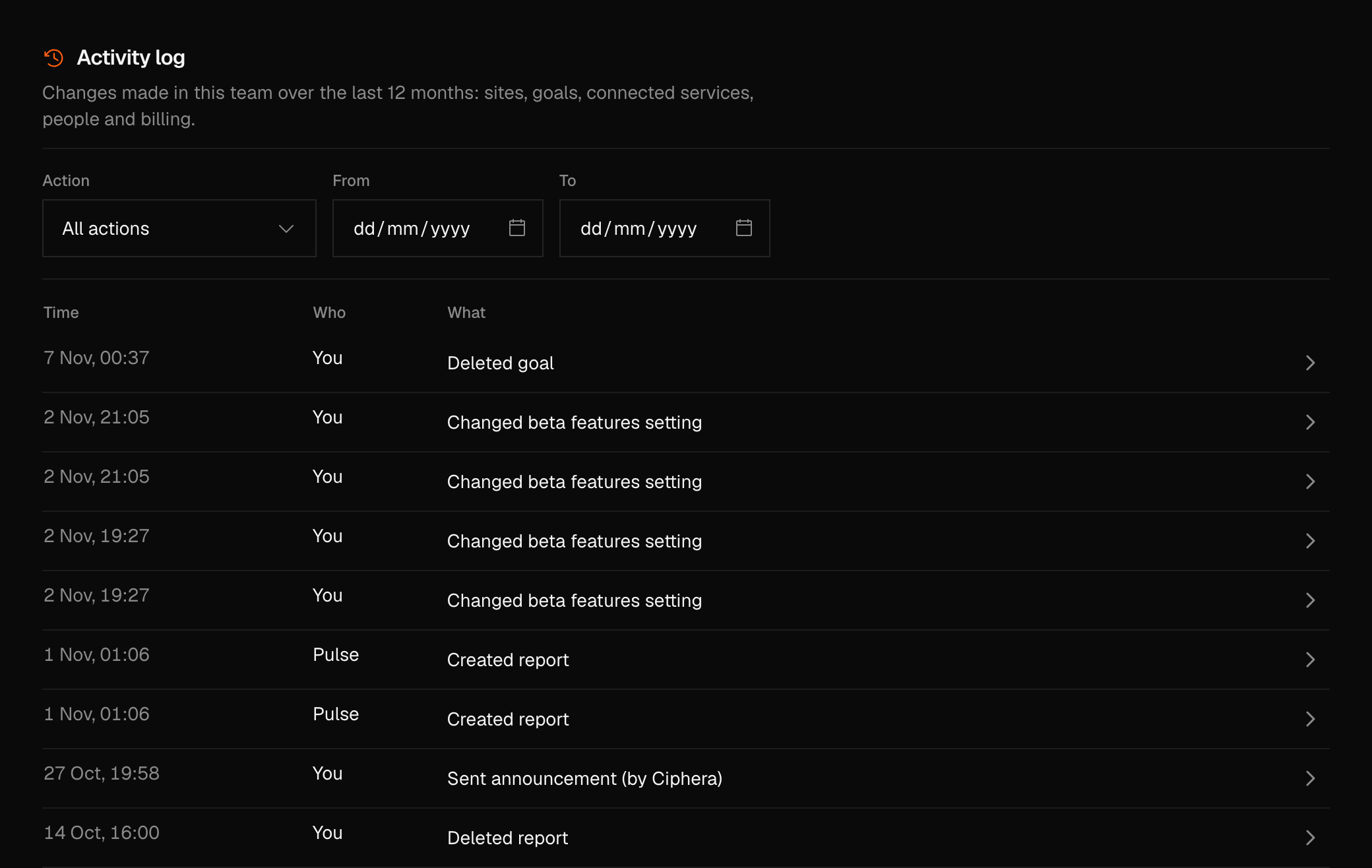
The log covers changes to sites and goals, connected services, exports and reports, people and invite links, assistants, the team itself, and billing. A change Ciphera makes for you, such as a plan grant, is labelled as made by Ciphera.
Transfer ownership
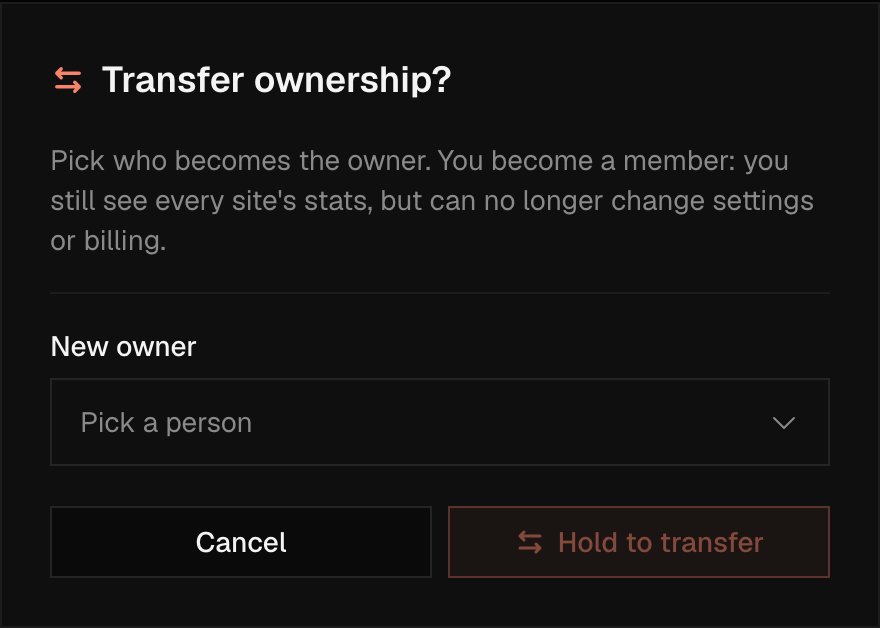
Transfer hands the owner role to another person in the team, and you become a member. You pick the person, hold Hold to transfer, and have 6 seconds to undo. Only the owner can do it, and a team always has exactly one owner, so the owner can't leave until someone else owns the team.
Delete the team
Delete removes the team, its sites and everything in them. The dialog says what goes: every site and all its stats, everyone's place in the team, the invite links, API keys and assistant connections. The plan stops now, with no refund. What stays is your account, and the invoices, kept without names because tax law requires it. Only the owner can delete a team. You hold the button and have 6 seconds to undo, and after that it can't be undone.
Billing
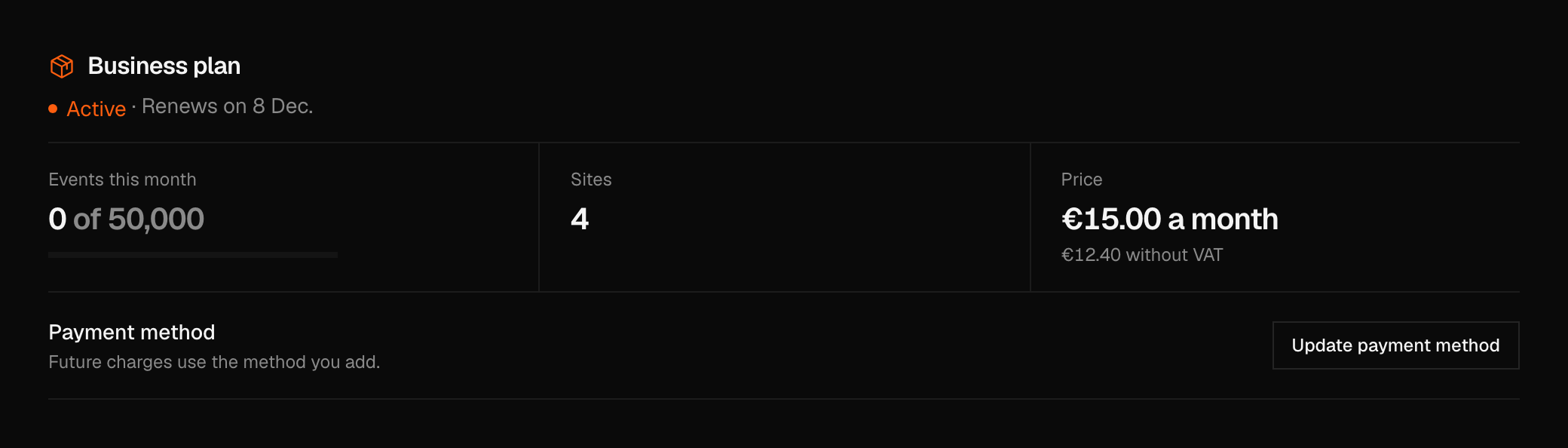
Your plan, its events, your billing details and your invoices. Everyone in the team can read the page, and only the owner changes anything.
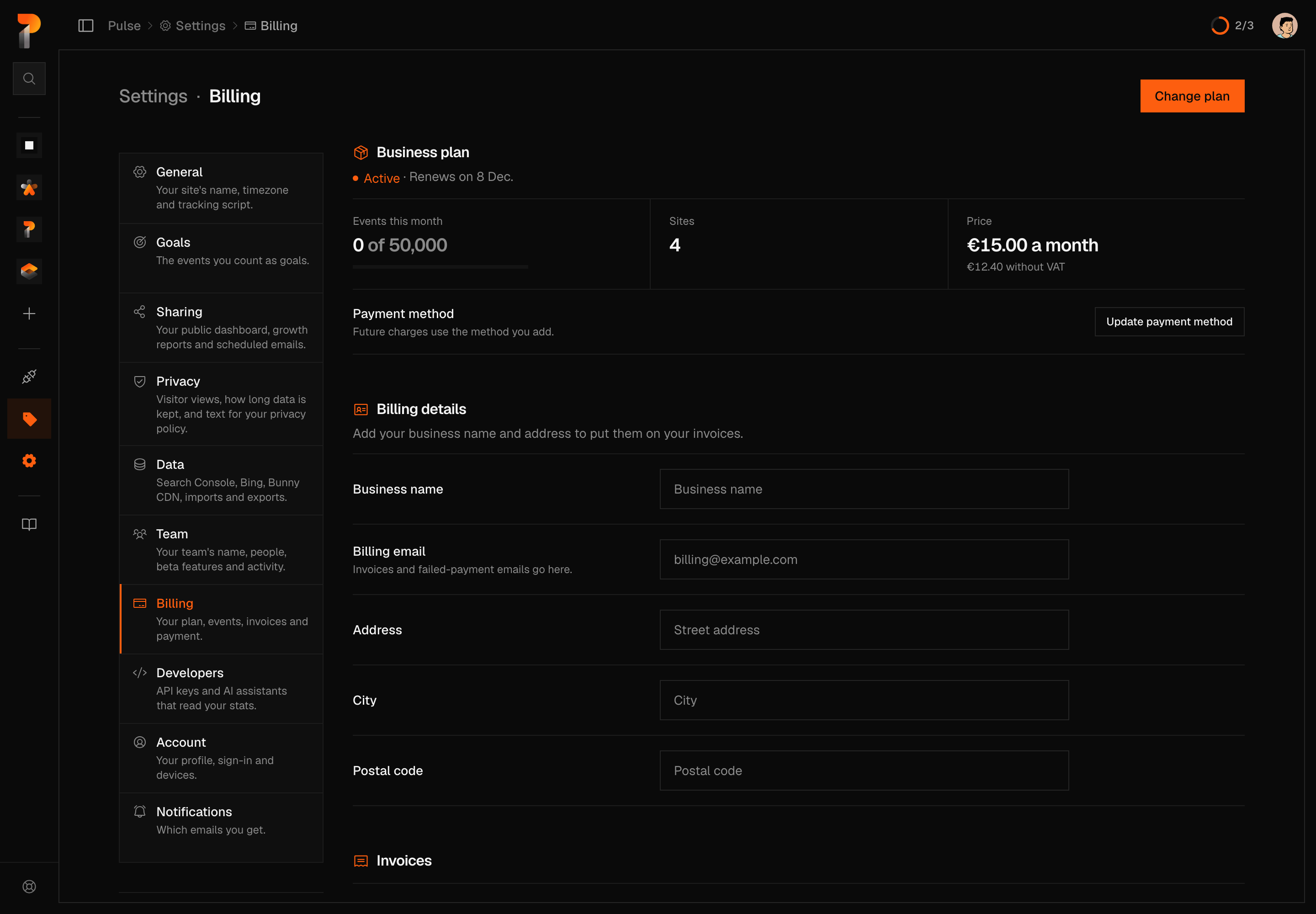
- The plan. Its name, a status with the fact behind it, and figures for events this month, sites and price. The owner sees Change plan (or Upgrade, or Subscribe again) and Update payment method. A plan that is cancelling shows Resume plan. Billing and plans covers plans, tiers and what happens at the limit.
- Billing details. Business name, billing email, address, city and postal code. The owner edits them. Everyone else reads them once a billing email is on file. Invoices and failed-payment emails go to the billing email.
- Invoices. Newest first, with the date, status, amount and VAT, and a download button on each.
- Danger zone. Cancel plan for the owner of a paid plan. The plan runs until the end of the billing period and nothing more is charged. You have 6 seconds to undo.
Developers
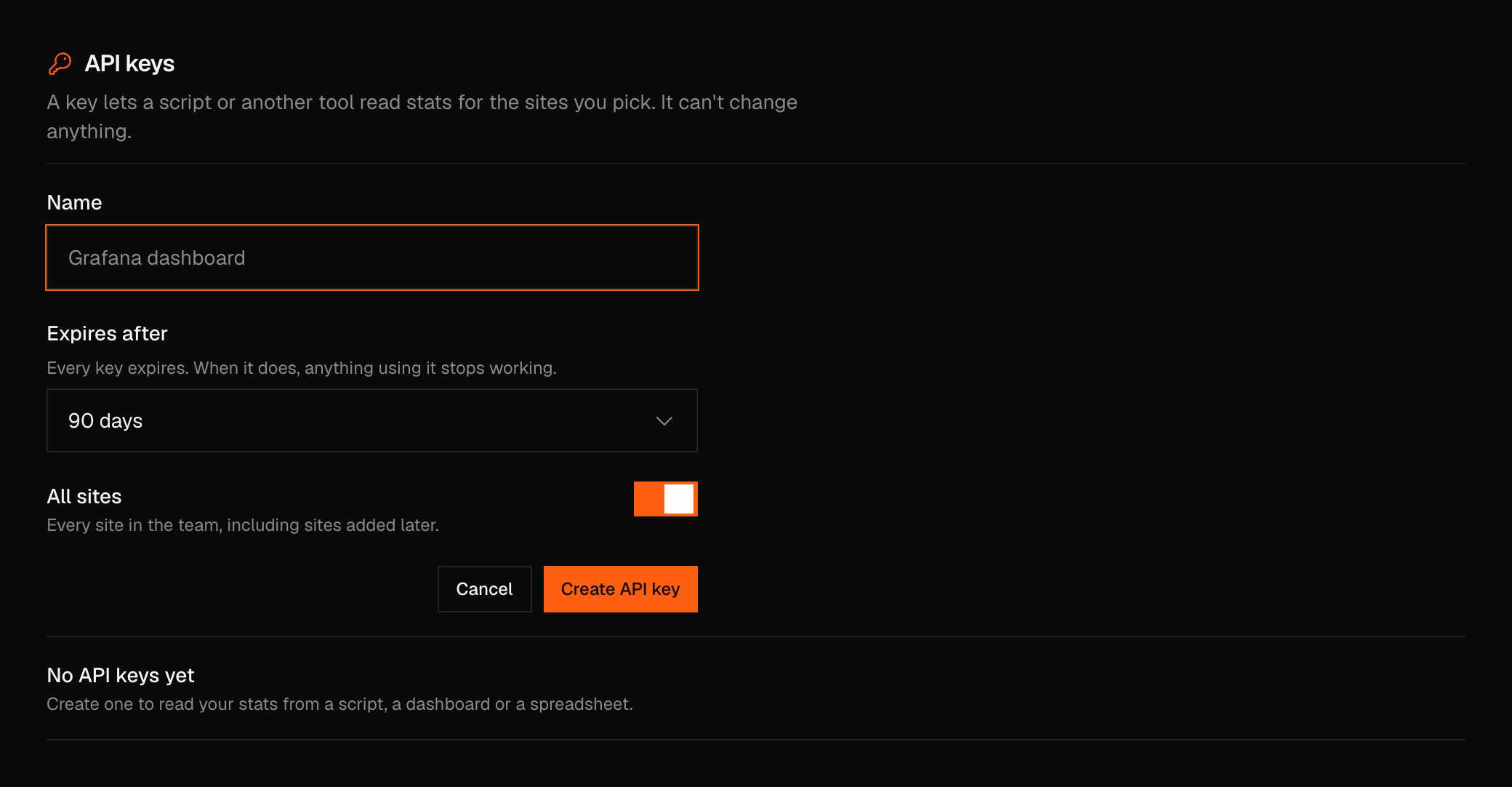
API keys and AI assistants that read your stats. Owners and admins can use the page, and members don't see it.
- API keys. A key lets a script or another tool read stats for the sites you pick. It can't change anything. New API key asks for a name, how long it lasts (30 days, 90 days or 1 year, and every key expires) and which sites: all of them, including ones added later, or the ones you tick. Pulse shows the key once, so copy it then. Pulse stores only a hash of it. Revoke stops a key at once, after a 6 second undo. See API.
- AI assistants. Pick your assistant, then follow its steps to connect the Pulse Analytics MCP server. An assistant can read stats for the sites you pick and can't change anything. See AI assistants.
- Connected assistants. The assistants connected now, who connected each one, which sites it can read, when it was last used and Disconnect. A connection ends after 30 days without activity.
Account
What is yours alone, the same in every team: your profile, how Pulse looks to you, how you sign in, and your devices.
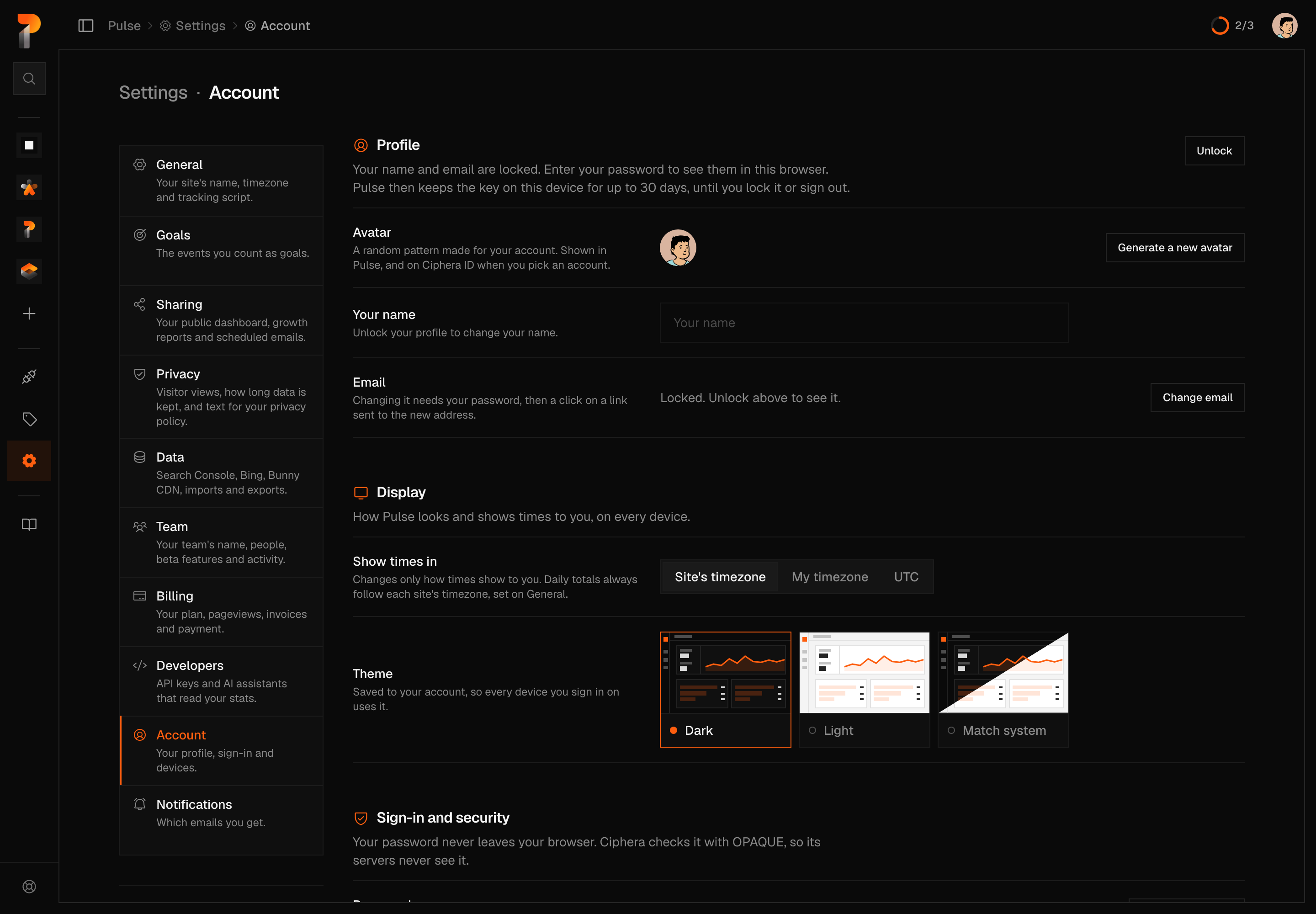
- Profile. Your avatar, name and email. They are kept encrypted, and Pulse asks for your password to show them in this browser. Your teammates see your name too.
- Display. Show times in your site's timezone, your own timezone or UTC, and the Theme: Dark, Light or Match system.
- Sign-in and security. Your password, two-factor authentication and your passkey.
- Recovery. Your recovery phrase and your two-factor recovery codes.
- Devices. Every browser signed in to your account, with Sign out on each and Sign out everywhere else.
- Security activity. Sign-ins and changes to how you sign in, from the last 180 days.
- Danger zone. Delete account deletes your Ciphera account, here and in every Ciphera app.
Account covers each of these.
Notifications
Which emails you get. Every switch is yours alone, not the team's, and a switch acts as soon as you flip it.
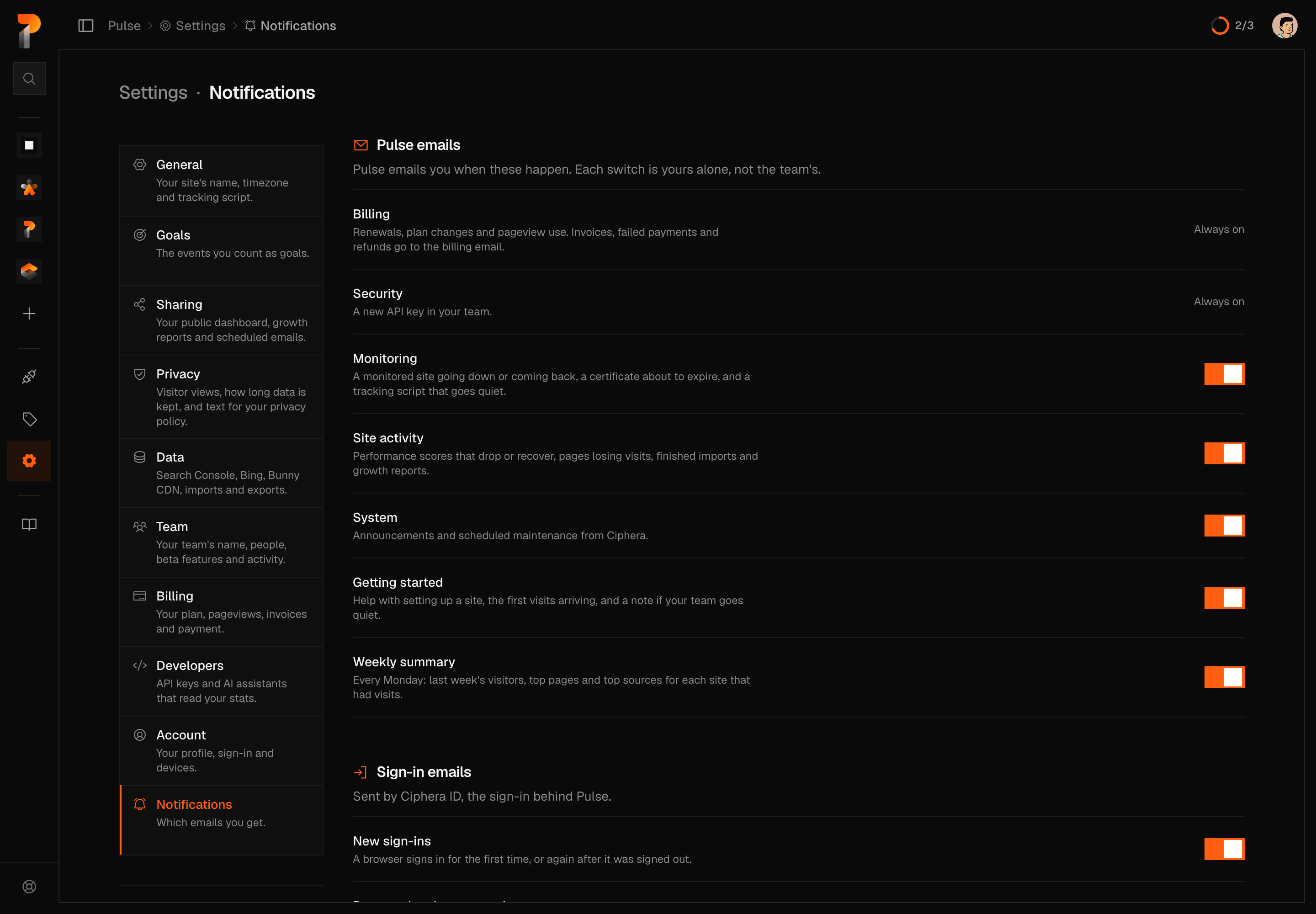
- Pulse emails. One row for each group of emails Pulse sends, such as Billing, Security, Monitoring and Site activity. A group that can't be switched off says Always on.
- Sign-in emails. Emails from Ciphera ID: new sign-ins, password and recovery phrase changes, and two-factor and passkey changes. Account locked is always sent.
- Reports and invoices. Where the team's two emails are set: scheduled emails in Sharing, and the billing email in Billing.
See Notifications for what each group sends.