Plans & Pricing
Pulse plan limits, pageview tiers, billing cycles, changing or cancelling your plan, invoices, payment methods, and the grant plans for open-source projects and startups.
Plans
| Personal | Business | |
|---|---|---|
| Sites | 1 | 5 |
| Pageviews | 5,000/mo | 10K–10M |
| Data retention | Up to 6 months | Up to 2 years |
The Personal plan is permanently free with no trial period or credit card required.
Open-source projects and early-stage startups don't have to pay for Business to get its limits — see Grant plans below.
Grant plans: Open Source and Startups
Two grants run alongside Personal and Business, each reached from its own page on pulse.ciphera.net rather than from inside the product: /open-source and /startups. Both put your account — or your whole team, if you have one — on Business-level limits (5 sites, roughly 100,000 pageviews a month, two years of retention, every feature unlocked) for nothing.

| Open Source | Startups | |
|---|---|---|
| For | OSI-licensed projects and registered nonprofits | Companies founded in the last two years, ten people or fewer, not past a seed round |
| Duration | Permanent | One year, then reviewed again |
Neither page requires a Pulse account to apply. Fill in the project or organisation name, a repository or website link, a contact email, and a short description, clear the captcha, and submit — a human reads every application, and a reply reaches the address you gave within a few days either way. Both pages also invite you to apply if you don't fit neatly into either box.
You can sign up for the free Personal plan before or after applying; approval upgrades your account or team in place rather than starting a new one. Once granted, the plan name, an Active status chip, and the usage tiles keep showing exactly as they would for a paying account — only the payment-action buttons disappear. In their place, one sentence runs underneath: working alone, "Your account runs on a granted Open Source plan. Nothing is billed."; in a team, "This team runs on a granted Open Source plan. Nothing is billed." Startups grants carry the same sentence with an "until <date>" clause added before the full stop, since that grant is reviewed after a year rather than left open-ended.
Pageview tiers (paid plans)
Paid plans let you choose your pageview allowance. Available tiers per month:
10K · 50K · 100K · 250K · 500K · 1M · 2.5M · 5M · 10M
You can change tier, or switch between Monthly and Yearly, at any time from Settings → Account → Billing if you work alone, or Settings → Team → Billing once you're part of a team — see Changing your plan below for how an upgrade and a downgrade actually apply.
Billing cycles
Monthly billing charges once per calendar month.
Yearly billing gives you one month free — you pay for 11 months and get 12. The discount is applied at checkout and reflected on every invoice.
Changing your plan
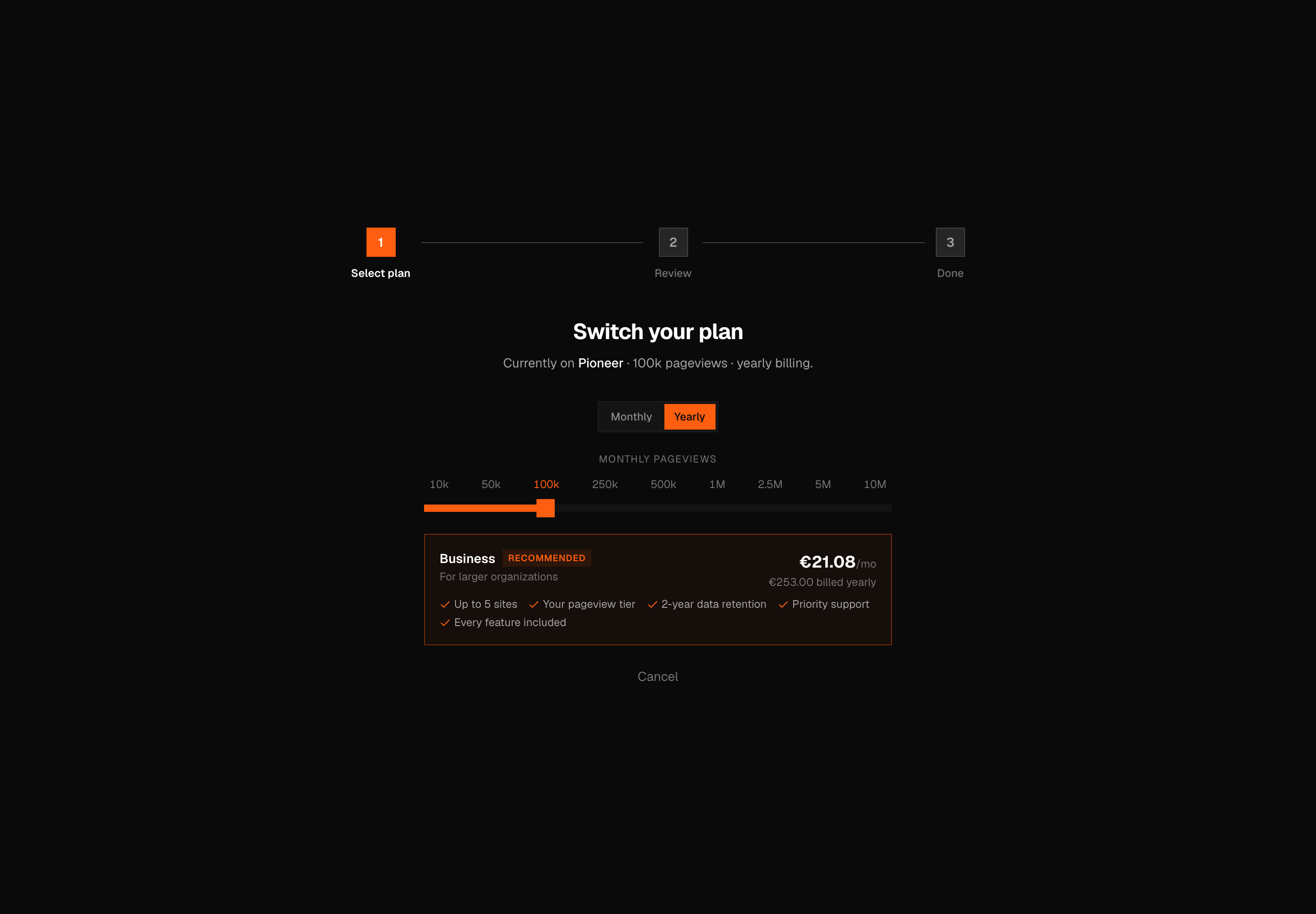
Only one paid plan is sold — Business — so changing plan almost always means moving between pageview tiers, switching Monthly and Yearly, or both together. The masthead button on the billing page reads Change Plan normally, Upgrade while you're still on the free Personal plan, or Resubscribe once a subscription has fully lapsed; all three open /switch, a three-step wizard: Select plan, Review, Done.
Step 1 is a Monthly/Yearly switcher and a traffic-tier slider above the Business plan card. What Step 2 shows depends on whether you already have a payment method on file. If you do, you land on a Review screen with a cost breakdown, and the change applies right there with no redirect. If you don't (your first-ever paid signup, or a card that lapsed after being granted or cancelled), Pulse collects your billing details first, hands you off to Mollie, and brings you back to /switch once that's settled.
Upgrading
A no-cost upgrade, such as switching to Yearly at an equal or lower price, applies immediately with nothing to pay. Otherwise Pulse prorates a credit for the days left in your current period, based on what you actually paid rather than list price, and charges only the difference to the card on file. The Review screen, headed Payment summary, lays out New plan starts: Now, Credit (N unused day(s) of X), Charged today (incl. VAT), and your Next renewal date; confirm with Pay €X.XX & switch and you never leave the page.
If the charge needs an extra confirmation step, the page holds back your new entitlement and shows a pending state rather than claiming the plan is live — it only updates once Pulse hears that the payment cleared.
Downgrading
A downgrade never applies immediately. It's scheduled for the 1st of next month (the New plan starts line on the Change summary screen), and your current, higher tier keeps working fully until then. On Yearly billing, the unused days left in the current year come back as a cash refund to your original payment method, shown as Refund (N unused day(s) of X). On Monthly billing there's no refund line at all: you keep the current tier until the cycle ends, then drop to the new one.
Warning
A monthly downgrade forfeits any unused days in the current cycle — there's no refund, and no way to keep the higher tier a little longer once you confirm. Check the New plan starts date before you click through.
Only one plan change can be pending at once; a second attempt while one is still processing is rejected until the first finishes. A subscription flagged to cancel has to be resumed before it can be changed, and a subscription still on a retired plan (Solo or Team — no longer sold) can't self-serve a change at all; the wizard tells you "your current plan has no self-service price; contact support to change it."
Subscription status
The top of the billing page is a status band: your plan name, a status chip, and a row of usage tiles that only render when there's data behind them.
| Chip | Meaning |
|---|---|
| Active | Running normally |
| Cancelling | Scheduled to end — see Cancelling your subscription |
| Cancelled | Already dropped to the free Personal plan |
| Past due | A charge failed |
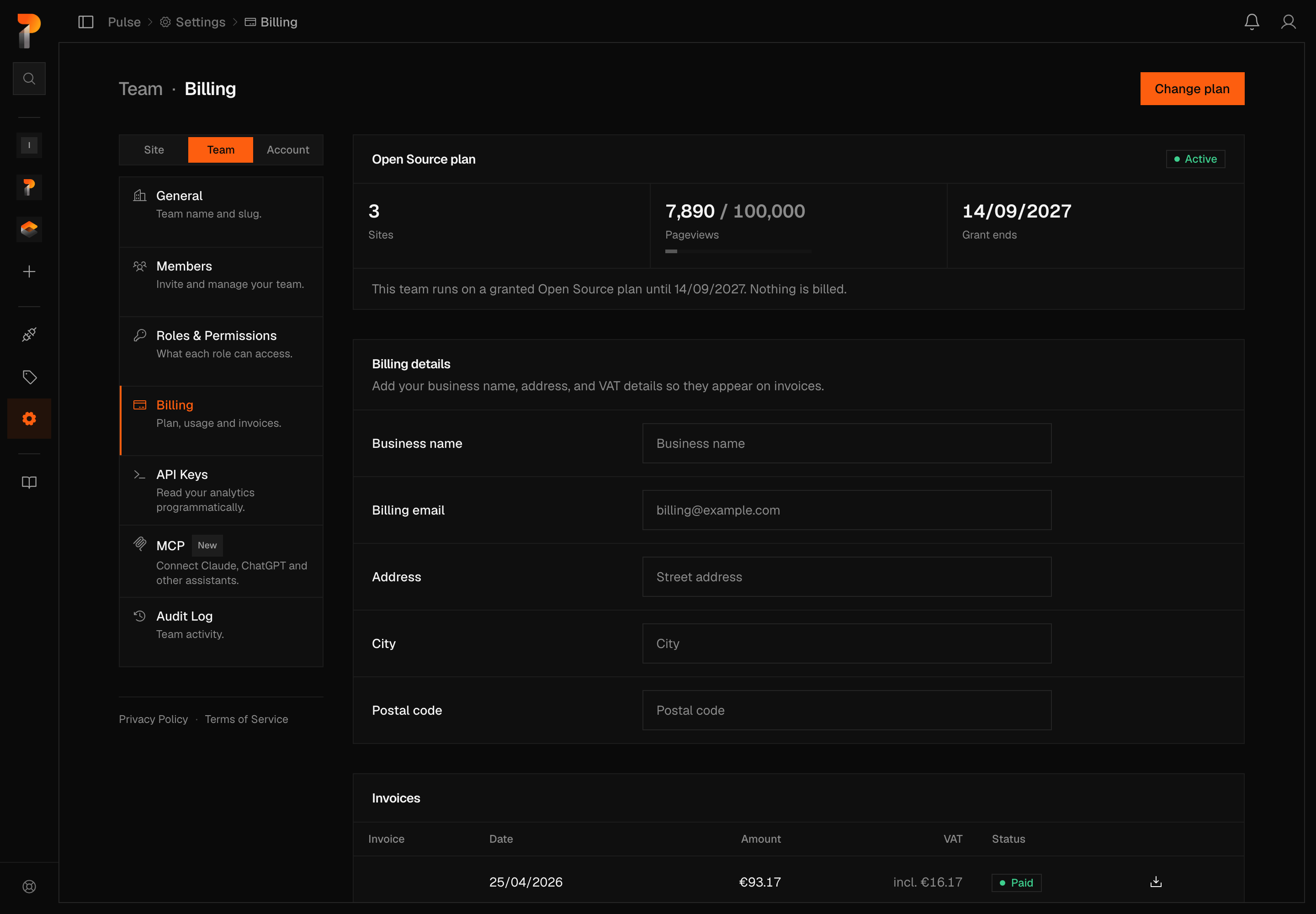
The tiles below it show Sites (how many you're using), Pageviews (used against your limit, with a bar that turns red past 90%), a date tile labelled Renews or Ends depending on your status, a Grant ends tile if your plan is time-limited, and a Price tile for your current total, excluding VAT.
Banners appear underneath as needed: a payment warning with an Update payment method action once a charge has failed; a usage warning once you pass your plan's pageview limit, offering Upgrade your plan; a hard-stop notice at the 2× ceiling described below; and a pending-change notice — Plan change to {Plan} pending — applies {date} — while an upgrade waits on payment confirmation.
Warning
A failed payment left unresolved for 14 days cancels the subscription automatically, with the same outcome as clicking Cancel yourself: you drop to the free Personal plan once the grace period runs out.
A grant still shows this band in full — plan name, an Active chip, and the same usage tiles as a paying plan — since a grant is recorded as an active subscription. Only the payment-action buttons are missing; see Grant plans above for the sentence that runs in their place.
Only the team's Owner can act on any of this — working alone you're the only member, so this never applies to you. Anyone else sees the same page read-only, with the note "Only the team owner can modify billing."
Pageview limits & overage
Pulse emails you as you approach your monthly pageview allowance:
- At 80% of your monthly allowance
- At 90%
- At 100%
Crossing the limit does not stop collection. Pageviews keep being recorded past 100%, up to a hard ceiling of twice your monthly allowance — headroom for a traffic spike, not a bigger quota.
At the 2× ceiling, collection pauses. Visitors still see your site normally, but no new pageview events are recorded until you upgrade your tier or the next billing cycle begins. The billing page in Pulse (Settings → Account → Billing if you work alone, Settings → Team → Billing in a team) shows which of these states you're in — worded as "You're over your plan's pageview limit (X of Y)" while collection continues, and "Collection has stopped: you've reached the N pageview ceiling" once it's paused.
Warning
Events past the 2× ceiling are not queued or backfilled — traffic during a paused period cannot be recovered. If your traffic regularly runs past your allowance, upgrade the tier rather than relying on the overage headroom.
Cancelling your subscription
Cancel subscription appears on the billing page for anyone with billing permission, as long as the subscription is active and not already scheduled to end. It opens a modal titled Cancel subscription, naming your plan and the date it stays active until, and promising you won't be charged again — followed by a second line, verbatim: working alone, "After that, your account moves to the free Personal plan (5,000 pageviews/month, 1 site). Your data stays in place."; in a team, "After that, your team moves to the free Personal plan (5,000 pageviews/month, 1 site). Your data stays in place."
Keep plan backs out with nothing changed. Yes, cancel (it reads Cancelling... while it processes) stops the live Mollie subscription immediately, so no further charge goes out — but changes nothing else yet. Your current plan's sites, pageview allowance, and retention all keep working exactly as before until the period actually ends; only then do you drop to the free Personal plan on your own. Nothing is deleted: your sites, history, and settings are all still there afterward, just under the free tier's lower limits.
The status chip switches to Cancelling the moment you confirm, and the usage panel's date tile relabels from Renews to Ends, showing the same date the modal named.
Note
The product only ever offers cancel-at-period-end. There's no control anywhere that ends access immediately — cancelling always means keeping what you have until the date already on your invoice.
Resuming a cancelled subscription
While a subscription is still marked to cancel but the period hasn't ended yet, Resume subscription sits next to Update payment method. Clicking it re-creates the Mollie subscription to start on the date the next charge was already scheduled for, clears the cancellation flag, and the plan carries on without a gap — no payment details to re-enter, no new charge at that moment. A toast confirms it: Subscription resumed.
Once the period has actually lapsed (already sitting on the free plan), Resume isn't offered at all. The masthead button instead reads Resubscribe and sends you through the full /switch plan-selection and payment flow, the same as a brand-new paid signup; a toast explains why: "Your subscription has expired. Please subscribe again."
Aggregated statistics
Aggregated daily totals — the numbers behind your KPI cards and charts — are kept permanently regardless of your data retention setting. Retention only affects the underlying event records used for detailed breakdowns (pages, referrers, goals, etc.).
Billing details
A Billing details panel shows your business name, email, and address once any billing email is on file. Its pencil icon opens an inline form for Business name, Billing email, Address, City, and Postal code — Save commits it (the button reads Saving... while it processes) and a toast confirms Billing details updated; Cancel discards the edit.
Country and VAT number aren't part of that form. Pulse collects both once, at your first payment — checked live against VIES to decide whether VAT is charged, reverse-charged for an EU business, or waived for a non-EU one. The edit panel has no field for either afterward: if a VAT ID is already on file it says so outright, "To change your country or VAT ID, please contact support," and there's no route to setting one here even before it exists.
Before you've paid anything, the panel shows an empty state instead: "No billing details on file yet." / "Add your business name, address, and VAT details so they appear on invoices." with an Add billing details button.
Payment methods
Pulse processes payments through Mollie, a European payment processor. Update payment method opens a modal titled Choose payment method with five options — Cards, Bancontact, SEPA, iDEAL, Apple Pay — navigable with arrow keys. Continue redirects to a zero-amount Mollie verification checkout; on return, a toast confirms Payment method updated or notes Payment method update canceled, and the new method replaces the old one for every future charge.
There's no self-hosted billing portal inside Pulse. Everything payment-related runs through this modal and the plan-change wizard above.
Invoices and credit notes
An Invoices panel lists every billing document as a table: Invoice (number), Date, Amount, VAT, Status, and a Download PDF icon with no column header of its own. Ordinary invoices show status as Paid, Refunded, or Failed. A downgrade on Yearly billing also produces a credit note — issued automatically for the proration refund — which renders its amounts with a leading minus sign and a Credit Note chip in place of the usual status.

Clicking the download icon fetches a PDF, generated and cached the first time and served from that cached copy afterward; a document that isn't ready yet shows a toast — "PDF not available yet" — rather than failing silently. With no payment history, you see an empty state instead: "No invoices yet." / "Your first invoice appears here after your first payment."
Note
All prices are in euros and include VAT where applicable.